
A bundle won't save: common messages and what to do
When a bundle can’t be saved, a red banner at the top of the page reads This bundle couldn’t save and lists what to fix. The field with the problem is marked too.
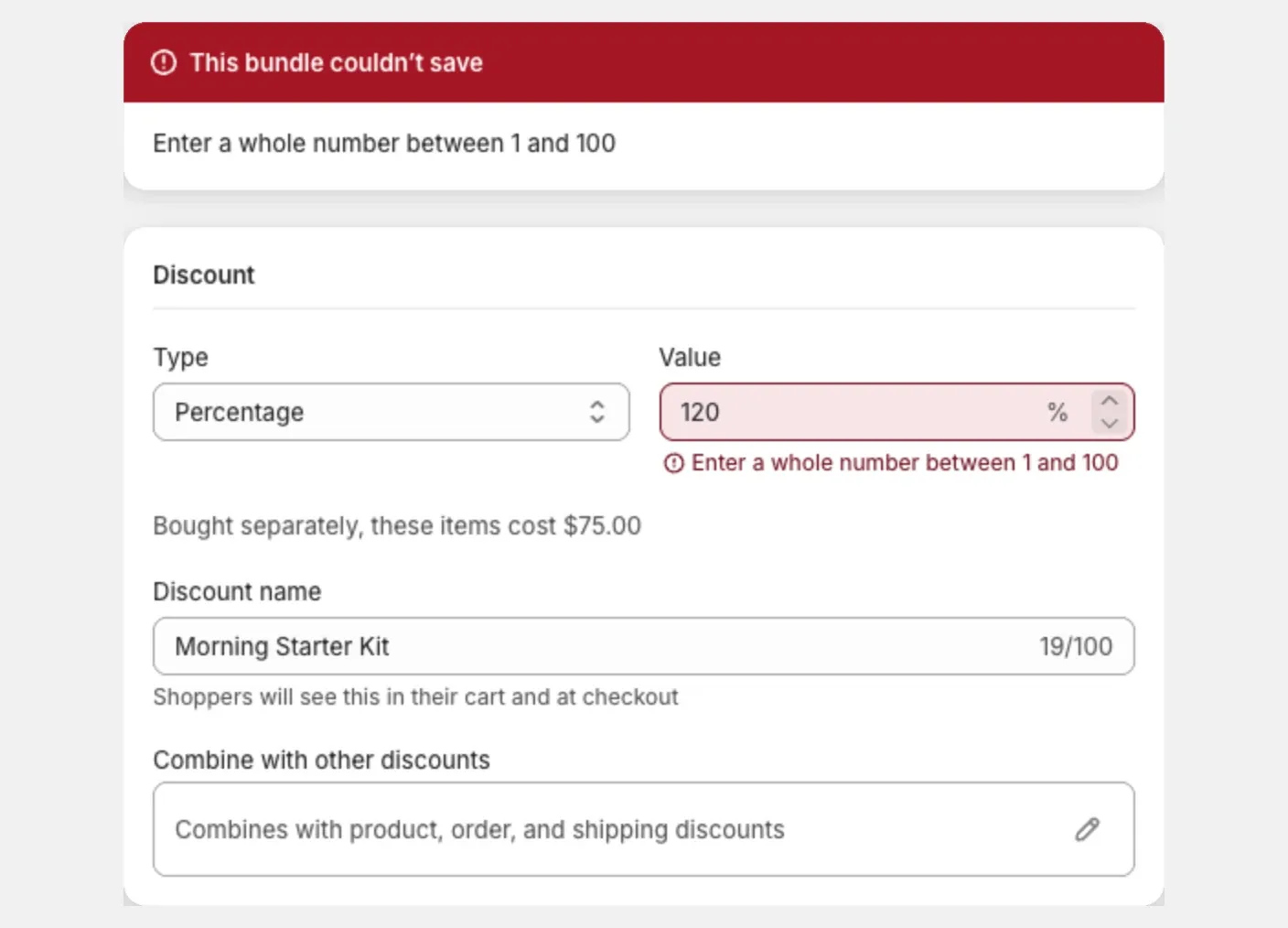
Find your message below.
Messages about stock
“Only 2 in stock for this product. Lower the quantity or restock first.” The quantity, minimum or maximum is higher than your stock. Lower the number, or restock in Shopify.
“This product is out of stock. Restock it first, or choose another product.” Restock the product, or swap it for another.
“This required product is out of stock. Restock it, or make it optional first.” Open the product’s Quantity rules and untick Required product, or restock.
See How stock affects your bundles.
Messages about size
“This bundle is too big for Shopify to apply the discount at checkout.” Shopify limits how much a discount can hold. Remove some products, collections or markets. The message tells you about how many.
Tip: on a multi-step bundle, use a collection as a step’s source instead of selecting many products one by one.
“Shopify can check at most 100 collections per discount.” Remove collections until the bundle uses 100 or fewer.
“This collection resolves to more products than a bundle discount can hold.” Choose a smaller collection, or select the products yourself.
Messages about the bundle’s setup
“A fixed bundle needs at least 2 items.” Add another product, or raise a quantity. You can also save the bundle as a Draft and finish it later.
“A multi-step bundle needs at least 2 steps.” Add a step. For a single list, use a mix and match bundle.
“Require different products is on, so each product can only be added once.” Lower the product’s minimum to 1, or turn the setting off.
“Required products need … units combined, which exceeds the bundle size.” Raise the bundle size, or make fewer products required.
“A bundle with this title already exists.” Choose another title.
“End date must be after start date” Fix the dates in the Schedule card.
Messages about a bundle product
”… is a gift card, so it can’t go in a bundle.” and ”… is already a bundle, and bundles can’t contain other bundles.” Remove that product.
“Shopify allows at most 3 pickers on a bundle.” Fix some options to one value, or merge pickers by giving them the same name.
“These pickers would create about … variant combinations.” Untick some values to bring the versions to 100 or fewer.
“Your store isn’t eligible for Shopify bundles” Contact Shopify support to enable bundles for your store, then try again.
See Let shoppers choose options and pack sizes on a bundle product.
Messages about saving itself
“Someone else edited this bundle. Reload to see the latest version.” The bundle changed after you opened it, in another tab or by another staff member. Reload the page and make your change again.
“This page is out of date. Reload it, then save again.” Reload the page.
“The bundle couldn’t be activated, so nothing was saved.” Try again. If it keeps happening, save the bundle as a Draft first, then set it to Active.
“Some changes saved, but the discount didn’t update.” Select Save again to finish.
“Your store passed its plan’s monthly bundle sales limit, so bundles can’t be set to active right now.” Upgrade your plan, or save the bundle as a Draft. See What happens when you pass your plan’s sales limit.
Right after an app update
If saving fails just after we release an update, wait a few minutes and try again.
Still can’t save?
Email us the exact message and the bundle’s name.