
How to add a header image to a bundle
Add an image to the top of your bundle to make it stand out. You can show it above the text, behind it, or beside it.
Step 1: Choose the image
- Open the bundle in Lime Bundles.
- In the App block appearance card, select Customize.
- In the list of Sections, select Header.
- Select Select image.
- Choose an image from your files, or select Add files to upload a new one.
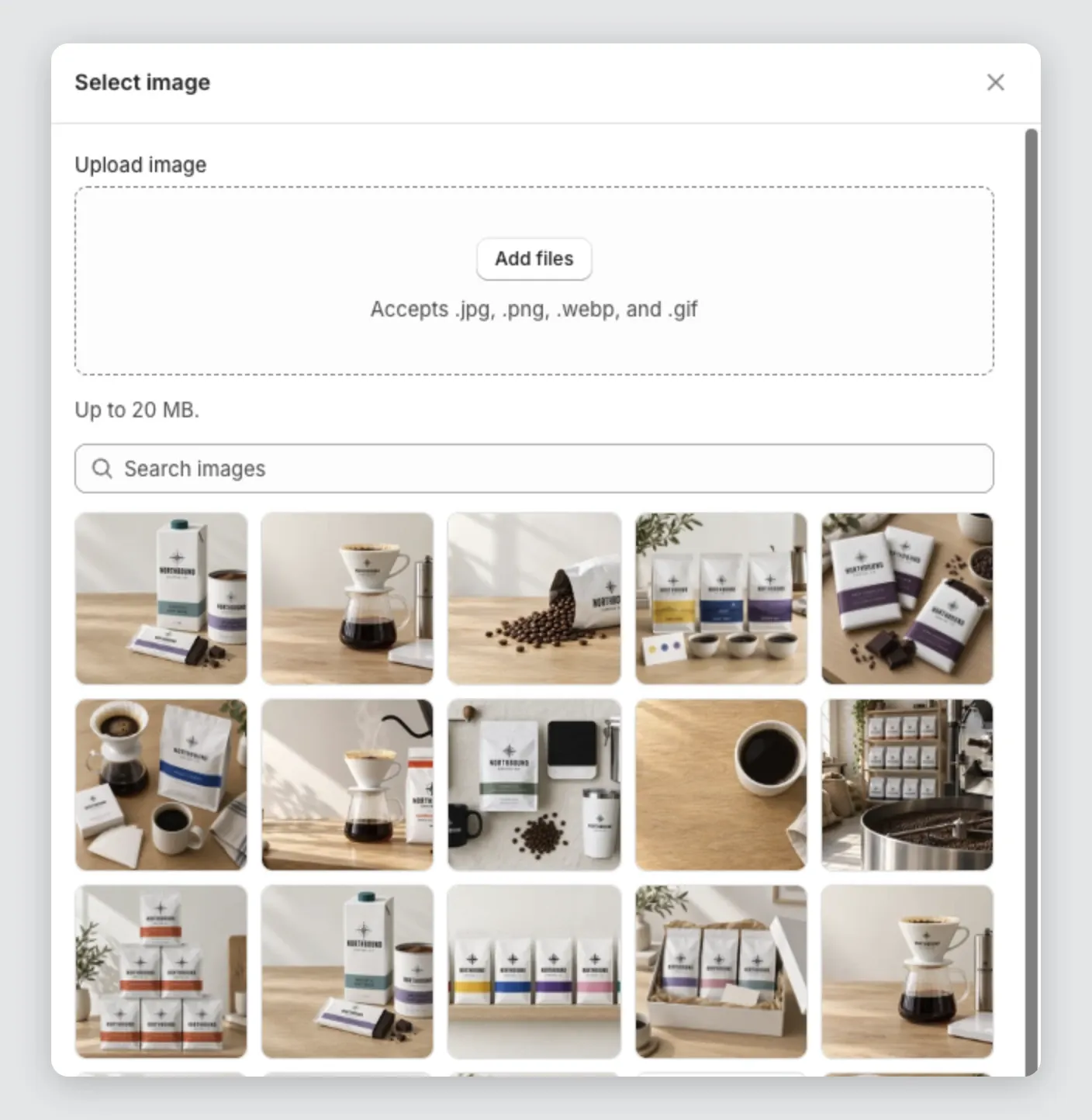
You can upload a JPG, PNG, WebP or GIF, up to 20 MB. An uploaded image is also saved to Content, then Files in your Shopify admin.
Step 2: Choose a style
Under Layout, choose a Style:
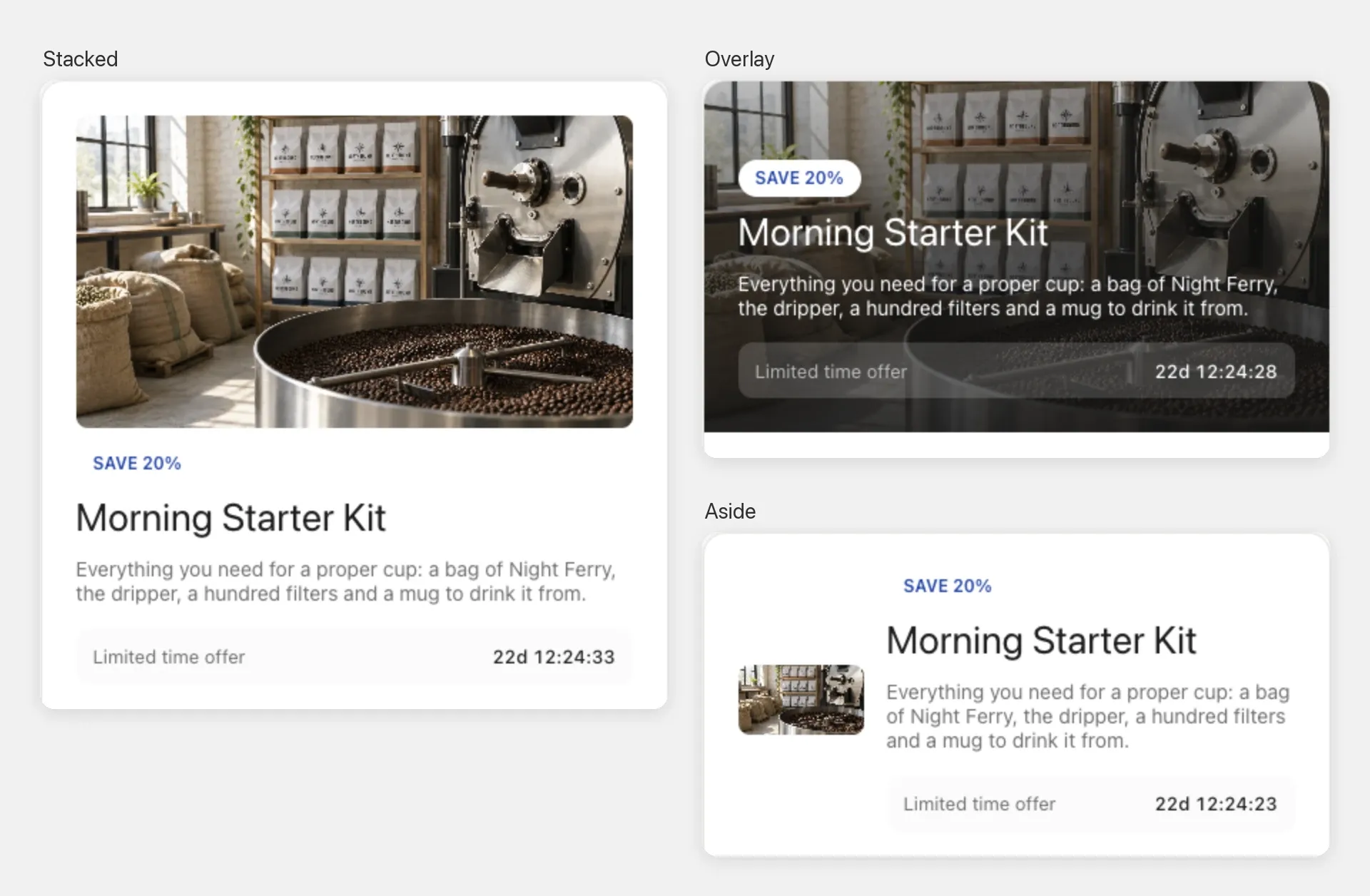
- Stacked: the image sits above the text.
- Overlay: the image sits behind the text. The text turns white, over a shade that keeps it readable.
- Aside: the image sits beside the text.
Step 3: Choose a shape
Choose an Aspect ratio: Portrait, Square or Landscape. With the Aside style you can also choose Circle.
With Aside, choose the Image size: Small, Medium or Large.
Step 4: Set up the overlay (Overlay style only)
- Choose the Image width: Full width runs the image to the edges of the bundle. Contained keeps it inside the bundle’s padding.
- Choose the Overlay style: Gradient or Solid.
- Under Colors, choose the Overlay color. Lower its opacity to make the shade lighter.
- Choose the Text position: Top, Middle or Bottom.
Step 5: Align the text
Choose the Text alignment: left, center or right. Blocks inside the header, like the countdown timer, follow it.
Step 6: Add alt text
- In the Alt text field, describe the image.
- Select outside the field.
The alt text is saved to the image in your files. It helps screen readers and search engines.
Step 7: Save
When you change something, Unsaved changes shows at the top of the editor with Discard and Save. Select Save. The editor stays open, so you can keep working.
Change or remove the image
- In Customize, select Header.
- Select Change image to choose another, or Remove to take it away.
Without an image, the header shows its text only.
Good to know
- Choose what stays in view. When an image is cropped, the focal point you set on the image in Files decides what stays visible.
- You deleted the image from Files? The editor tells you, and your store shows the header without an image. Select another image or remove it.
- Round the corners. Under Borders, set the Corner radius in pixels.