
How to show a bundle only in certain markets
If you sell in more than one market, you can choose which markets see a bundle. Shoppers in other markets won’t see it, and won’t get its discount.
This applies to fixed, mix and match, volume, Buy X get Y and multi-step bundles.
Choose the markets
- Open the bundle in Lime Bundles.
- On the right, find the Where it shows card.
- Under In these markets, choose Specific markets.
- Select Select markets.
- Tick the markets you want.
- Select Save.
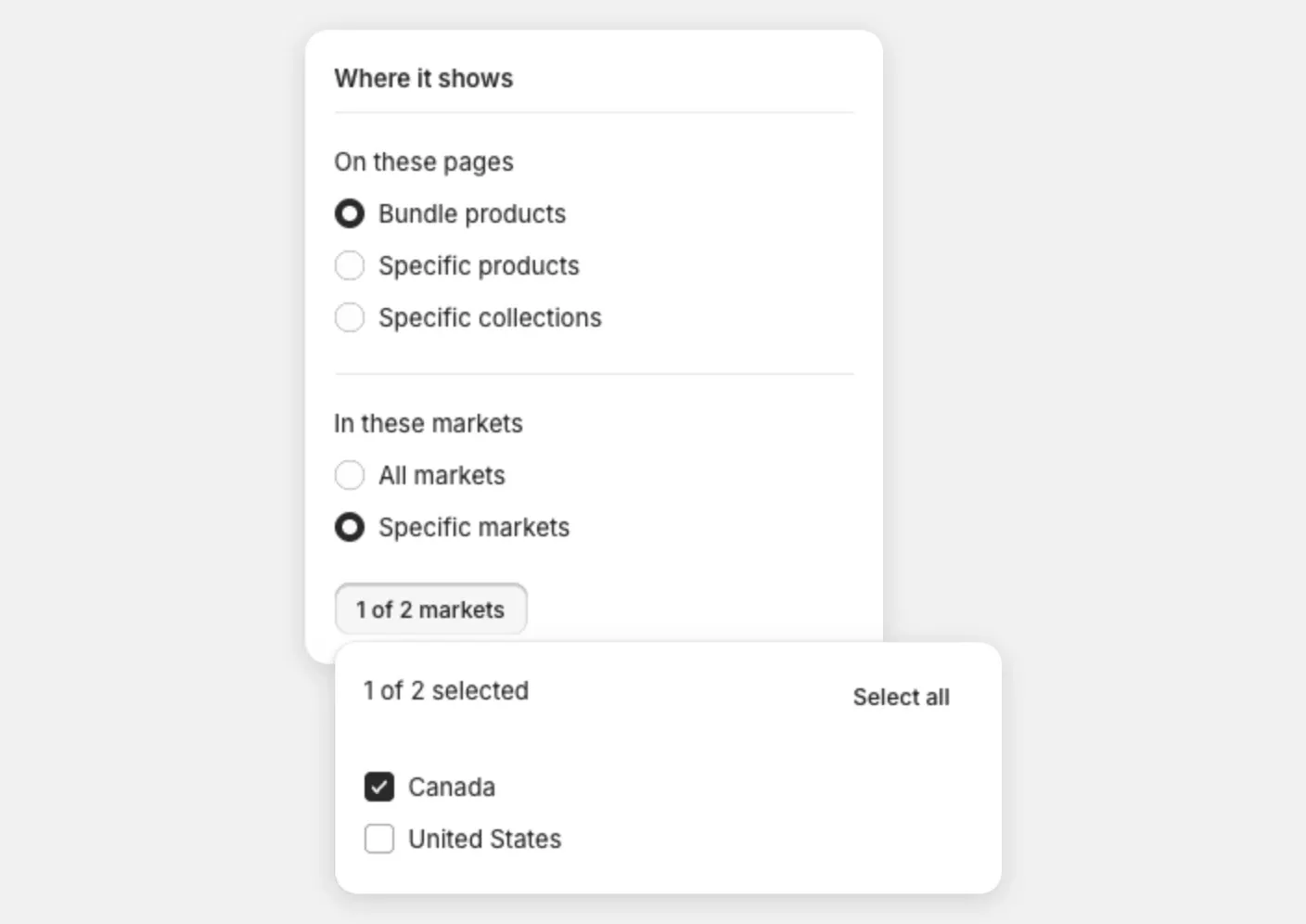
To show the bundle everywhere again, choose All markets and select Save.
What happens for shoppers
- In a market you ticked, the bundle shows and the discount applies.
- In any other market, the bundle is hidden.
- The discount is also refused at checkout for shoppers outside your markets, even if they have the same items in their cart.
B2B markets
Your B2B markets show in the same list. Tick one to show the bundle to the companies in that market.
Check it from another country
To see what shoppers in a market see, add the country to your storefront’s address.
- Open the product page on your storefront.
- Add
?country=and the country code to the end of the address, like?country=CAfor Canada. - Press Enter.

Good to know
- The list comes from Settings, then Markets in your Shopify admin. If your store has no markets, select Open Markets settings to set them up.
- If you delete a market in Shopify, the bundle tells you a selected market is no longer on your shop. Select Save to tidy it up.
- You need at least one market ticked when Specific markets is chosen.
- A bundle product has no market setting in Lime Bundles. Use Shopify’s Markets for that product.