
How to preview a bundle on your storefront
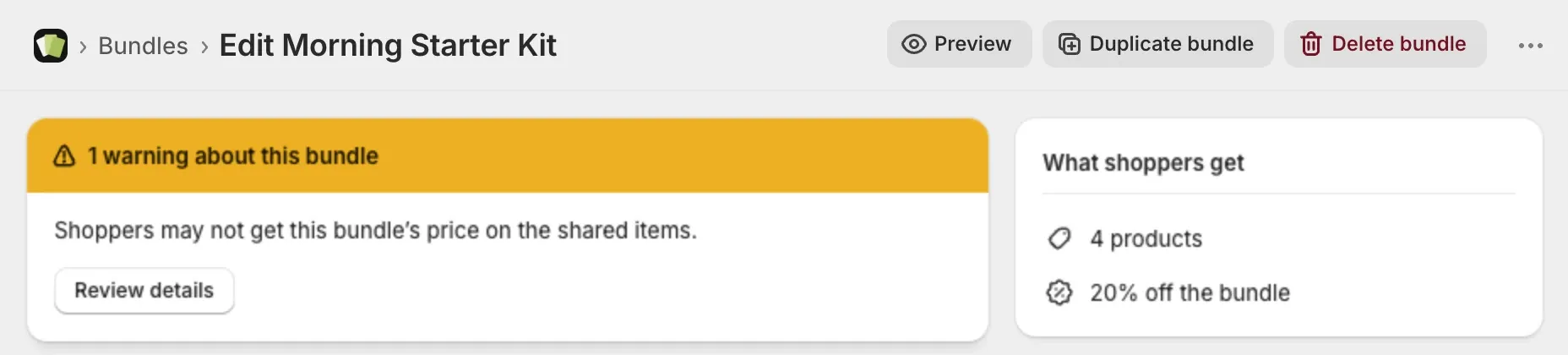
Preview opens the page on your store where the bundle shows, so you can see exactly what shoppers see.
Preview from the bundle page
- Open the bundle in Lime Bundles.
- At the top of the page, select Preview.
Your storefront opens in a new tab, on a page where the bundle shows.
Preview from the bundles list
- Go to Bundles.
- Open the menu at the end of the bundle’s row.
- Select Preview.
Preview from the editor
- Open the bundle and select Customize.
- Select Preview at the end of the top bar.
If you have unsaved changes, the editor reminds you to save first. Your store only shows saved changes.
Which page opens
Preview follows the bundle’s Where it shows setting:
- Bundle products: the first product in the bundle. For a bundle that uses collections, the first product of the first collection.
- Specific products: the first product you selected.
- Specific collections: the first product of the first collection you selected.
For a bundle product, Preview opens the bundle’s own product page.
Why Preview is greyed out
Preview needs a bundle that is showing on your store. It is greyed out when there is nothing to see there.
The bundle is a draft.
- In the Status card, set Bundle status to Active.
- Select Save.
- Select Preview.
The bundle is active but not showing. This happens when it is scheduled to start later, has passed its end date, is out of stock, can’t be sold, is paused, or is not in sync. The Status card says which one. Fix that first, then save.
For a bundle that has passed its end date, change or clear the end date in the Schedule card and select Save. Preview works again once the change is saved.
A bundle you haven’t saved yet, or one with no products, has no Preview.
The bundles list follows the same rule, so Preview is greyed out in both places for the same bundle.
Preview without going live
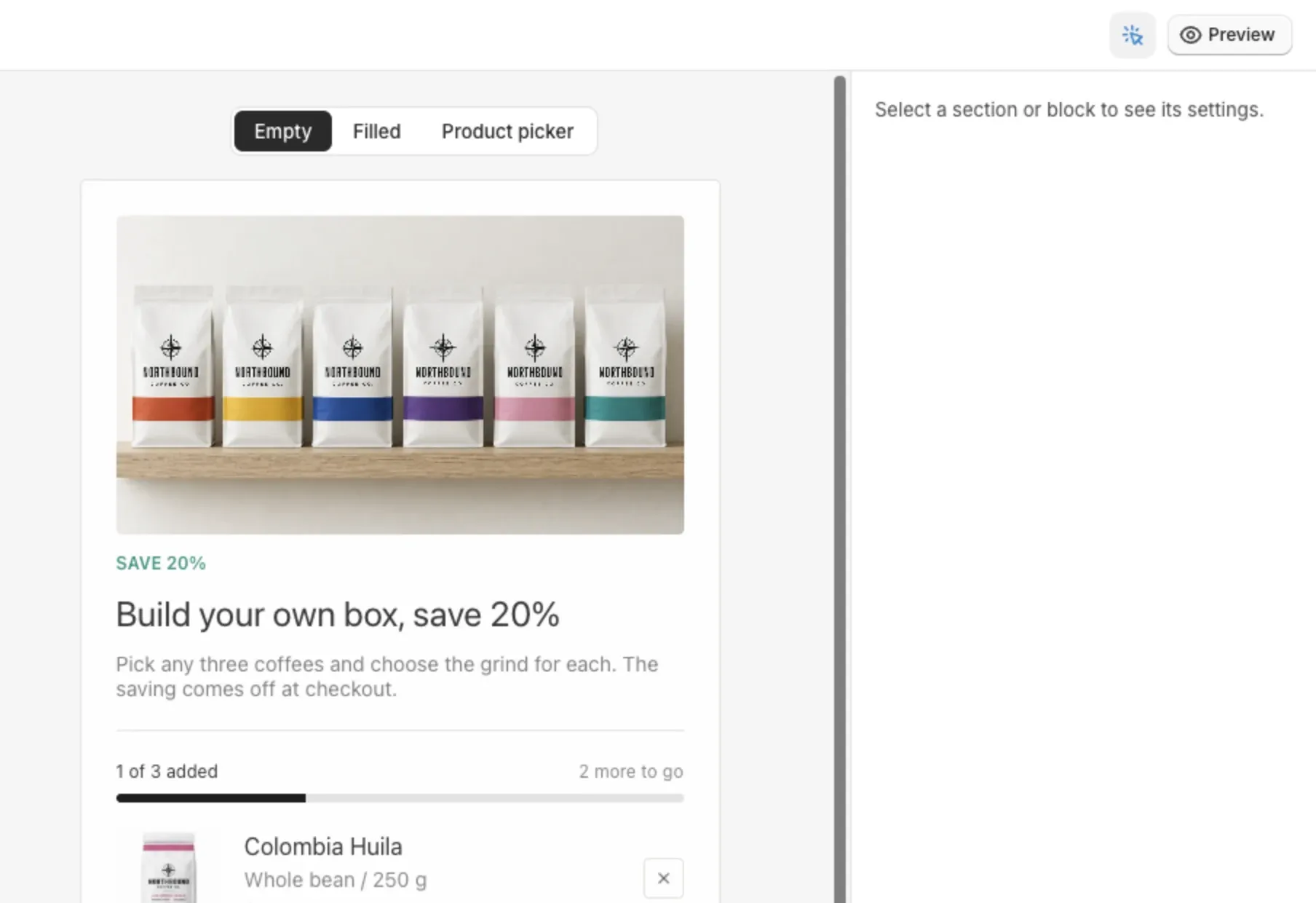
To check a bundle before shoppers see it, use the preview inside the editor.
- Open the bundle and select Customize.
- Look at the preview in the middle of the editor.
- Use the Preview state tabs to see the bundle Empty, Filled, or with the Product picker open.
Good to know
- Preview works while your store is password protected.
- The bundle only shows if the Lime Bundles app block is in your theme. See Add the app block to your theme.
- On a development store, products can show as sold out when you browse from outside the store’s markets. Add
?country=USto the address.