
How to create a bundle product
A bundle product is a real product in your store. It has its own page and price, and shoppers add it to the cart as one item. Shopify tracks its stock from the products inside it.
Step 1: Start the bundle
- In Lime Bundles, go to Bundles.
- Select Create a bundle.
- Under Bundle product, select Create bundle product.
- Enter a Title. This becomes the product’s name in your store, so shoppers see it too.
Step 2: Choose the products
- In Bundle products, select Select products.
- Tick the products you want and select Select.
- Set the Quantity for each product. This is how many of it the bundle includes.
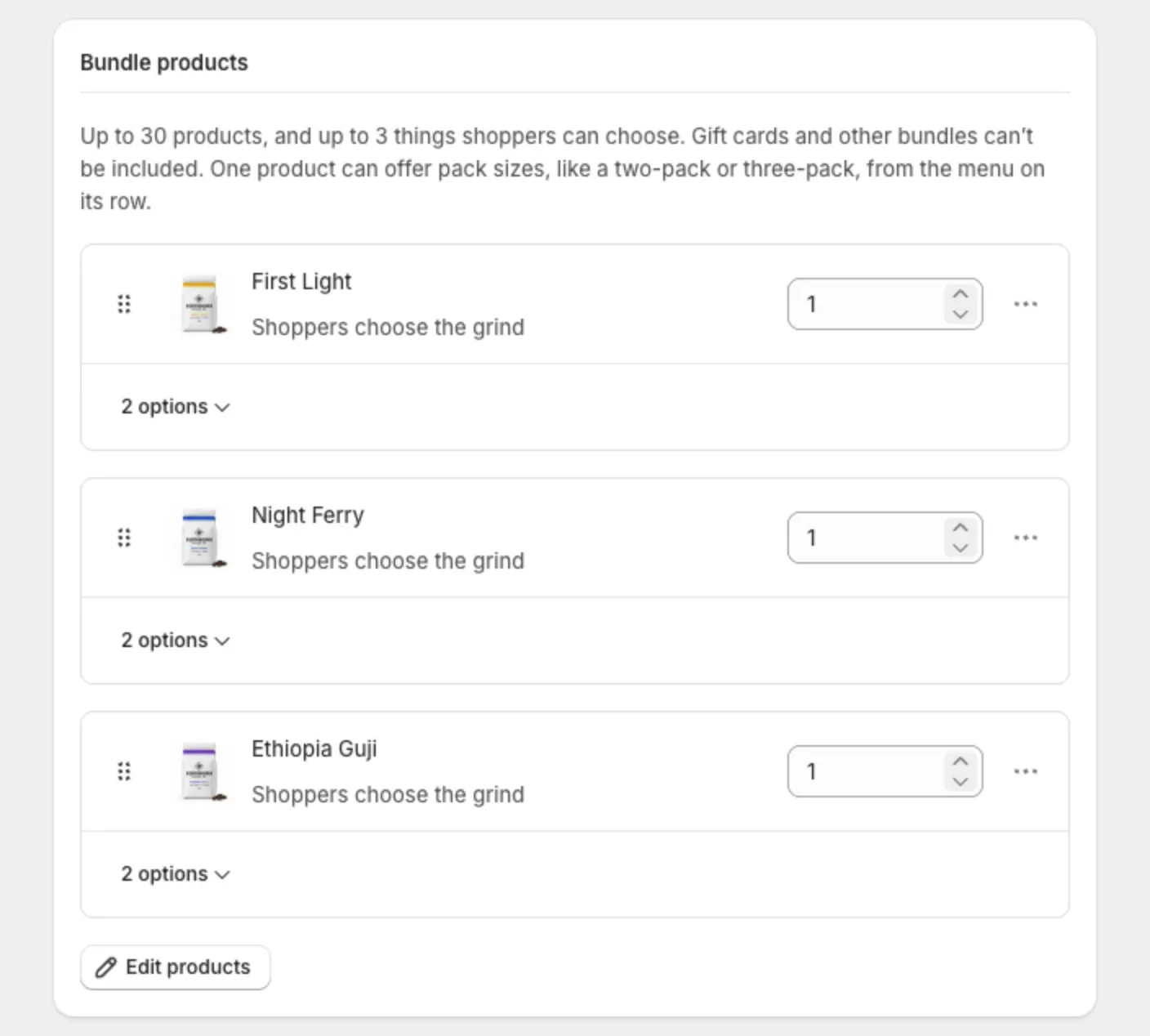
You can add up to 30 products. Gift cards and other bundles can’t be included.
Step 3: Decide what shoppers can choose
Each product with options, like size or color, shows a toggle such as 2 options.
- Select the toggle to open it.
- Untick the values you don’t want to offer.
- Leave two or more values ticked and shoppers choose between them on the product page.
- Leave one value ticked and the bundle always includes that one.
The What shoppers choose card shows what the product page will ask shoppers.
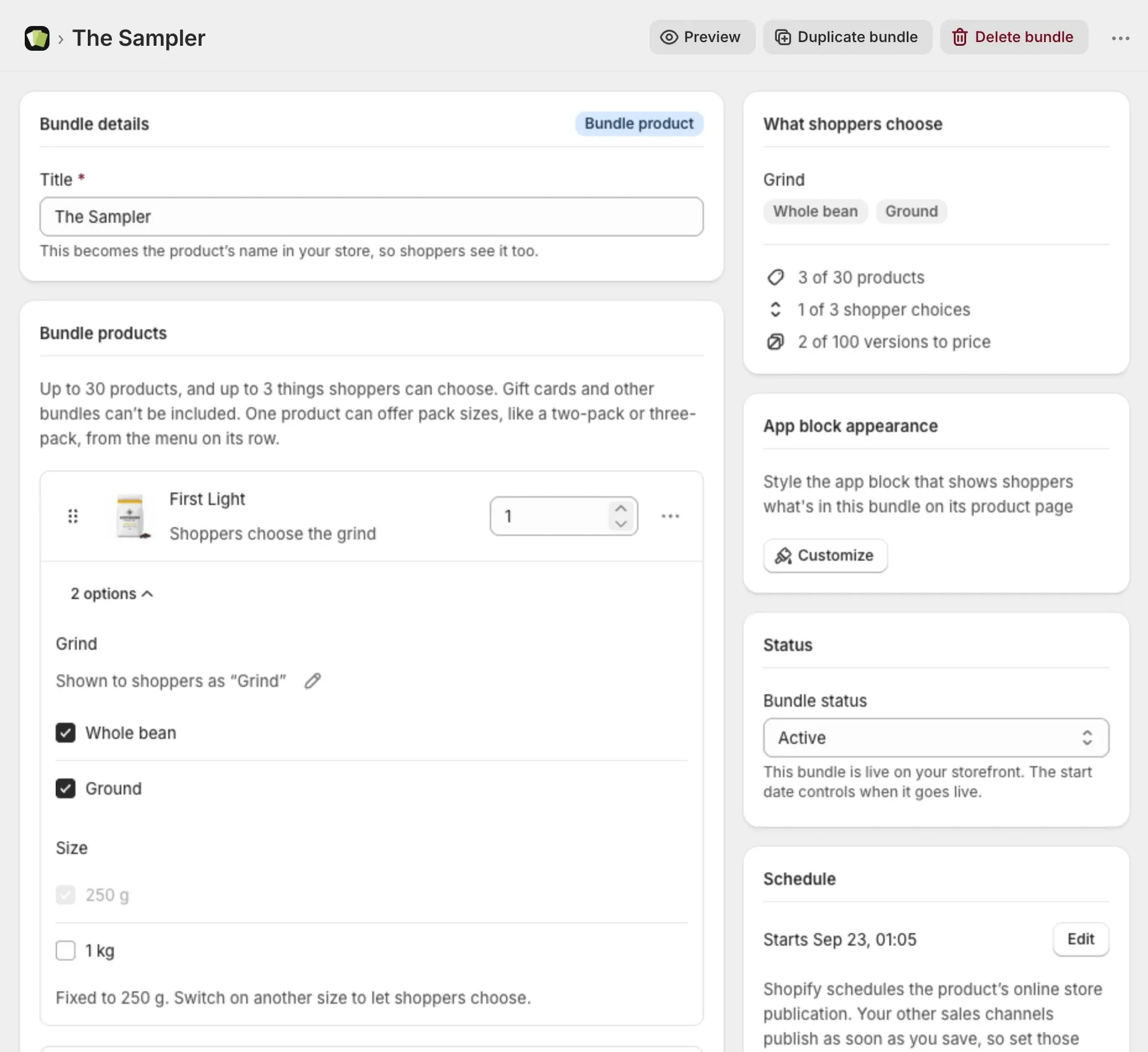
For pack sizes and more on choices, see Let shoppers choose options and pack sizes on a bundle product.
Step 4: Set the price
In Pricing, choose one:
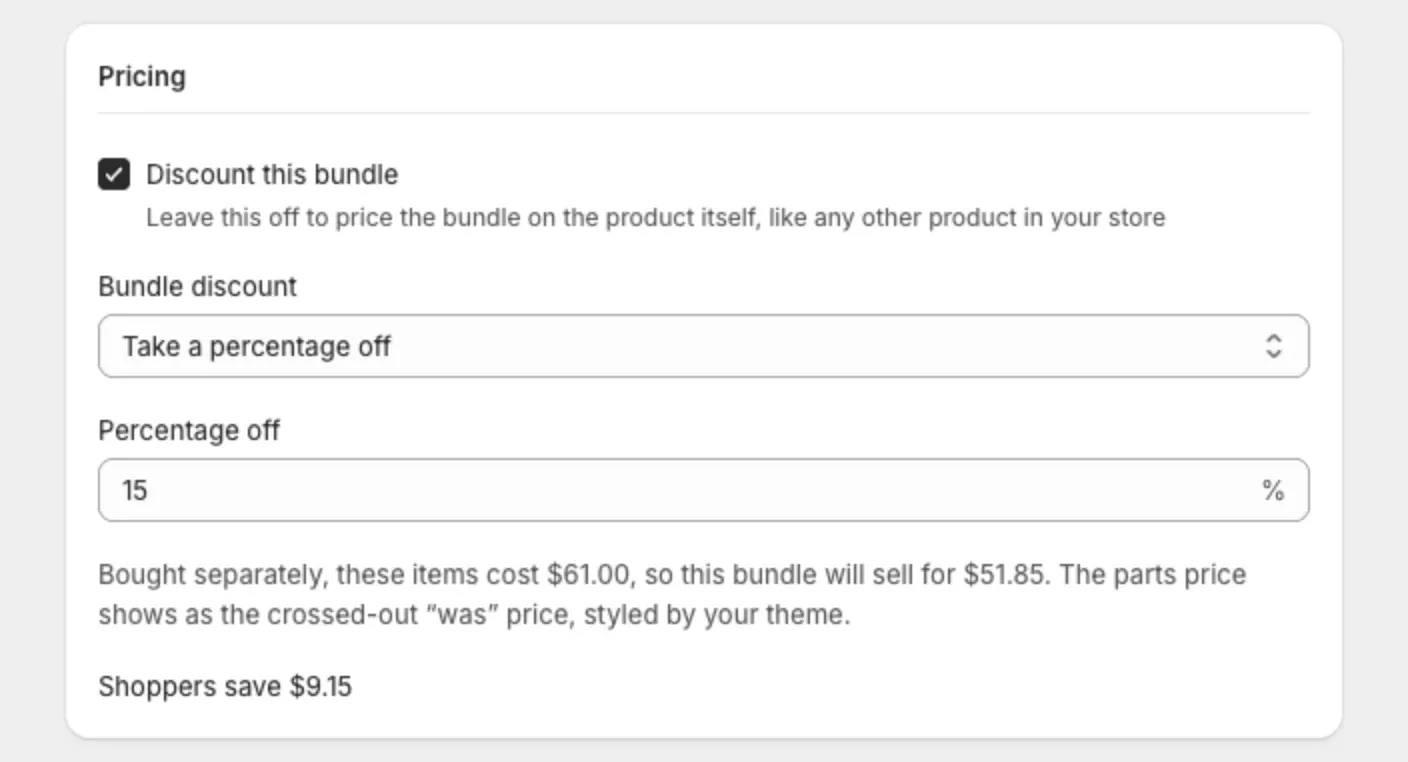
- Leave Discount this bundle unticked. The bundle starts at what its items cost added together. You can change the price on the product in Shopify at any time.
- Tick Discount this bundle. Then choose a Bundle discount: Take a percentage off, Take an amount off or Charge an exact price, and enter the value.
The line under the fields shows what the items cost separately and what the bundle will sell for.
Step 5: Go live
- In the Status card, set Bundle status to Active.
- Select Save.
Lime Bundles creates the product in your store. A bundle with many versions can take a little longer. The page tells you when Shopify is still building it, and updates on its own.
Step 6: Finish the product page
- In the Product page card, select Open the product page.
- Add your images, description and SEO details in Shopify.
- Check the sales channels.
The product starts with the first item’s image, so it is never blank.
Good to know
- Add the Lime Bundles app block to your theme to show a “What’s in the bundle” list on the product page. See Show what’s in the bundle on a bundle product’s page.
- A bundle product has no end date.
- To understand what Shopify controls for this type, see Bundle product: how it works and what to expect.