
How to manage your bundles list
The Bundles page lists every bundle you have. From here you can find, sort, duplicate, switch on and off, and delete bundles.
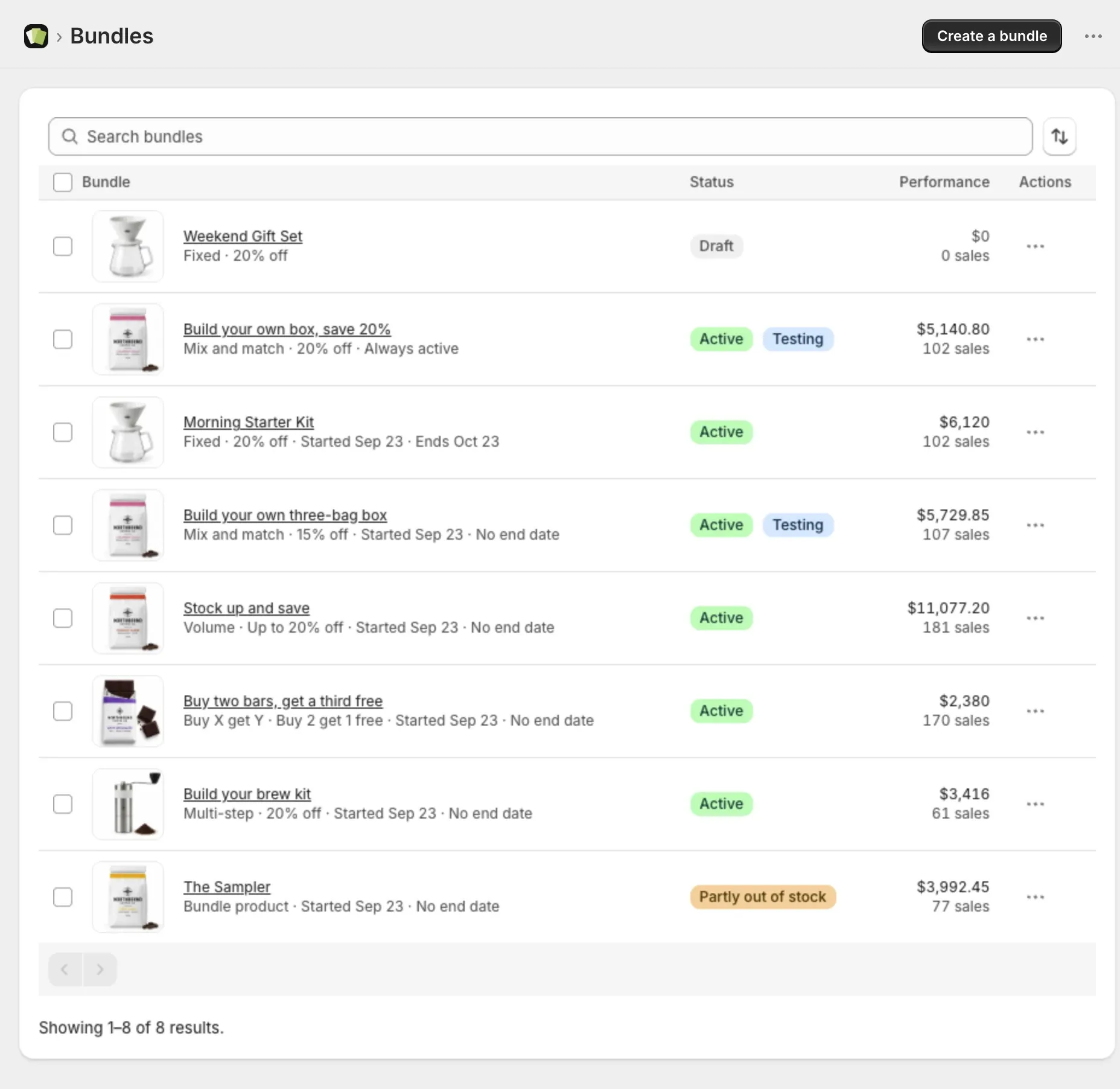
Find a bundle
- Go to Bundles.
- Type in Search bundles.
Sort the list
- Select the sort button.
- Under Sort by, choose one: Date created, Bundle, Type, Status, Discount, Schedule, Sales or Revenue.
- Under Order, choose Ascending or Descending.
Use a bundle’s menu
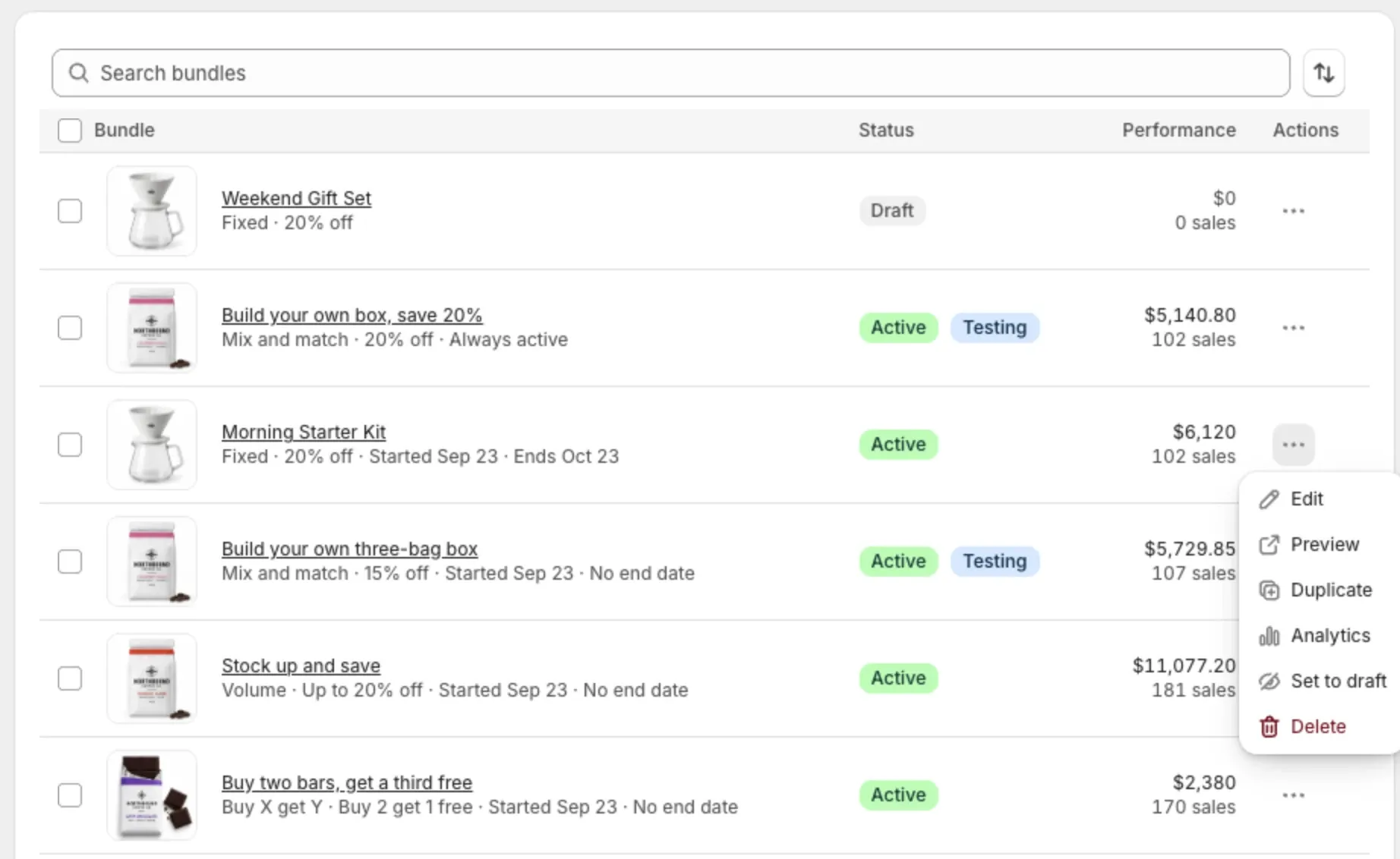
Select the menu at the end of a bundle’s row. You can:
- Edit: open the bundle.
- Preview: open the page on your store where the bundle shows.
- Duplicate: make a copy.
- Set to active or Set to draft: switch the bundle on or off.
- Analytics: see how the bundle is selling.
- Delete: remove the bundle.
Duplicate a bundle
- Open the bundle’s menu and select Duplicate.
- The copy opens, named “Copy of” and the original title.
- Change what you want, set Bundle status to Active, and select Save.
A copy always starts as a Draft, so nothing changes on your store until you activate it.
Change several bundles at once
- Tick the bundles you want.
- Select Set to active, Set to draft or Delete.
You can change up to 50 bundles at a time.
If some bundles couldn’t be changed, the page lists each one with the reason. A bundle that is Out of stock, for example, is managed by the app. Open that bundle to manage it.
Delete a bundle
- Open the bundle’s menu and select Delete.
- Read what will be removed.
- Select Delete to confirm.
You can’t undo this.
- Deleting a fixed, mix and match, volume, Buy X get Y or multi-step bundle removes the bundle and its discount.
- Deleting a bundle product also deletes its product from your store, including the images and description on its product page.
The bundle’s past sales stay in Analytics, marked as deleted.
Good to know
- Each bundle needs its own title. Two bundles can’t share one.
- A bundle with a Testing badge is in a running A/B test.
- If a bundle was deleted in another tab, reload the list.