
How to add, move and hide blocks
A bundle is made of blocks, like the title, the product list and the Add to cart button. You can add your own blocks, move them, and hide the ones you don’t need.
Open the editor
- Open the bundle in Lime Bundles.
- In the App block appearance card, select Customize.
Add a block
- In the list of Sections, find the section you want: Header, Products or Footer.
- Select Add block under it.
- Choose a block. A block that can only appear once, like the Discount badge, isn’t offered while the section already has one.
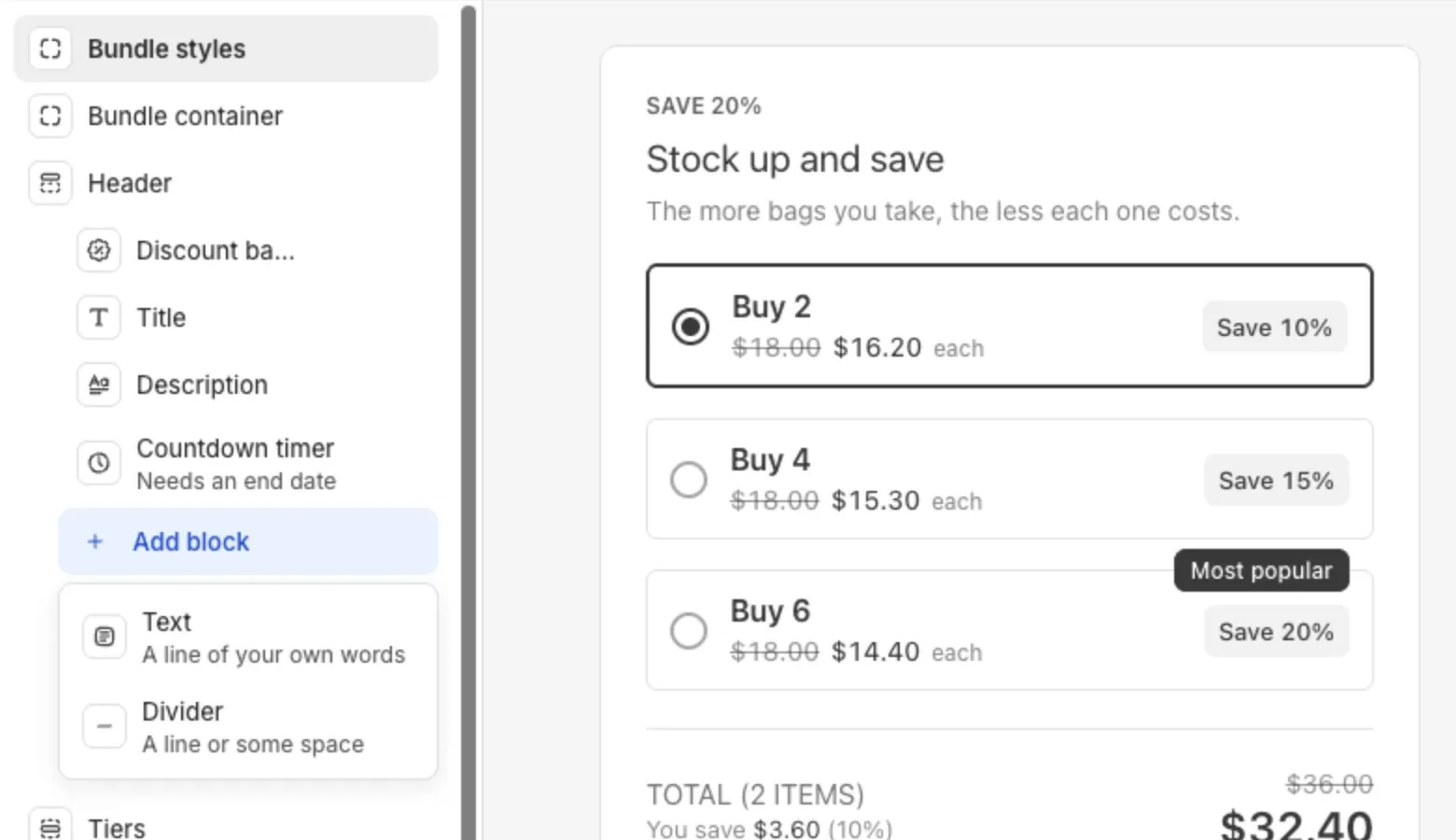
The blocks you can add:
- Text: a line of your own words, up to 200 characters.
- Divider: a line or some space. Choose Solid line, Dashed line, Dotted line or Space only.
- Discount badge: shows the saving, like “Save 15%”.
- Countdown timer: counts down to the bundle’s end date.
- Title and Description: only offered if you removed them.
A bundle can have up to 6 dividers and up to 6 text blocks.
Move a block
You can move a block three ways:
- Drag it. Hover over the block in the list and drag it by its handle. A blue line shows where it will land.
- Use the toolbar. Select the block in the preview, then select Move up or Move down.
- Use the keyboard. Focus the block’s handle, hold Alt and press the up or down arrow.
You can move a block into another section. Drag the countdown timer from the header to the footer, for example.
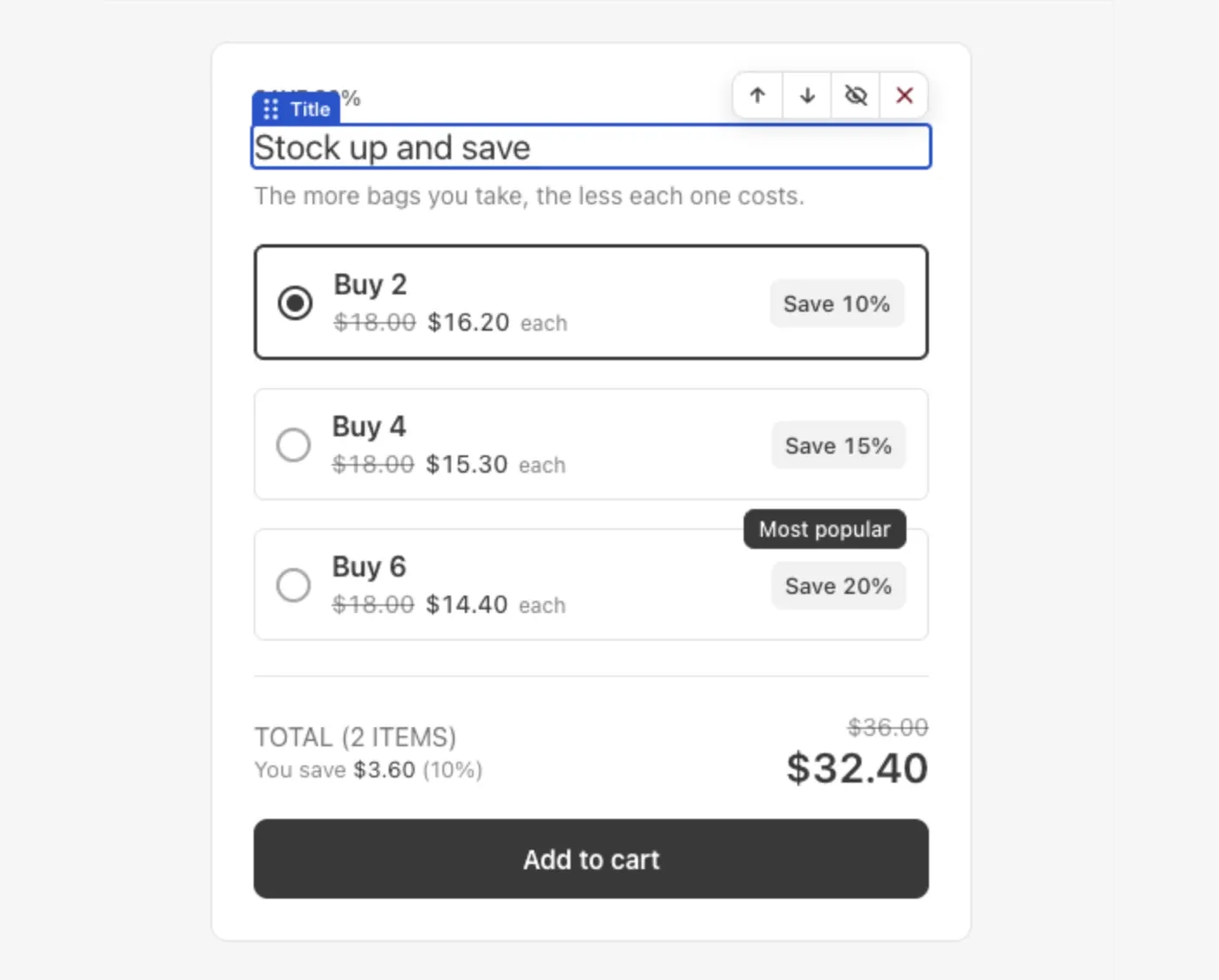
Hide a block
- Hover over the block in the list.
- Select Hide.
The block’s name is crossed out in the list, and it disappears from the preview and your store. Select Show to bring it back.
You can hide the Title, Description, Countdown timer, Progress bar and Bundle total. This is useful when your theme already shows the same thing.
Remove a block
- Select the block.
- Select Remove.
You can add it again later with Add block.
Duplicate a block
Select a Text or Divider block, then select Duplicate in its toolbar.
Blocks you can’t hide or remove
Some blocks show Required in the list. The bundle can’t work without them:
- Product list, Quantity tiers or Step list
- Add to cart button
- Product cards in the pop-up
Set the space around a block
Every block has a Margin group at the end of its settings.
- Select the block.
- Under Margin, enter Top and Bottom in pixels.
The header’s last block has no bottom margin. The space under the header is set by Gap between sections on the Bundle container.
Save
When you change something, Unsaved changes shows at the top of the editor with Discard and Save. Select Save. The editor stays open, so you can keep working.
Good to know
- A Text block with no text shows nothing on your store and leaves no gap.
- To translate a Text block, see Translate your bundles.
- The Countdown timer only shows on a bundle with an end date. In the list it reads “Needs an end date” until you set one.