
How to require different products in a bundle
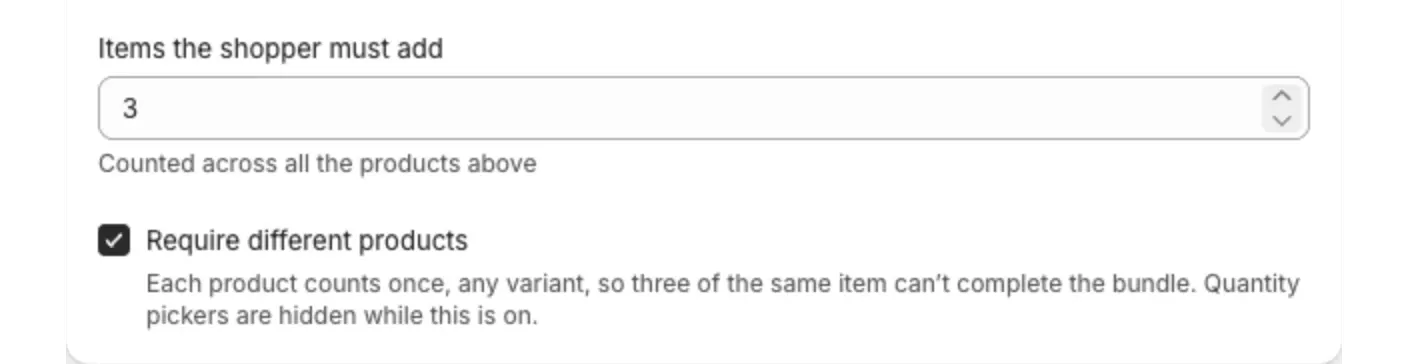
With Require different products on, shoppers must choose a different product for each item in the bundle. Three of the same item can no longer complete a “choose 3” bundle.
This setting is on mix and match and multi-step bundles. It is off by default.
Turn it on
- Open the bundle in Lime Bundles.
- Find Require different products:
- On a mix and match bundle, it is under Items the shopper must add.
- On a multi-step bundle, it is in the Steps section.
- Tick Require different products.
- Select Save.
What changes for shoppers
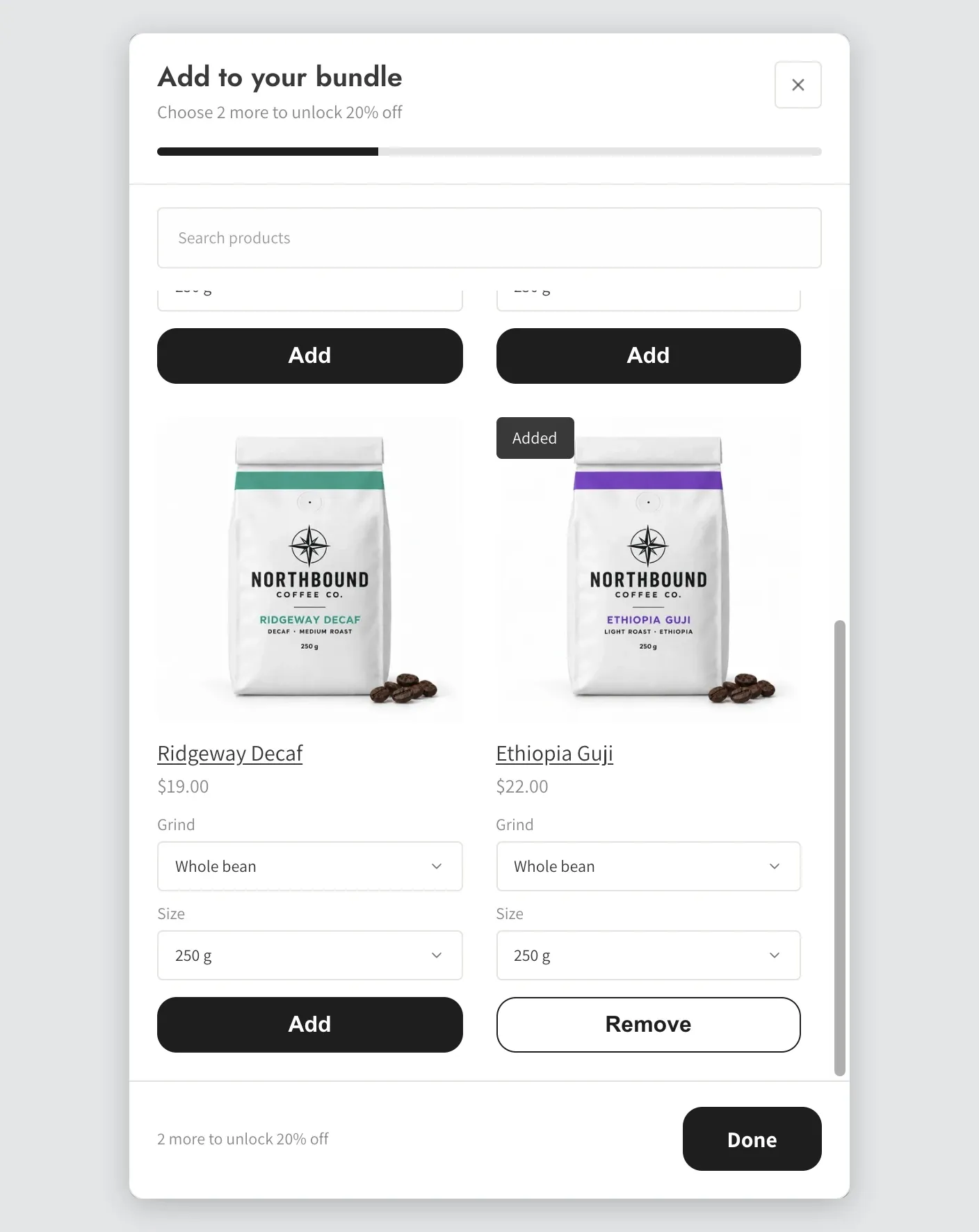
- Each product counts once, whatever the variant. Three sizes of the same T-shirt count as one product.
- The quantity selector is hidden. Every pick is one unit.
- A shopper can change their mind about a variant. When they switch the variant of a product already in the bundle, it swaps in place.
- On a multi-step bundle, a product chosen in one step can’t be chosen again in another step.
What changes at checkout
The discount only applies when the cart holds enough different products. A cart with three of the same item gets no bundle discount.
Rules to know
- Minimums must be 1. With this setting on, each product can only be added once. If a product has a minimum of 2 or more, the bundle won’t save. Lower the minimum to 1.
- You need enough products. A bundle that asks for 3 items needs at least 3 different products to choose from. If it has fewer, the app warns that shoppers can’t complete the bundle.
- On a multi-step bundle, a product that sits in two steps can only fill one of them. Make sure each step has enough products of its own.
Turn it off
- Untick Require different products.
- Select Save.
Shoppers can then add more than one of the same product again.
Good to know
Bundles you created before this setting existed have it off, and work exactly as before.