
How to translate your bundles
Shoppers can see your bundles in their own language. The app translates its own text for you. You translate the text you wrote, inside the app.
What is translated for you
Everything the bundle says on its own is already translated into 31 languages. This includes “Add to cart”, “You save”, step counters and stock messages.
When a shopper browses your store in one of your published languages, the bundle follows. There is nothing to set up.
What you translate yourself
- The bundle’s Title and Description.
- The Step names of a multi-step bundle.
- Your own Text blocks.
- Your own countdown text, if you wrote one.
- Your own heading for the “What’s in the bundle” list on a bundle product.
Before you start
Your store needs more than one language.
- In your Shopify admin, go to Settings, then Languages.
- Add the language.
- Add the language to a market and publish it, so shoppers can browse in it.
A language you haven’t published yet still shows in the app, marked “(unpublished)”. You can translate ahead of time.
Translate the title and description
- Open the bundle in Lime Bundles.
- On the right, find the Translations card.
- Under Language, choose the language.
- The Title and Description fields now show your original text in grey. Type the translation over it.
- Select Save.
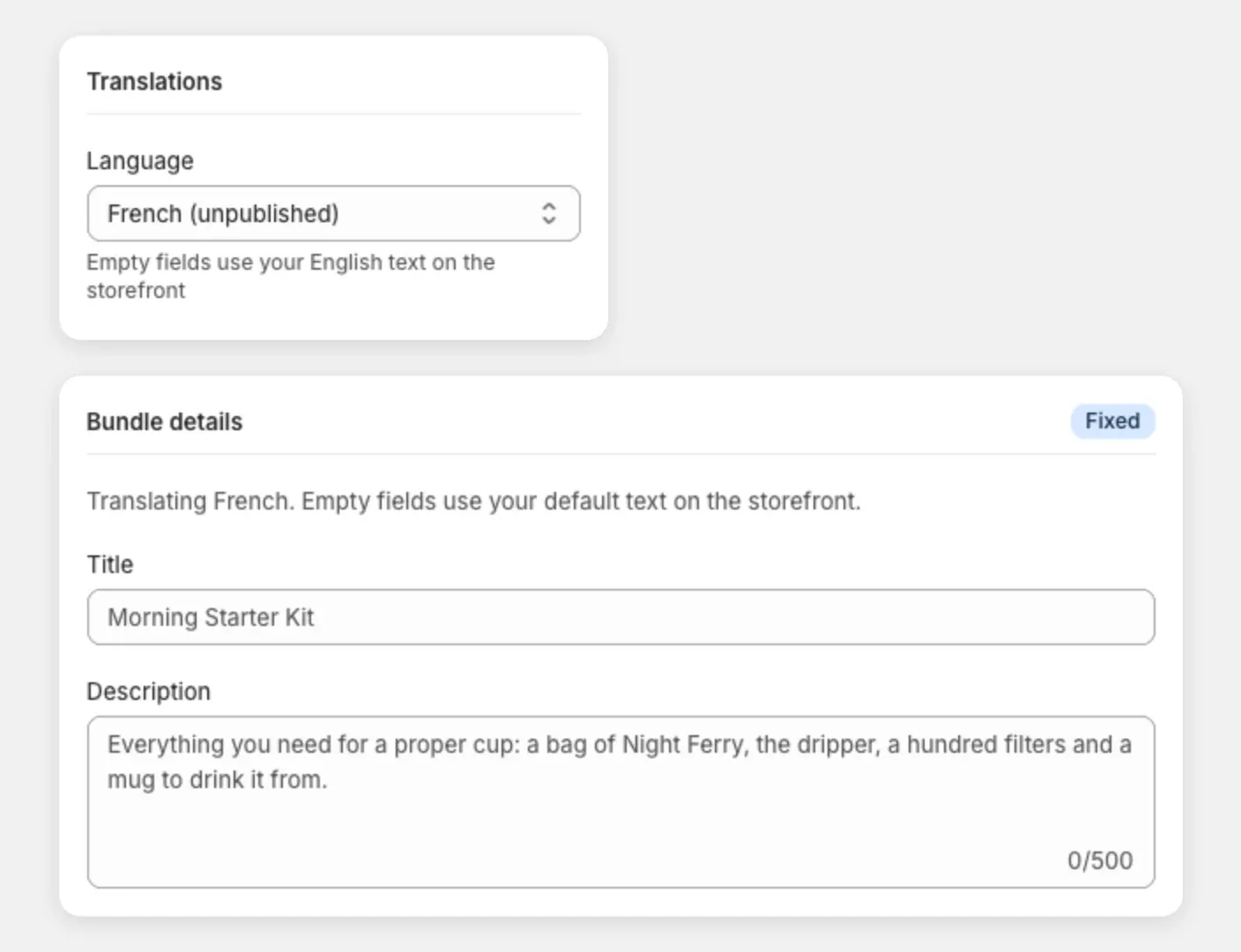
The Translations card only shows when your store has more than one language.
Translate step names
On a multi-step bundle:
- In the Translations card, choose the language.
- In the Steps section, enter a translated name for each step.
- Select Save.
Products, quantities and order are the same in every language, so only the names can be changed here.
Translate text blocks and the countdown text
- Open the bundle and select Customize.
- Select Language in the top bar and choose the language.
- Select a Text block or the Countdown timer.
- Type the translation.
- Select Save.
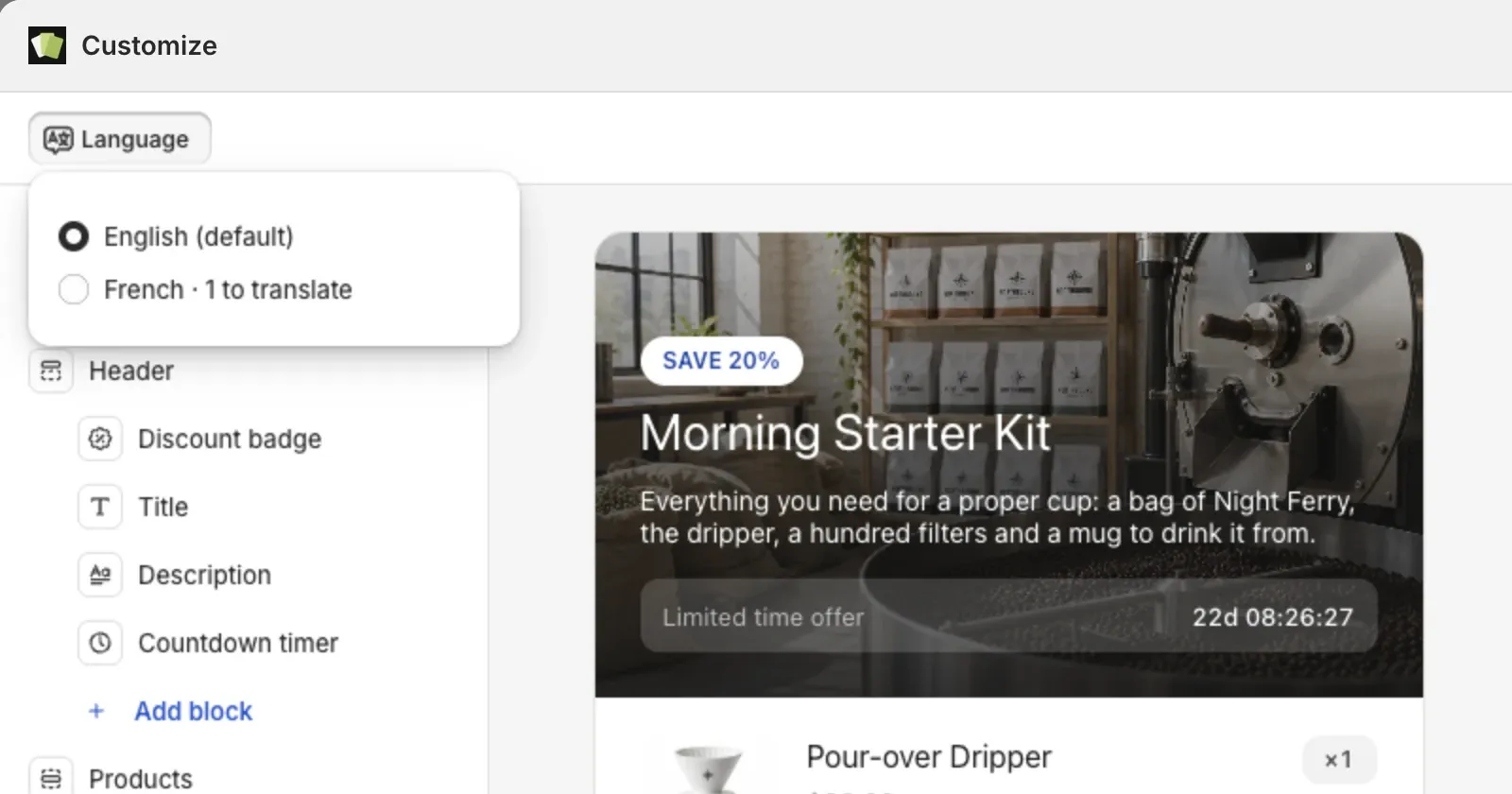
The Language menu shows how many items are left to translate in each language. Colors and layout apply to every language.
What shoppers see if you leave a field empty
- Title, description, step names and text blocks: your original text.
- Countdown text and the list heading: the app’s own wording in the shopper’s language.
So you can translate as much or as little as you like.
Good to know
- The discount name isn’t translated. Shoppers see it in the cart and at checkout in the language you typed it. Shopify doesn’t translate discount names, for any app. Choose wording that works in all your markets.
- These translations live in Lime Bundles. They don’t show in Translate & Adapt or other translation apps.
- Bundle products are real products. Translate their title and options the same way you translate your other products.
- The app itself is available in 21 languages, and follows your Shopify admin’s language.
- A translation reads wrong? Tell us and we’ll fix it for everyone.