
How to schedule a bundle
Set a start date, an end date, or both, and your bundle goes live and ends on its own. This is useful for sales and seasonal offers.
Set the dates
- Open the bundle in Lime Bundles.
- On the right, find the Schedule card and select Edit.
- Choose the Start date and Start time. Leave the start date blank to go live right away.
- Tick Set end date.
- Choose the End date. The End time fills in as 23:59. Change it if you want.
- Select Done.
- Select Save.
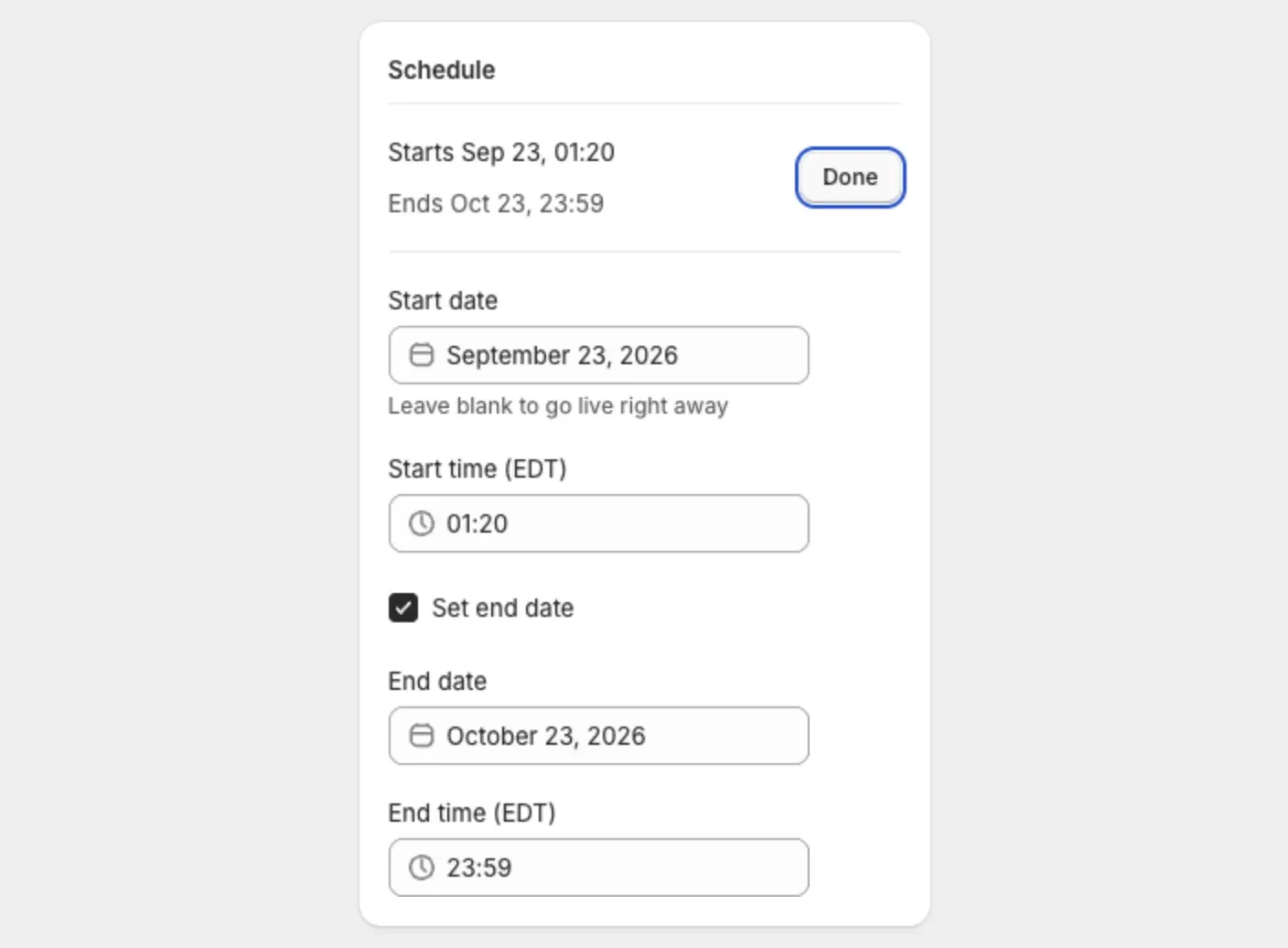
Times use your store’s time zone. It shows next to the time fields.
Make sure the bundle is Active
Schedule dates only apply to an Active bundle. A Draft stays hidden, whatever its dates say.
- In the Status card, set Bundle status to Active.
- Select Save.
What you’ll see
- Before the start date, the bundle shows Scheduled in your bundles list. Shoppers can’t see it yet.
- Between the dates, the bundle shows Active and is live.
- After the end date, the bundle shows Expired. Shoppers can’t see it, and its discount stops applying.
Upcoming bundles also show under Coming up on the Home page.
Bring back a bundle that has ended
- Open the bundle.
- In the Schedule card, select Edit.
- Move the End date forward, or untick Set end date.
- Select Done, then Save.
Remove the schedule
- In the Schedule card, select Edit.
- Clear the Start date and untick Set end date.
- Select Done, then Save.
The card now reads “Starts immediately” and “No end date”.
Show a countdown
A bundle with an end date can show a countdown timer. See Show a countdown timer on a bundle.
Scheduling a bundle product
A bundle product has a start date only.
- Shopify publishes the product to your online store when the start date arrives.
- There is no end date. The bundle stays live until you change its status.
- Only your online store waits for the date. Your other sales channels publish as soon as you save. To hold those back, set them on the product page in Shopify.
Good to know
- The end date must be after the start date.
- A bundle in an A/B test can’t start the test while it has ended. Give it a new end date first.