
Request a feature and follow the board
Have an idea for Lime Bundles? Send it from inside the app, vote for the ideas you want most, and follow each one from idea to live.
Send a request
- In Lime Bundles, go to Settings.
- Select Feature requests.
- Select Request a feature.
- Enter a Title: one line that says what you’d like to be able to do.
- In Details (optional), say what you’re trying to do and what gets in the way today. The more specific, the better.
- To show what you mean, add up to 3 pictures under Images (optional). Drag them in, or select the box to choose files. To take one out, select the bin beside it.
- Select Send request.
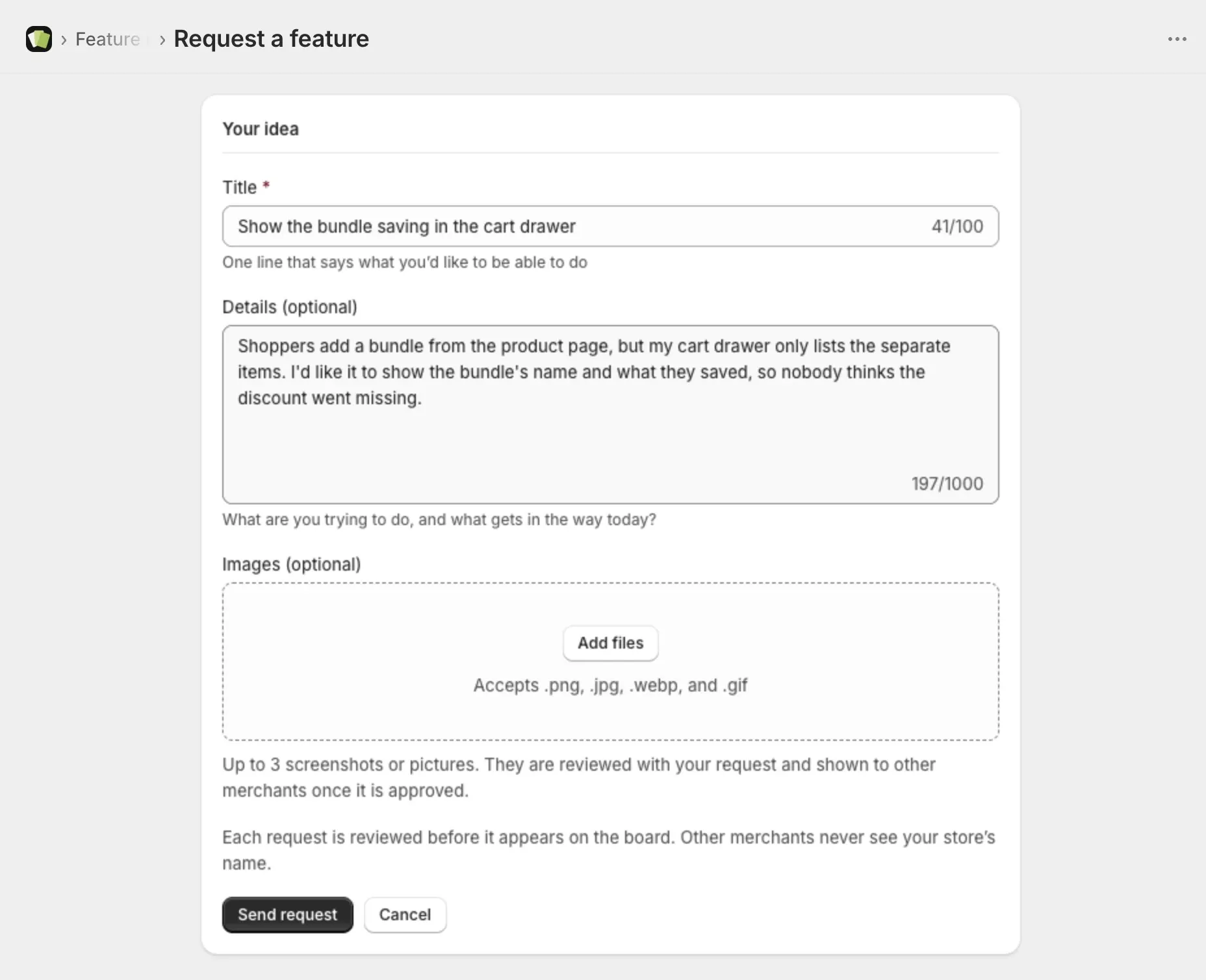
Your request appears under Your requests right away, marked Under review.
What happens to your request
Each request is reviewed before it appears on the board. Until then, only you can see it.
| Status | What it means |
|---|---|
| Under review | Your request has been sent and is waiting to be read. Only you can see it. |
| Considering | It’s on the board for everyone, and open for votes. |
| Planned | It’s going to be built. |
| In progress | It’s being built now. |
| Shipped | It’s live in the app. |
| Not planned | It won’t be built for now. Only you can see this. |
| Closed | The request has been taken off the board. |
The wording of your request may be tidied before it goes on the board, so it reads clearly to other merchants.
Your pictures are reviewed too, and other merchants can see them once the request is on the board. Leave out anything you wouldn’t want another store to see, such as customer details.
Read the board
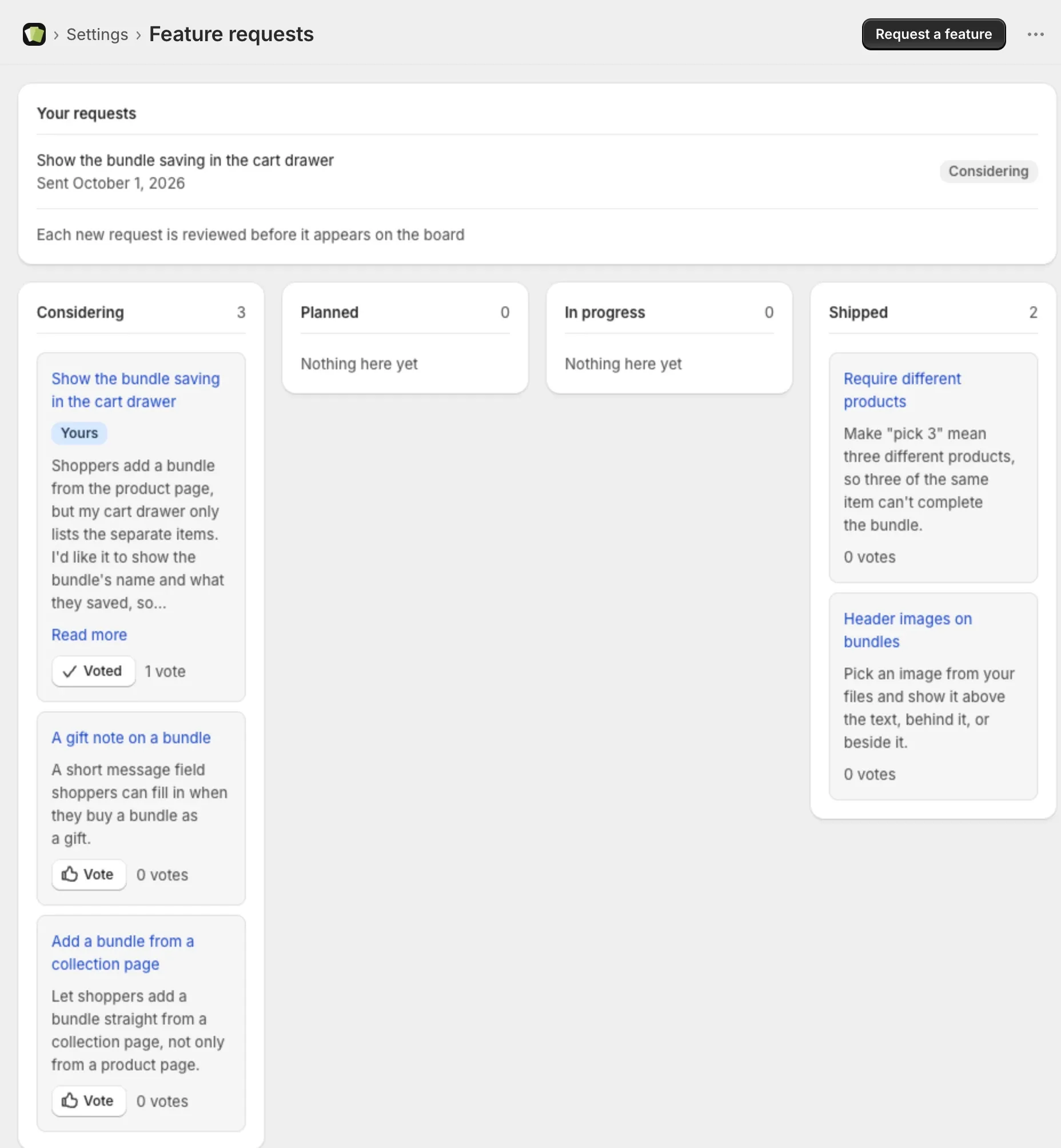
The board has four columns: Considering, Planned, In progress and Shipped. The most voted ideas come first in each column. Shipped shows the latest ten.
A request you sent is marked Yours.
A card shows the start of a request. To read all of it, and see its pictures, select the card’s title or Read more.
Vote for an idea
Select Vote on a card, or at the top of an open request. The button changes to Voted and the count goes up by one. Select Voted to take your vote back.
- Each store has one vote per idea.
- Sending a request counts as your vote for it.
- You can vote until an idea is Shipped.
Votes help decide what gets built next, so vote for everything you’d use.
Good to know
- Other merchants never see your store’s name, on a request or on a vote.
- You can send up to 5 requests in 24 hours.
- A title is 5 to 100 characters. Details can be up to 1,000 characters.
- You can add up to 3 pictures: JPG, PNG, WebP or GIF. They are made smaller before they are sent.
- The board is updated every few minutes.
- Requests are shown as they were written, so a request in another language isn’t translated.
- For a problem with your store or a bundle, email support instead. That gets you an answer faster than the board.