
What happens when your products change in Shopify
Your products change over time. You add variants, delete products and edit collections. Lime Bundles follows these changes on its own, and tells you when it needs a decision from you.
You add a new variant to a product
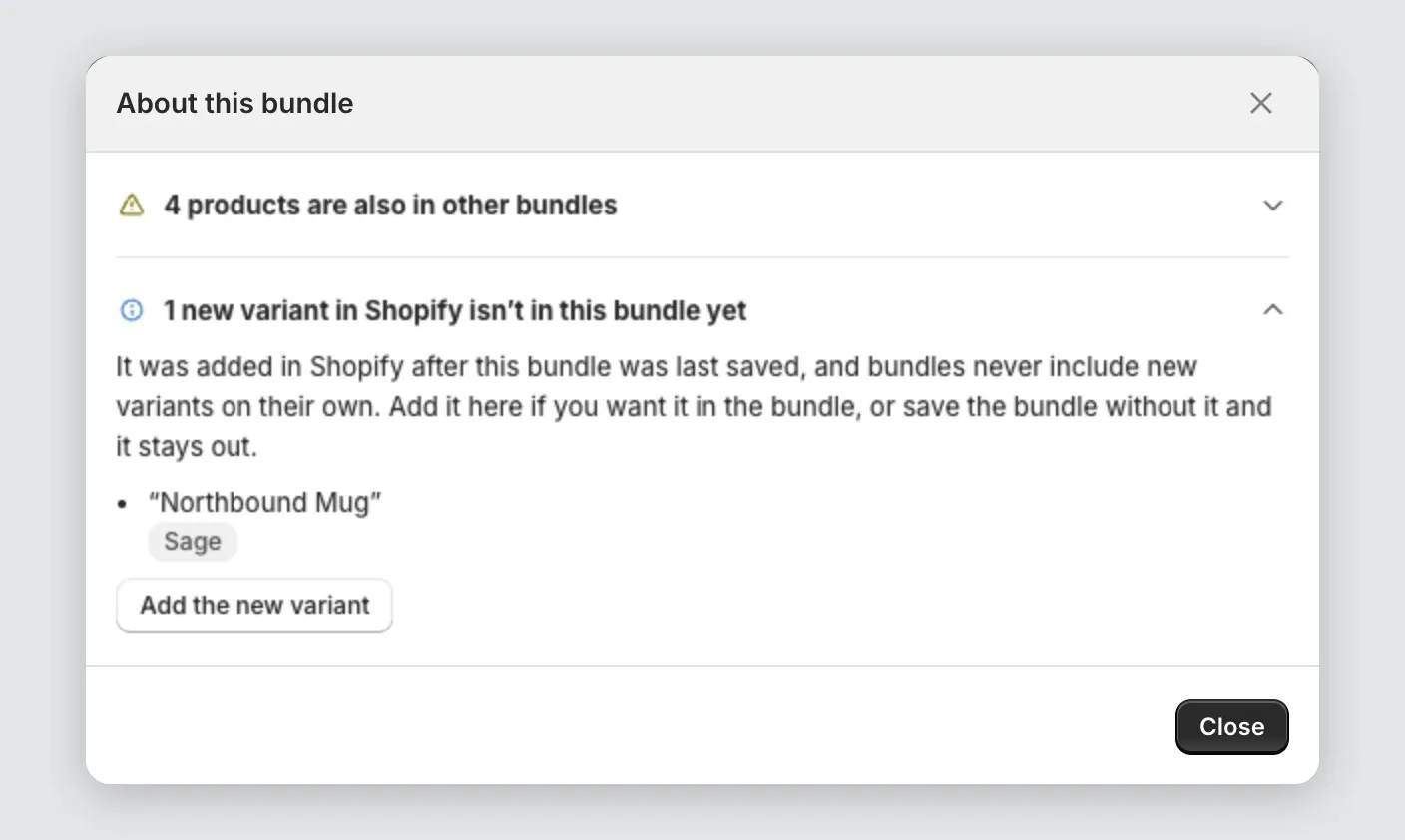
A bundle never adds a new variant on its own. You chose what goes in the bundle, so the app asks first.
- Open the bundle. The banner at the top counts it as a thing to know.
- Select Review details. The About this bundle window says, for example, 1 new variant in Shopify isn’t in this bundle yet, and names it.
- Choose one:
- Select Add the new variant to include it, then select Save.
- Select Save without adding it. The variant stays out, and the banner goes away.
Until you decide, your store keeps selling the bundle exactly as it was.
You delete a variant
The app removes the variant from your bundles on its own. If the bundle can still be sold, nothing else changes.
You delete a product
The app removes the product from your bundles.
- If the bundle still works without it, the bundle keeps selling, without the deleted product.
- If the bundle no longer has enough products, the app switches it off. Its badge reads Inactive, and it is hidden from your store.
To bring back a bundle that was switched off:
- Open the bundle.
- Add a product to replace the deleted one.
- Set Bundle status to Active.
- Select Save.
A bundle product is handled differently. The app never shrinks it on its own, because shoppers would pay the same for less. See Fix a bundle that says “Sync failed”.
You change a collection
If a bundle uses a collection as its source:
- Add a product to the collection and it shows in the bundle.
- Remove a product from the collection and it leaves the bundle.
- Delete the collection and the app removes it from the bundle. If that was the bundle’s only source, the bundle is switched off and reads Inactive.
Changes to an automated collection can take up to an hour to reach your bundles.
You change a product’s stock
See How stock affects your bundles.
You unpublish a product or change shipping
If a product leaves your Online Store, or can no longer be shipped, the bundle reads Can’t be sold. See Fix a bundle that says “Can’t be sold”.
You change a product’s price
- Fixed, mix and match, volume, Buy X get Y and multi-step bundles use your live prices. The discount applies to the new price.
- A bundle product with Discount this bundle ticked is repriced from its rule.
- A bundle product with Discount this bundle unticked keeps the price you set on the product.
If your bundle uses Flat price or Fixed amount, check the saving still makes sense after a price change.
You delete the bundle’s discount
Deleting a “Bundle:” discount on Shopify’s Discounts page turns the bundle to Sync failed. Open the bundle and select Save to repair it.
How fast changes arrive
Most changes reach your bundles within a few seconds. The app also checks every bundle once an hour, to catch anything that was missed.