
Why a bundle isn't showing on your store
When a bundle isn’t on your store, the cause is almost always its status or the page you’re looking at. Work through these checks in order.
Check 1: The bundle’s status
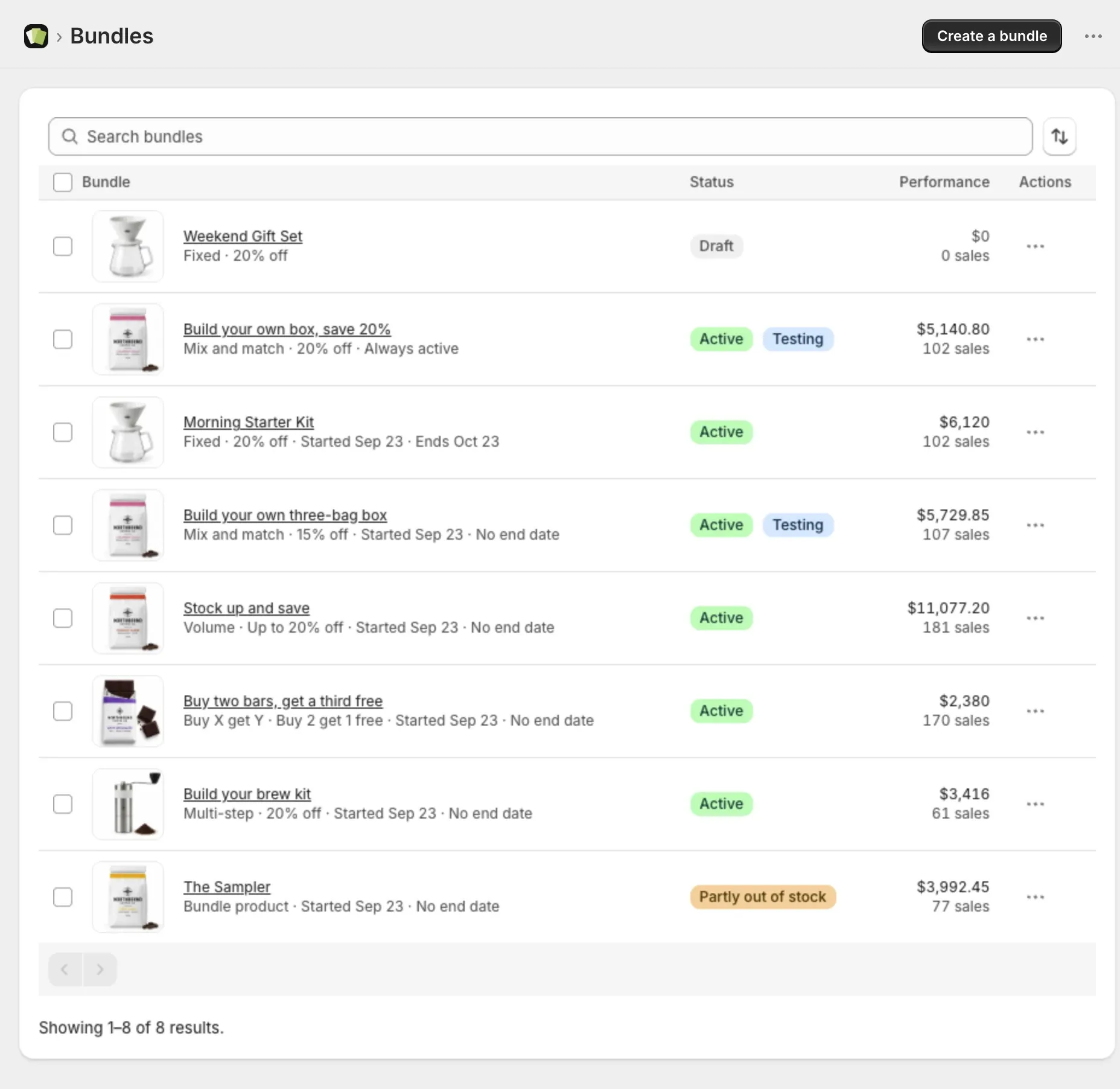
- In Lime Bundles, go to Bundles.
- Look at the badge next to the bundle.
Only an Active bundle shows on your store.
| Badge | What to do |
|---|---|
| Draft or Inactive | Open the bundle, set Bundle status to Active, and save. |
| Scheduled | Wait for the start date, or change it in the Schedule card. |
| Expired | Change or clear the end date in the Schedule card. |
| Out of stock | Restock the product. The bundle comes back on its own. |
| Can’t be sold | Open the bundle. A banner names the product and the cause. |
| Sync failed | Open the bundle and select Save. |
| Paused | Upgrade your plan, or wait for the start of next month. |
| Hidden by rollout | A Shopify rollout is turning the bundle’s discount off for some shoppers. See Check 8. |
| Discount ended | The bundle’s discount was ended in Shopify, so the bundle was set to Draft. See Check 8. |
See Bundle statuses explained.
Check 2: The app block is in your theme
Your bundles show in the Lime Bundles app block.
- In Lime Bundles, go to Home.
- Look at the Status card. It should say App block added.
If it doesn’t, see Add the app block to your theme. Also check this after you switch themes.
Check 3: You’re on the right page
A bundle shows on the pages set in its Where it shows card.
- Open the bundle.
- Select Preview.
Preview opens a page where the bundle shows. If you expected another page, see Choose where a bundle shows.
Check 4: The product page isn’t full
A product page shows up to 5 bundles. If the product already has 5, a new bundle won’t appear on its page. The bundle page warns you about this.
Set one of that product’s other bundles to Draft, then save your bundle again.
Check 5: The market
If the bundle is set to Specific markets, shoppers in other markets don’t see it. Neither do you, if you browse from a country outside them.
Add ?country= and a country code to the page’s address to check, like ?country=US.
Check 6: The product template
If your products use more than one template, the app block must be in each one. Open the theme editor on the product that is missing its bundle, and check the block is there.
Check 7: The bundle can be completed
A mix and match or multi-step bundle that shoppers can’t complete doesn’t show. Open the bundle and look for a warning like “Shoppers can’t complete this bundle”. See Warnings on the bundle page explained.
Check 8: A Shopify rollout
Shopify’s rollouts let you schedule or test changes for a share of your shoppers, and that can include turning a discount on or off. When a running rollout turns a bundle’s discount off for some shoppers, Lime Bundles hides the bundle’s app block from everyone until the rollout ends. That way no shopper sees a saving they won’t get at checkout.
The bundle shows Hidden by rollout next to its status in the Bundles list, and the bundle’s page names the rollout.
- To show the bundle again, pause or end the rollout in Shopify, or take the bundle’s discount out of it. The app block comes back on its own shortly after.
- A rollout that turns the discount on while the bundle is off gives those shoppers the discount at checkout. The app block stays hidden until you set the bundle to Active. The bundle’s page tells you when this happens.
- Ending a rollout: Shopify asks whether to Roll back changes or Apply changes. Rolling back brings the bundle back on its own. Applying a change that sets the discount to expired ends the discount for good, so Lime Bundles sets the bundle to Draft and shows Discount ended next to it. The same happens if you end the bundle’s discount yourself on Shopify’s Discounts page. To sell the bundle again, set it to Active and save; that turns the discount back on.
- Lime Bundles asks for permission to read your rollouts. Shopify asks you to approve it the first time you open Lime Bundles after this update. Until you approve it, bundles aren’t checked for rollouts and show as usual.
On a development store
Products can show as sold out when you browse from outside the store’s markets. Add ?country=US to the address.
Bundle products are different
A bundle product is a real product with its own page. If it isn’t showing, check the product in Shopify:
- Is its status Active?
- Is it published to your Online Store?
The Status card on the bundle page tells you if the product page is visible, hidden or gone.