
How to fix a bundle that says "Sync failed"
Sync failed means something the bundle depends on changed in Shopify, and the bundle is no longer in step with your store. The bundle is hidden until you repair it. Repairing it takes one save.
Why it happens
The most common causes:
- The bundle’s discount was deleted on Shopify’s Discounts page.
- A product in a bundle product was deleted.
- A bundle product’s own product was deleted in Shopify.
- A save didn’t finish, for example because of a connection problem.
Repair the bundle
- In Lime Bundles, go to Bundles and open the bundle.
- Read the banner This bundle isn’t in sync with Shopify.
- Check the Status card. It tells you how the bundle will come back:
- “Save to repair it and put it back to Active.”
- “Save to repair it. It stays a draft afterwards.”
- To change that, select Set to draft or Set to active in the Status card.
- Select Save.
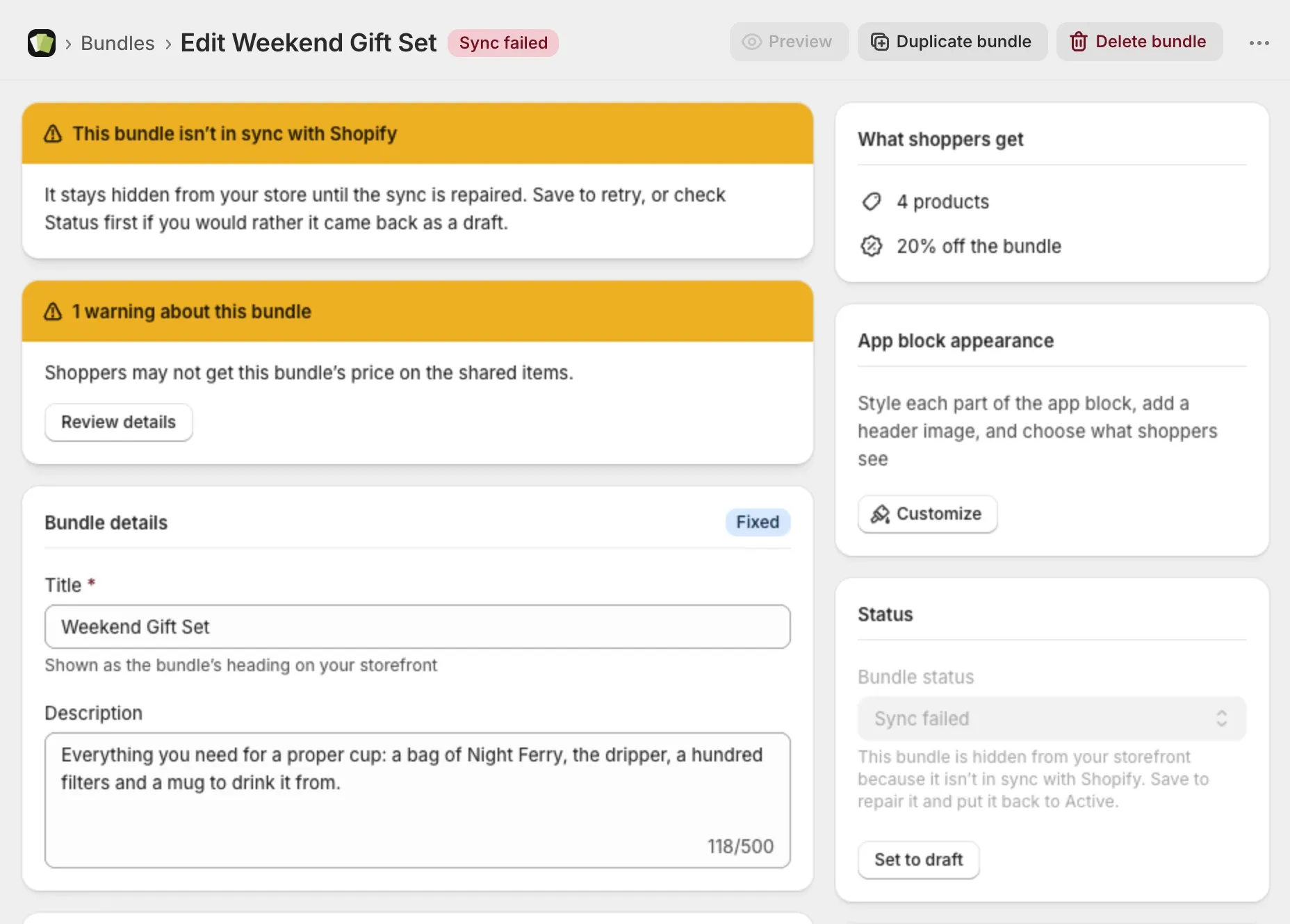
The app recreates what was missing, and the bundle goes back to the status you chose.
If a product in a bundle product was deleted
The banner says A product in this bundle was deleted in Shopify and names it. The app also sets the bundle’s product to draft, so shoppers don’t see a product they can’t buy.
- Open the bundle.
- In Bundle products, remove the deleted product, or swap in another one.
- Check the price still makes sense for what the bundle now holds.
- Select Save.
The product goes back to Active with your images and description intact.
If a bundle product’s own product was deleted
The banner says This bundle’s product was deleted in Shopify.
- Open the bundle.
- Select Save.
Saving recreates the product with the same contents and price. The images, description and SEO you added to the old product page don’t come back. Add them again on the new product page.
If the banner says the bundle needs another save
This bundle needs another save to finish means the last change didn’t fully reach Shopify. Select Save again.
If saving doesn’t fix it
- Reload the page.
- Check the bundle’s status.
- Select Save once more.
If it still says Sync failed, email us with the bundle’s name.
How to avoid it
- Don’t delete or edit the discounts named “Bundle:” on Shopify’s Discounts page. Lime Bundles manages them.
- Before deleting a product in Shopify, remove it from your bundles.
- To remove a bundle product, delete it in Lime Bundles, not in Shopify.