
How to fix a bundle that says "Can't be sold"
Can’t be sold means your stock is fine, but Shopify can’t sell one of the bundle’s products for another reason. The app hides the bundle until the cause is fixed.
Find the cause
- Open the bundle in Lime Bundles.
- Read the banner at the top. It says your storefront can’t sell some products even though they’re in stock.
- Select Review details. Under Some products in this bundle can’t be sold, the window lists each product and its cause.
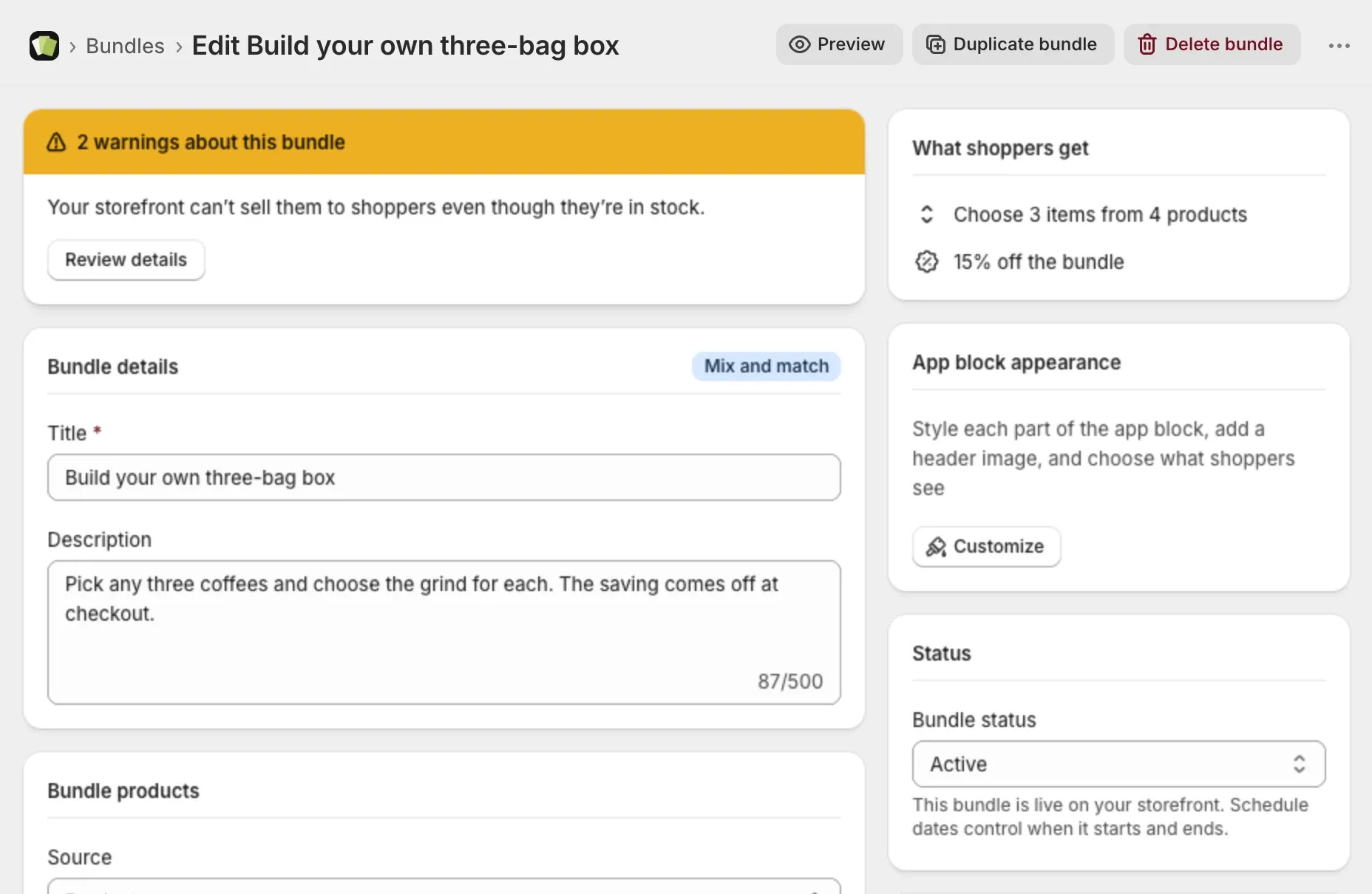
The banner gives one of the causes below.
Cause 1: “isn’t published to your online store”
The product isn’t on your Online Store sales channel, so shoppers can’t reach it.
- In your Shopify admin, go to Products and open the product.
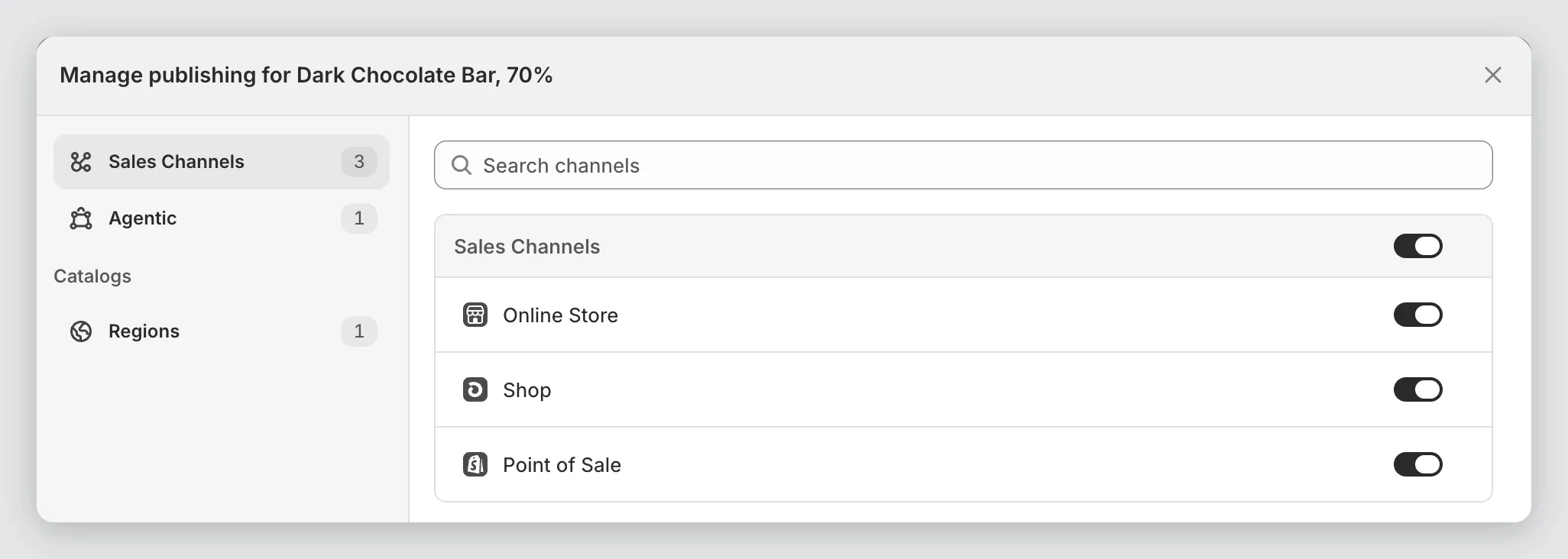
- In the Publishing card, select the settings icon. The Manage publishing window opens.
- Turn on Online Store.
- Select Done, then Save.
Also check the product’s status is Active, not Draft.
Cause 2: “can’t be shipped to shoppers”
The product is stocked only at locations that have no shipping rates. Shopify treats it as unavailable, even though your stock numbers look healthy.
- In your Shopify admin, go to Settings, then Shipping and delivery.
- Open the shipping profile that holds the product.
- Check that the location holding the stock has shipping rates.
- Add rates for that location, or move stock to a location that has them.
- Select Save.
If your store sets shipping inside each market instead of in shipping profiles, check your markets instead:
- In your Shopify admin, go to Settings, then Markets.
- Open a market you sell to and look at its shipping options.
- Check that at least one active shipping option ships from the location holding the stock.
- Add that location to a shipping option, or move stock to a location that one already ships from.
- Select Save.
A location that offers in-store pickup also counts. If shoppers can collect the product there, you can turn on pickup for that location under Settings, then Shipping and delivery, then Pickup in store, instead of adding shipping rates.
Cause 3: “already carries 5 bundles”
A product page can show up to 5 bundles, and this product’s page is full.
- Open one of that product’s other bundles.
- Set it to Draft and select Save.
- Go back to your bundle and select Save again.
Cause 4: “isn’t linked to this bundle yet”
The link between the product and the bundle is missing.
- Open the bundle.
- Select Save.
Cause 5: A minimum that doesn’t fit
The banner says a product “has a minimum” larger than the bundle holds, so shoppers can never add it.
- Open the product’s Quantity rules.
- Lower the Minimum, or raise the bundle size.
- Select Save.
After you fix it
The bundle comes back on its own, usually within minutes and never more than an hour. You don’t need to set it to Active again.
To speed it up, open the bundle. The app checks it again when the page opens.
Or swap the product
If you can’t fix the cause, remove the product from the bundle or replace it with another one. Then select Save.
Good to know
- If a bundle has both a product out of stock and a product that can’t be sold, fix both. The bundle stays hidden until every product can be sold.
- The Bundle status field is locked while the app holds the bundle. Select Set to draft if you’d rather hide it yourself.