
How to customize how your bundle looks
Every bundle has its own design. In Customize, you select any part of the bundle and change its settings right beside it.
Your bundle uses your theme’s fonts on its own. New bundles start with neutral colors, so they fit in before you style anything.
Open the editor
- Open the bundle in Lime Bundles.
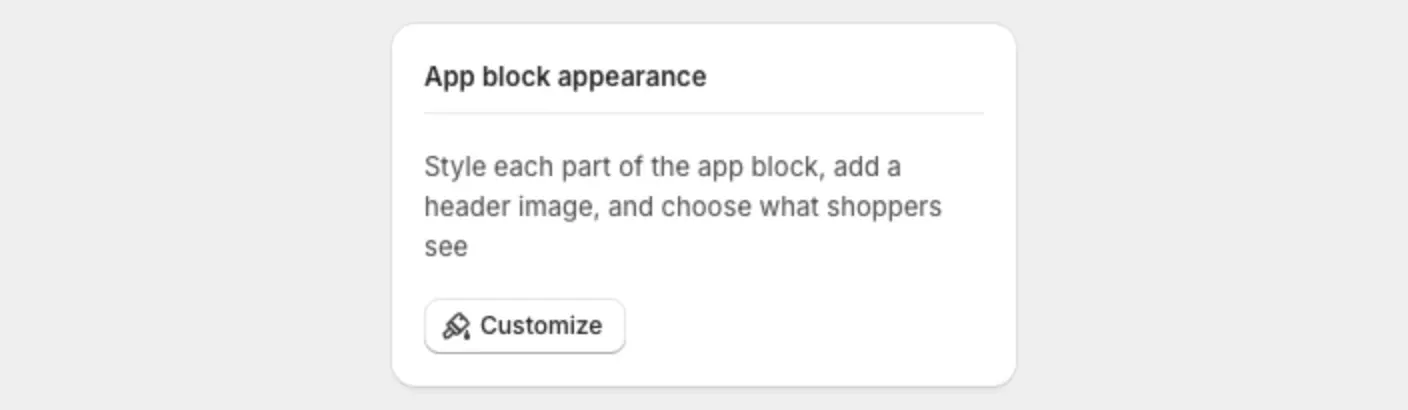
- On the right, find the App block appearance card.
- Select Customize.
On a bundle you haven’t saved yet, the card is there but Customize is greyed out. Save the bundle first.
Find your way around
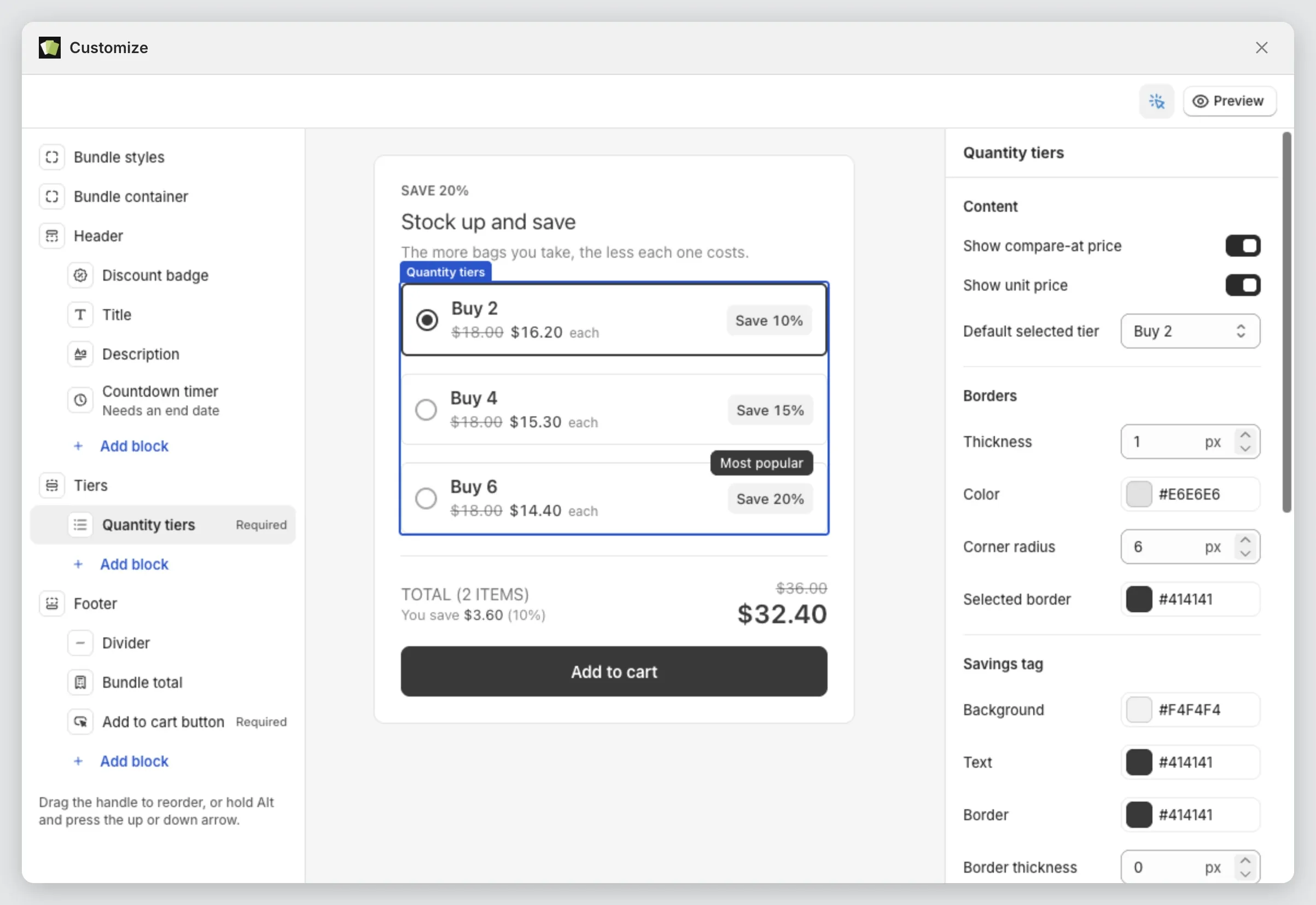
- On the left is the list of Sections, with the blocks inside each one.
- In the middle is a preview of your bundle.
- On the right are the settings for the part you selected.
The sections are:
- Bundle styles: settings shared by every part of the bundle.
- Bundle container: the card around the whole bundle.
- Header: the title, description and countdown timer.
- Products: the product list. On a volume bundle this is Tiers, and on a multi-step bundle it is Steps.
- Footer: the bundle total and the Add to cart button.
- Pop-up: the product pop-up. Only on mix and match and multi-step bundles.
Change a part of the bundle
- Select a part in the preview, or select its name in the list.
- Change its settings on the right. The preview updates as you go.
To select parts in the preview, the inspector must be on. It is the cursor icon in the top bar.
Settings are grouped under the same headings everywhere: Content, Layout, Typography, Colors, Borders, Padding and Margin.
See the bundle in different states
Use the Preview state tabs above the preview:
- Empty: before a shopper has picked anything.
- Filled: with products picked.
- Product picker: with the pop-up open.
Save your changes
When you change something, Unsaved changes shows at the top of the editor with Discard and Save.
Select Save. The editor stays open, so you can keep working.
Select Discard instead to undo your unsaved changes. This also undoes unsaved changes you made on the bundle page.
While Unsaved changes is showing, the editor has no close button. Save or discard first, then close the editor.
See it on your store
Select Preview in the editor’s top bar. If you have unsaved changes, save first. Your store only shows saved changes.
On a phone
On a narrow screen, the preview fills the editor. Use Sections and Settings in the bar at the bottom.
Good to know
- Each bundle has its own design. Changing one bundle doesn’t change another.
- To start a new bundle with the same design, duplicate a bundle you’ve already styled.
- A bundle you styled before an app update keeps its look.