
How to create a mix and match bundle
A mix and match bundle lets shoppers build their own bundle from products you choose. The discount applies once they have added the number of items you ask for.
Step 1: Start the bundle
- In Lime Bundles, go to Bundles.
- Select Create a bundle.
- Under Mix and match bundle, select Create mix and match bundle.
- Enter a Title, and a Description if you want one.
Step 2: Choose what shoppers can pick from
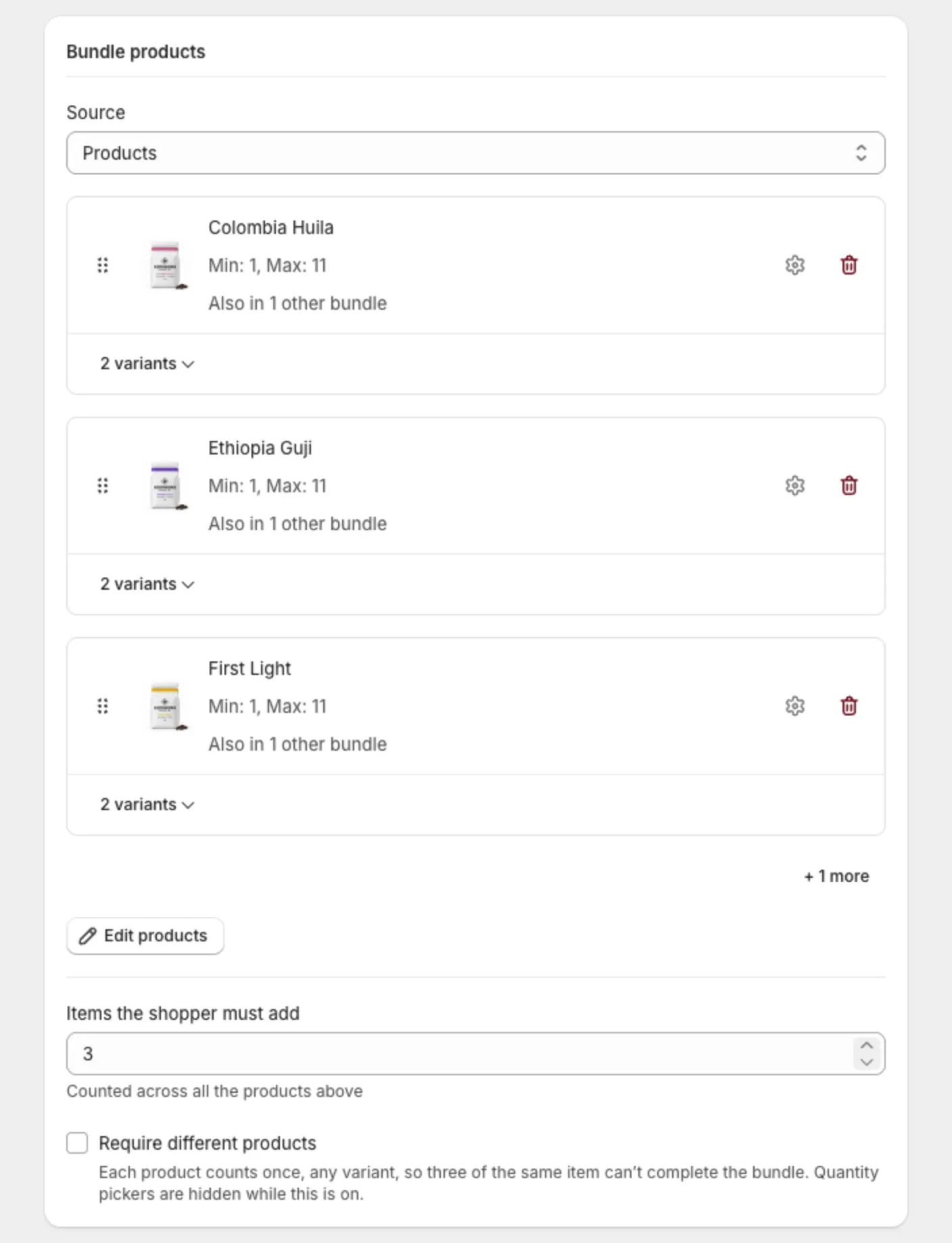
- In Bundle products, choose a Source:
- Products: you select each product yourself.
- Collections: shoppers pick from every product in the collections you select. New products added to the collection show up on their own.
- Select Select products or Select collections.
- Tick what you want and select Select.
Step 3: Set how many items shoppers must add
- Under the product list, find Items the shopper must add.
- Enter the number, like 3.
This number counts across all the products above. Shoppers can’t add more than this number, and the discount applies when they reach it.
Step 4: Set rules for a product (optional)
You can limit how many of one product a shopper can add, or make a product required.
- Next to a product, select the edit icon.
- Set a Minimum and a Maximum.
- Tick Required product if every bundle must include it.
- Select Save.
See Set quantity rules and required products.
Step 5: Set the discount
- In Discount, choose a Type: Percentage, Fixed amount or Flat price.
- Enter the Value.
- Check the Discount name. Shoppers see it in their cart and at checkout.
Step 6: Go live
- In the Status card, set Bundle status to Active.
- Select Save.
What shoppers see
- The bundle shows on the product pages of its products.
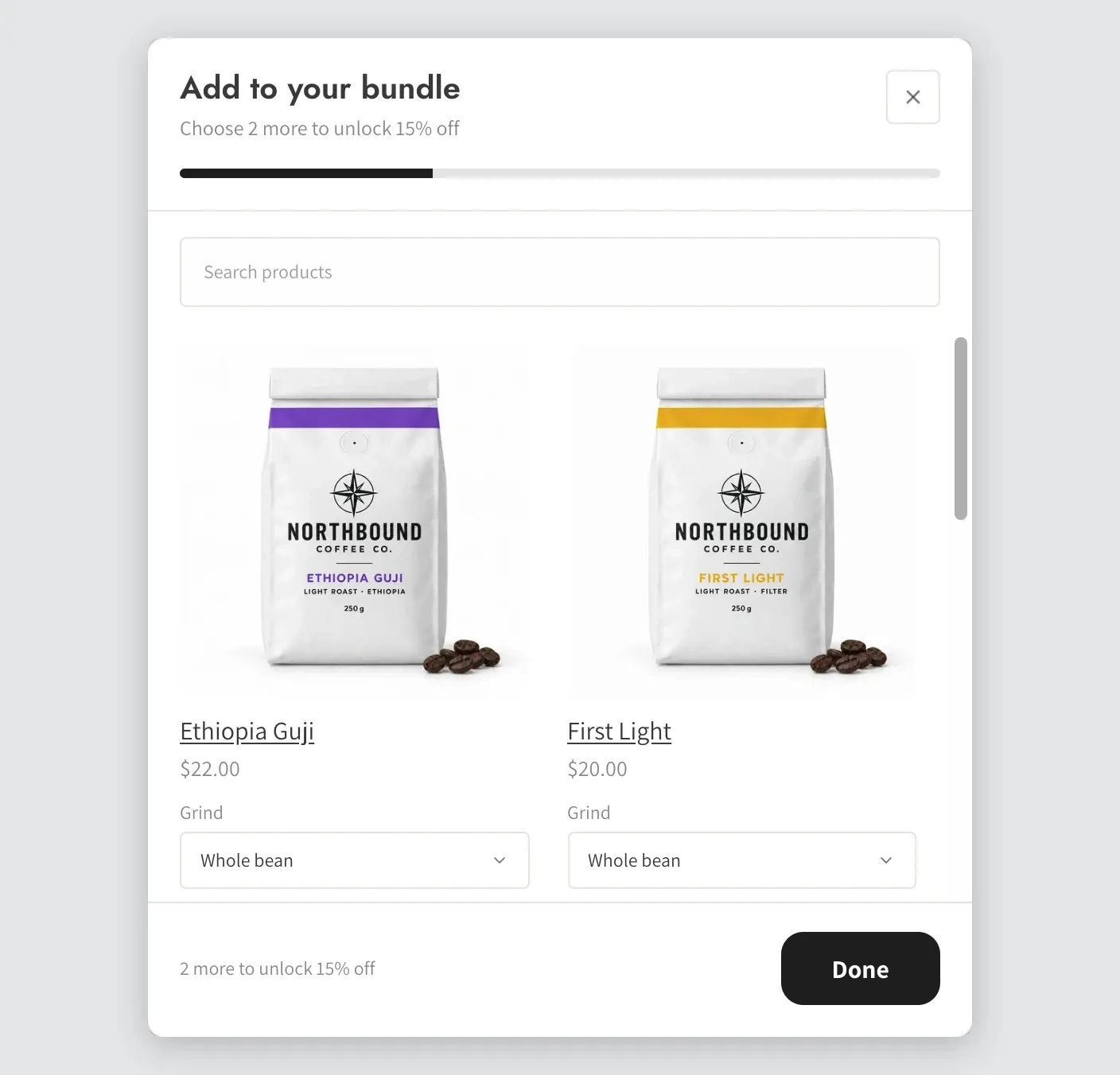
- The shopper taps Add a product. A pop-up opens with your products.
- They search or filter, then tap Add on each product they want.
- A progress bar fills as they pick. A line under the button says how many more to choose.
- When the bundle is complete, they tap Add to cart.
Good to know
- Want every item to be a different product? Turn on Require different products. See Require different products.
- If the app warns that shoppers can’t complete the bundle, see Warnings on the bundle page explained.
- Sold out products show greyed out in the pop-up and can’t be added.