
How to create a multi-step bundle
A multi-step bundle guides shoppers through named steps. Each step has its own products, like “Choose a shampoo”, then “Choose a conditioner”.
Step 1: Start the bundle
- In Lime Bundles, go to Bundles.
- Select Create a bundle.
- Under Multi-step bundle, select Create multi-step bundle.
- Enter a Title, and a Description if you want one.
Step 2: Build the first step
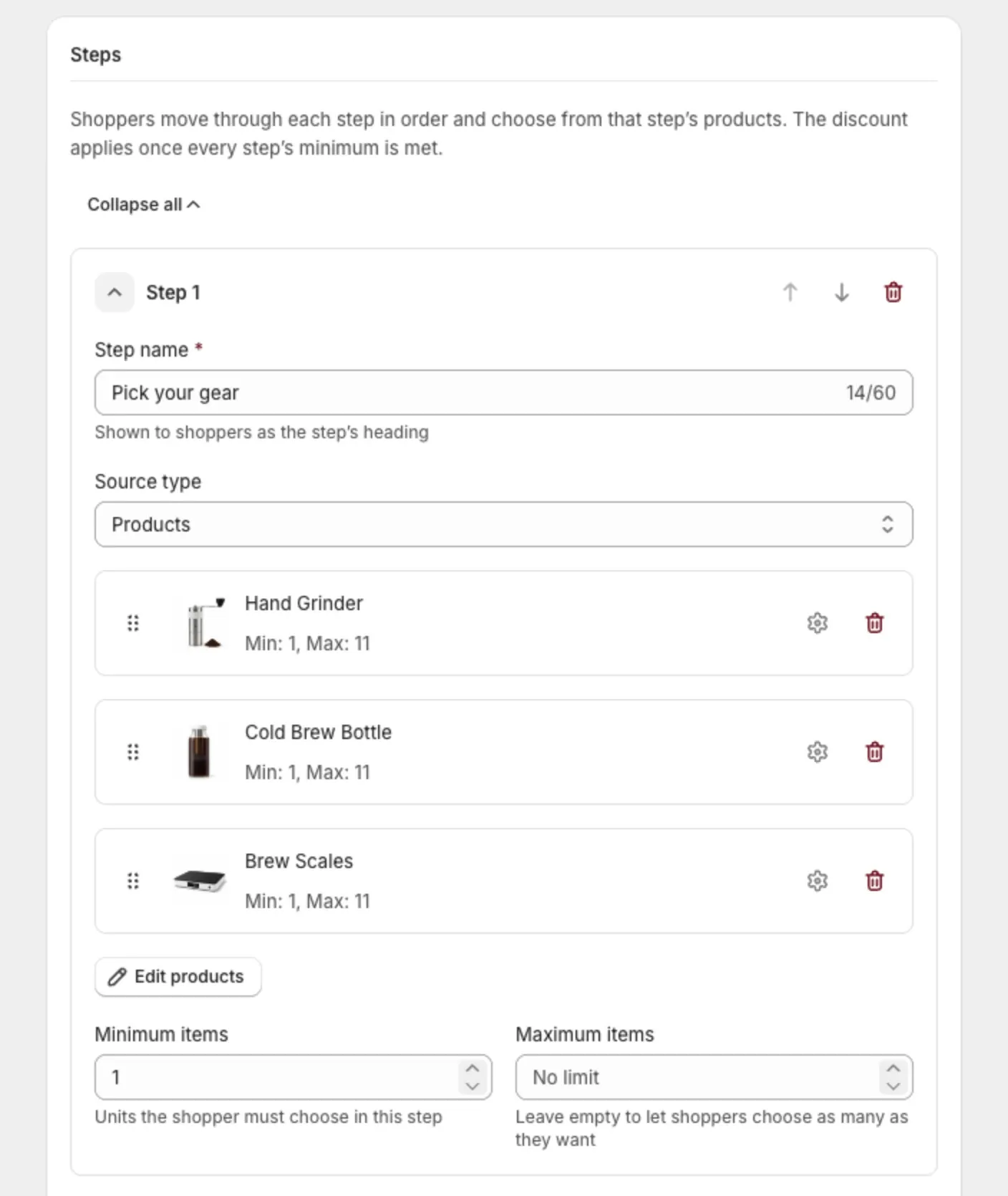
- In Steps, open Step 1.
- Enter a Step name, like “Choose a shampoo”. Shoppers see it as the step’s heading.
- Choose a Source type: Products or Collections.
- Select the products or collections for this step.
- Enter the Minimum items. This is how many units the shopper must choose in this step.
- Enter the Maximum items, or leave it empty to let shoppers choose as many as they want.
Step 3: Add more steps
- Select Add step.
- Fill in the new step the same way.
A multi-step bundle needs at least 2 steps and can have up to 8. Shoppers move through them in the order you see here. Use the arrows on a step to move it up or down.
Step 4: Choose how shoppers move on
Turn on Auto-advance steps if you want the bundle to move shoppers to the next step as soon as they fill a step to its maximum.
The last step, and steps with no maximum, still use the Next button.
Step 5: Set the discount
- In Discount, choose a Type: Percentage, Fixed amount or Flat price.
- Enter the Value.
- Check the Discount name.
The discount applies once every step’s minimum is met.
Flat price covers every item the shopper selects. It works best when each step’s maximum is the same as its minimum, so every bundle holds the same number of items.
Step 6: Go live
- In the Status card, set Bundle status to Active.
- Select Save.
What shoppers see
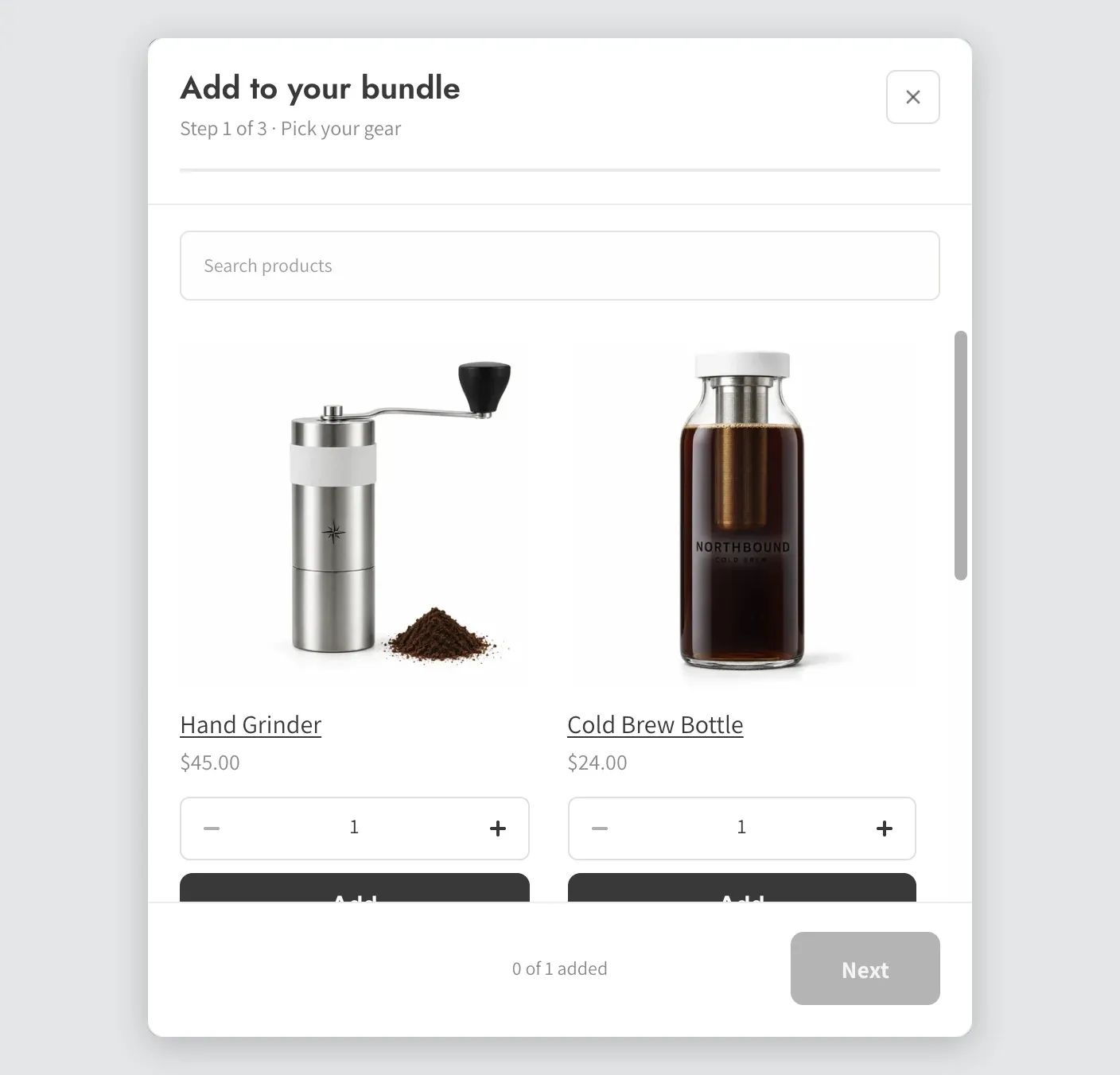
- The bundle lists your steps. The shopper taps Choose your products.
- A pop-up opens on the first step. They add products, then tap Next.
- They can go Back and keep the picks they made.
- When every step is done, they tap Add to cart.
Good to know
- A step can hold up to 12 products you select yourself, or up to 12 collections. To offer more products, use a collection.
- A product in more than one step counts toward every step it belongs to at checkout.
- Want each product picked only once across the whole bundle? See Require different products.
- For a single list with no steps, use a mix and match bundle.