
How to create a volume bundle
A volume bundle gives bigger discounts as shoppers add more units. You set the tiers, like “buy 3, save 5%” and “buy 6, save 10%”.
Step 1: Start the bundle
- In Lime Bundles, go to Bundles.
- Select Create a bundle.
- Under Volume bundle, select Create volume bundle.
- Enter a Title, and a Description if you want one.
Step 2: Choose the products
- In Bundle products, choose a Source: Products or Collections.
- Select Select products or Select collections.
- Tick what you want and select Select.
Step 3: Set the tiers
- In Volume tiers, choose the Tier discount type: Percentage or Fixed amount. It applies to every tier.
- In the first tier, enter the Minimum quantity, like 3.
- Enter the Discount percentage or Discount amount.
- Select Add tier for each extra tier.
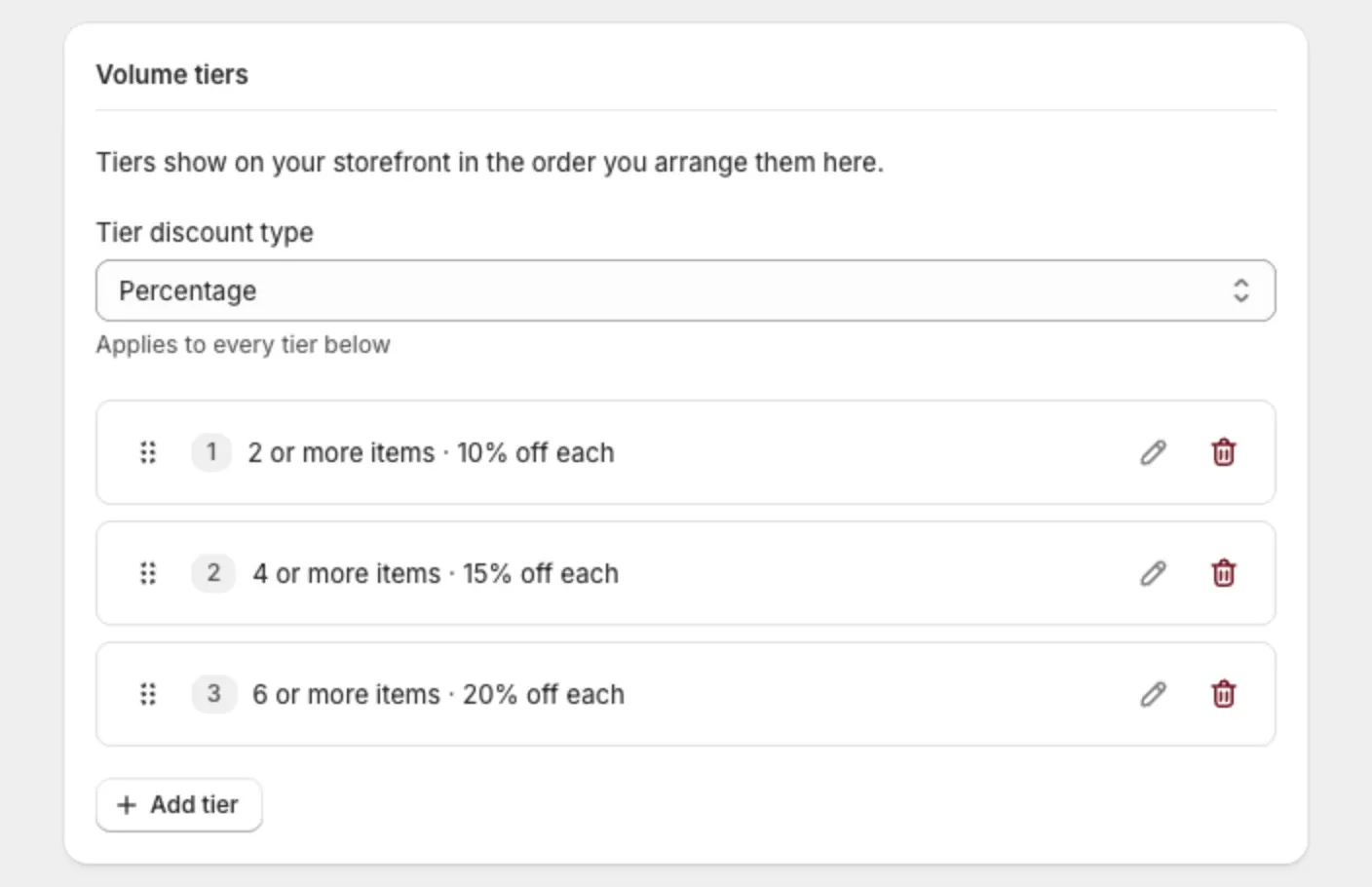
Each tier shows its rule as a sentence, like “3 or more items · 5% off each”. Select the edit icon on a tier to change it.
Change the order
Drag a tier by its handle to move it. Tiers show on your storefront in the order you arrange them here.
Step 4: Name the discount
In Discount, check the Discount name. Shoppers see it in their cart and at checkout.
You can use these in the name, and the app fills in each tier’s values:
{quantity}{percentage}{amount}
Step 5: Go live
- In the Status card, set Bundle status to Active.
- Select Save.
Step 6: Choose the highlighted tier (optional)
- On the bundle page, in App block appearance, select Customize.
- Select Quantity tiers.
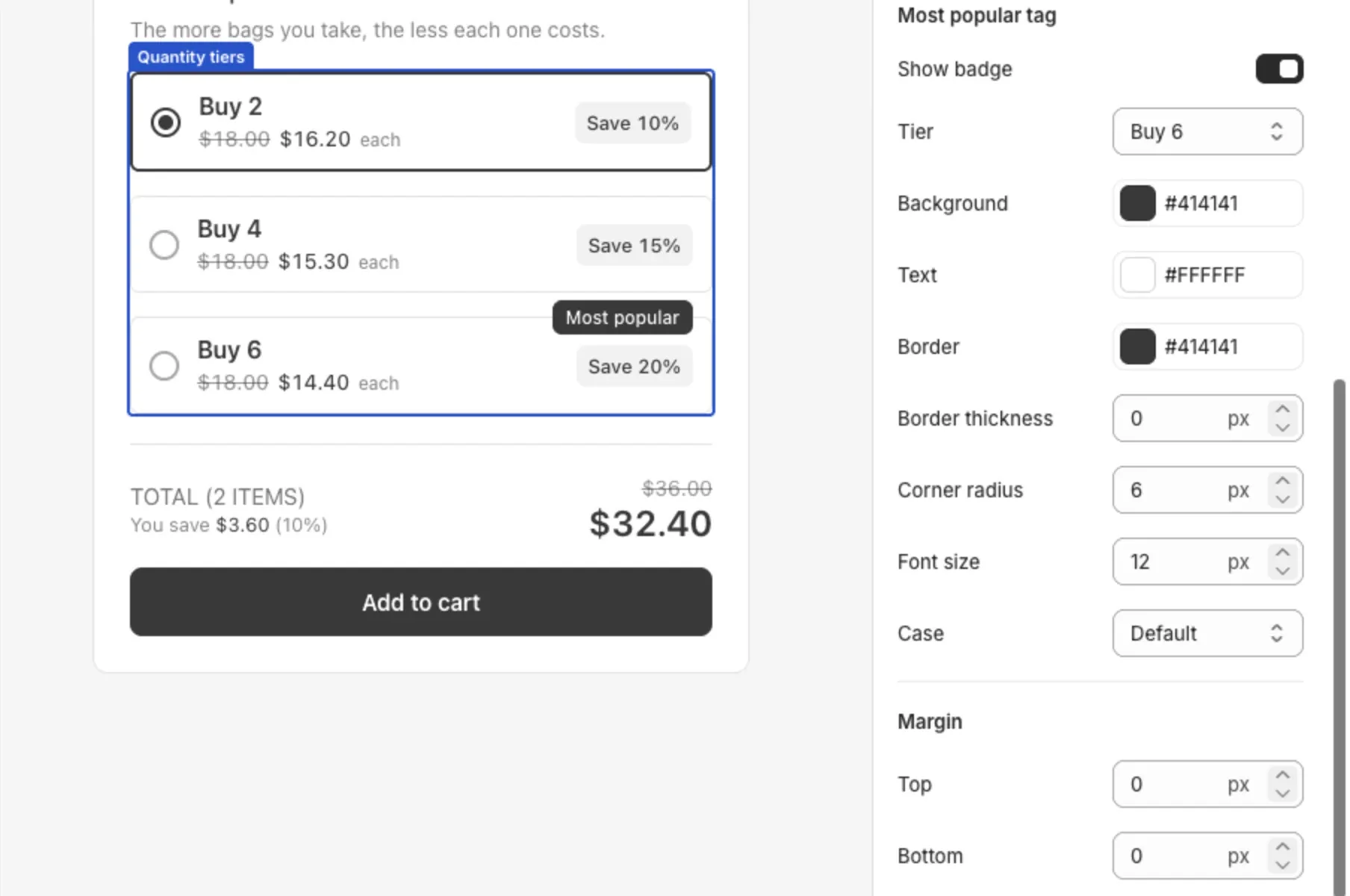
- Under Most popular tag, turn on Show badge and choose the Tier.
- Choose the Default selected tier. This is the tier already selected when the page loads.
- Select Save.
Good to know
- A volume bundle can have up to 20 tiers, and needs at least one.
- Each tier needs its own minimum quantity. Two tiers can’t share one.
- Higher quantities usually get bigger discounts. The app shows a tip if your tiers go the other way.
- A volume bundle shows on the pages of its own products. You can still choose which markets see it.