
How to set quantity rules and required products
On mix and match and multi-step bundles, you can control how many of each product a shopper can add. You can also make a product required, so every bundle includes it.
Set a rule for a product
- Open the bundle in Lime Bundles.
- In the product list, find the product.
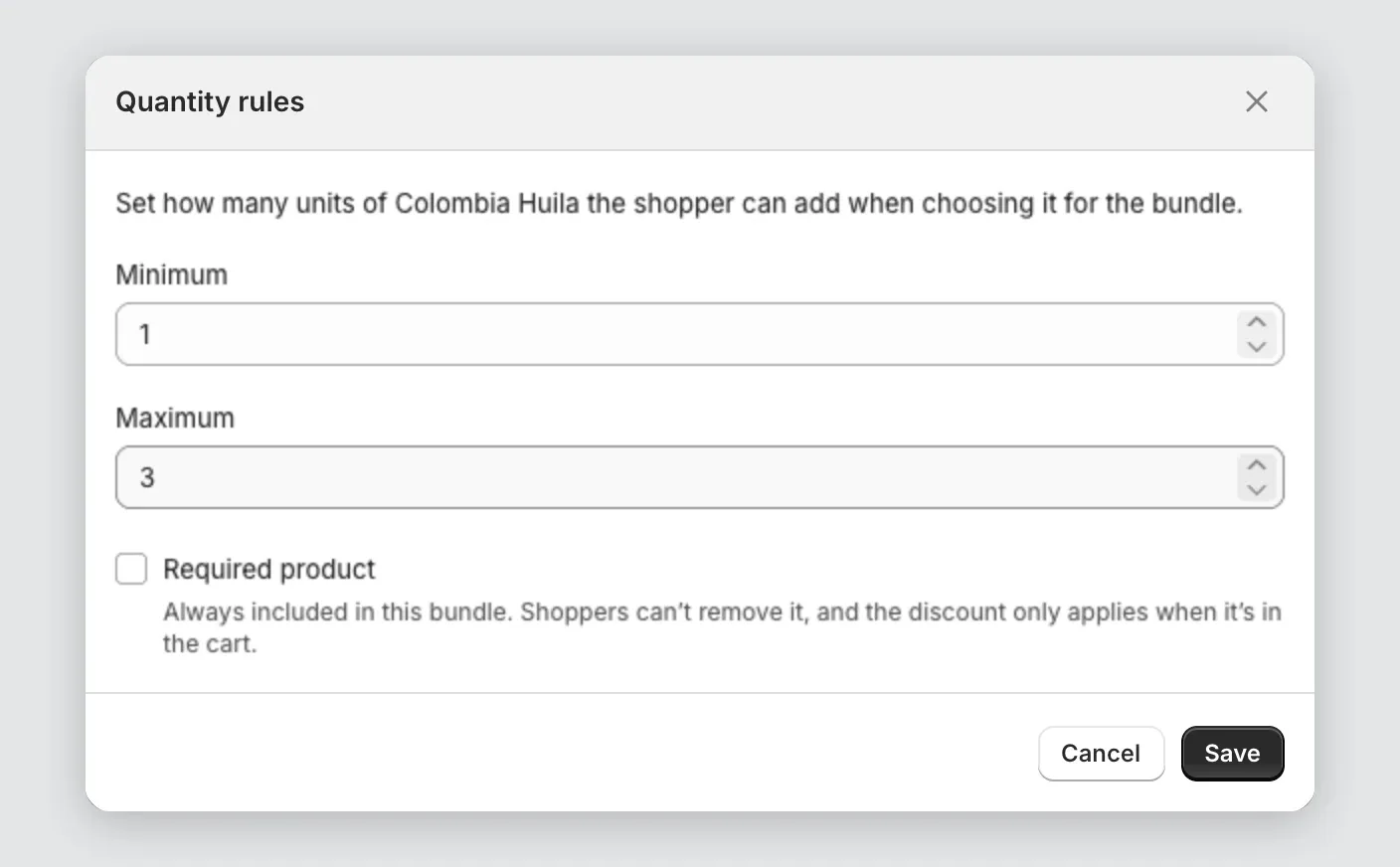
- Select the edit icon on its row. The Quantity rules dialog opens.
- Enter a Minimum. This is the fewest units a shopper can add when they choose this product.
- Enter a Maximum. This is the most units they can add.
- Select Save in the dialog.
- Select Save on the bundle.
The rule shows under the product’s name, like “Min: 1, Max: 2”.
Make a product required
A required product is always in the bundle. Shoppers can’t remove it, and the discount only applies when it is in the cart.
- Open the product’s Quantity rules dialog.
- Tick Required product.
- Select Save in the dialog, then Save on the bundle.
The product’s row now shows Required.
Set a rule for one variant
You can set a rule for a single variant, like one size.
- On the product’s row, select the variants toggle, like 3 variants.
- Select the edit icon on the variant. The Variant quantity rules dialog opens.
- Enter a Minimum and Maximum.
- Tick Required variant if the bundle must include this exact variant.
- Select Save.
The product’s own maximum still counts. If the product allows 3 units in total, all its variants together can’t go over 3.
To remove a variant’s rule, open it again and select Use the product’s rule instead.
Rules that can’t be combined
- A product from a collection can’t be required. A collection’s products can change, so the product might not be there. Switch the source to Products and select the product yourself to require it.
- A product and its variant can’t both be required. Require the whole product, or one of its variants.
- A required product must be in stock. Restock it, or make it optional.
Limits
- A quantity can go up to 99.
- A maximum can’t be higher than the stock you have. Products that Shopify doesn’t track, or that keep selling when out of stock, don’t have this limit.
- A minimum can’t be larger than the bundle holds. If it is, shoppers can never add that product, and the app warns you.
- On a multi-step bundle, the same rule applies in every step the product appears in.
Turn the quantity picker on or off
Shoppers choose quantities with a quantity selector in the pop-up.
- On the bundle page, select Customize.
- In the list of sections, under Pop-up, select Product cards.
- Turn Show quantity selector on or off.
With it off, each product a shopper chooses adds one unit.
Good to know
If a warning shows after you set a rule, see Warnings on the bundle page explained.