
Use Sidekick with your bundles
Sidekick is Shopify’s assistant in your admin. With Lime Bundles installed, you can ask Sidekick about your bundles, have it start a new bundle for you, and open a bundle to change it, without leaving the page you’re on.
What you can ask
Find bundles. Sidekick can search your bundles by name, type or status.
- “What bundles do I have?”
- “Find my summer bundle.”
- “Which of my bundles are drafts?”
- “Show me my mix and match bundles.”
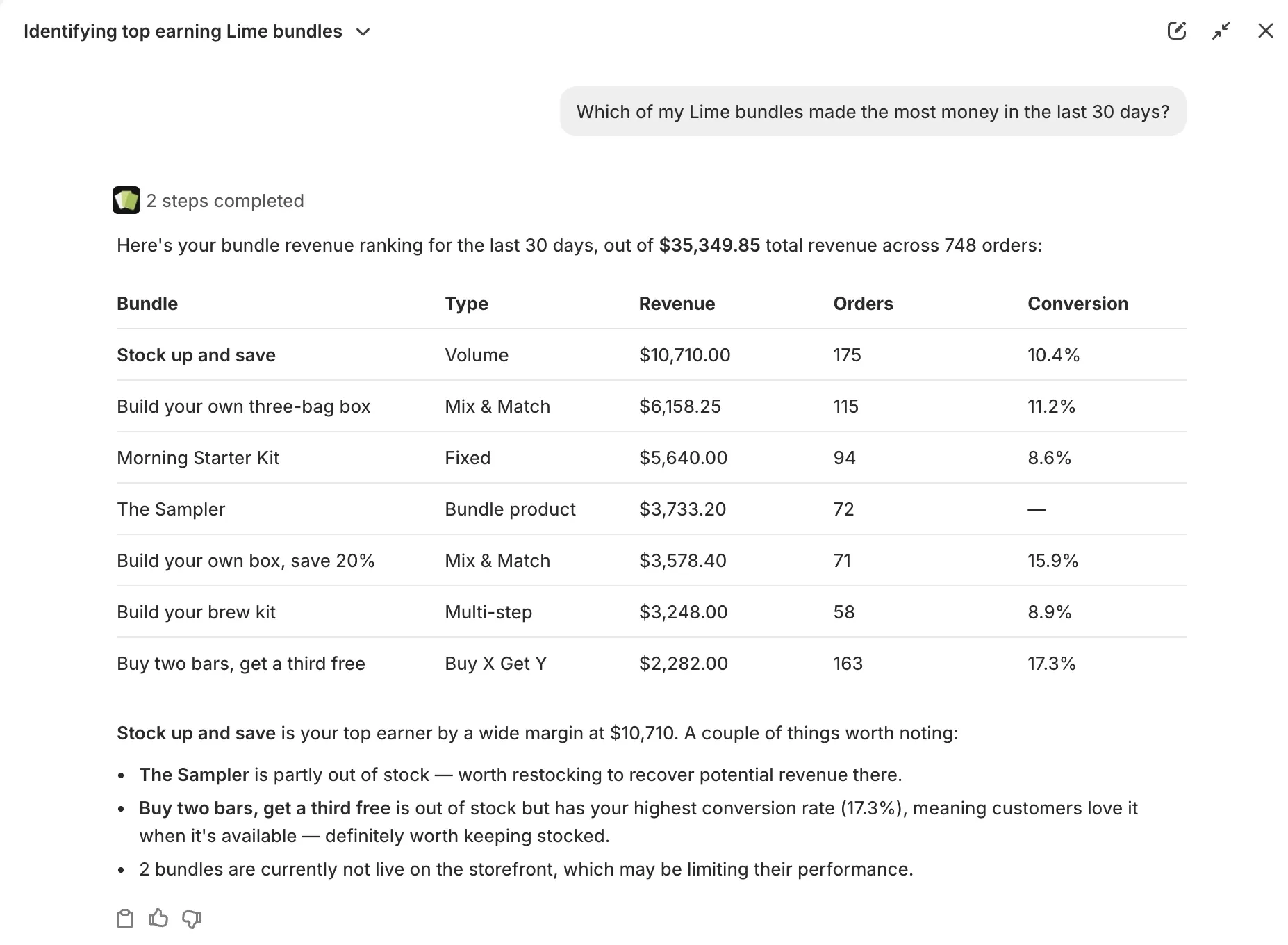
Check performance. Sidekick can report views, add to carts, orders, revenue and conversion rate for a time range.
- “How much revenue did my bundles make this month?”
- “Which bundle converts best?”
- “How is my Starter kit bundle doing?”
Create a bundle. Sidekick opens the bundle form and fills it in from what you ask for: the bundle type, the products or collection, and the discount.
- “Create a mix and match bundle from my Summer collection at 15% off.”
- “Make a fixed bundle of the Travel mug and the Coffee beans, $5 off.”
- “Set up quantity breaks on my socks: 10% off 3, 15% off 5.”
- “Create a buy 2 get 1 free bundle on the Lip balm.”
Edit a bundle. Sidekick opens the bundle’s form for you to change.
- “Edit my Summer bundle.”
- “Open my Starter kit bundle.”
Create a bundle with Sidekick
- In your Shopify admin, open Sidekick.
- Describe the bundle you want.
- Sidekick opens the bundle form in Lime Bundles, filled in. Check everything, change anything you like, and click Save. The new bundle’s page opens.
Nothing is saved until you click Save. Sidekick never creates, changes or deletes a bundle by itself.
Create or edit bundles from Shopify’s Discounts page
Lime Bundles also appears on Shopify’s own Discounts page:
- Click Create discount and choose Create a bundle under Lime Bundles to start a new bundle.
- Click a bundle’s discount in the list to open that bundle’s form.
- The list shows each bundle’s discount with the type Bundle discount.
Good to know
- Bundle products aren’t created or opened this way, because they have no discount. Create them in Lime Bundles, and open them from the product’s page in Shopify.
- Sidekick fills in what it can find. If a product or collection you mention isn’t in your store, Sidekick tells you and leaves it out.
- Shopify’s mobile app doesn’t open the bundle form from Sidekick or the Discounts page yet. Use Shopify admin on the web.
- Sidekick only sees the bundles of the store you’re in.
- A bundle that reads Can’t be sold has a problem other than stock. See Fix a bundle that says “Can’t be sold”.
- Bundle products have revenue and orders, but no views or add to carts. See Understand your bundle analytics.
- Sidekick is a Shopify feature. If you don’t see it in your admin, it may not be available for your store yet.