
Use Lime Bundles on a development store
Development stores get every Lime Bundles feature for free, with no sales limit. Use one to build and test your bundles before you launch.
What is different on a development store
- You don’t choose a plan. The app opens straight away.
- In Settings, the Plan and usage row reads “Development store, free with no sales limit”, and the page it opens shows a Dev store badge.
- There is no monthly sales limit, so your bundles never pause.
The Development stores plan
The App Store listing and Shopify’s plan page show a free plan called Development stores. It is there to show that Lime Bundles is free on development stores. You don’t need to choose it: a development store gets every feature for free with or without it.
The plan only covers development stores. If you choose it on a live store, Lime Bundles shows Your plan is for development stores only and asks you to choose one of the other plans. Each of them starts with a 14-day free trial.
When the store stops being a development store
When a development store is transferred to a merchant and moves to a paid Shopify plan, it becomes a regular store. The next time you open Lime Bundles, it asks you to choose a plan. This is the same if the store was on the Development stores plan.
Your bundles stay as they are and keep showing on your store. Choose a plan to keep them selling: without one, they are paused 3 days after their next sale, and come back as soon as you choose a plan.
Place a test order
- In your Shopify admin, go to Settings, then Payments.
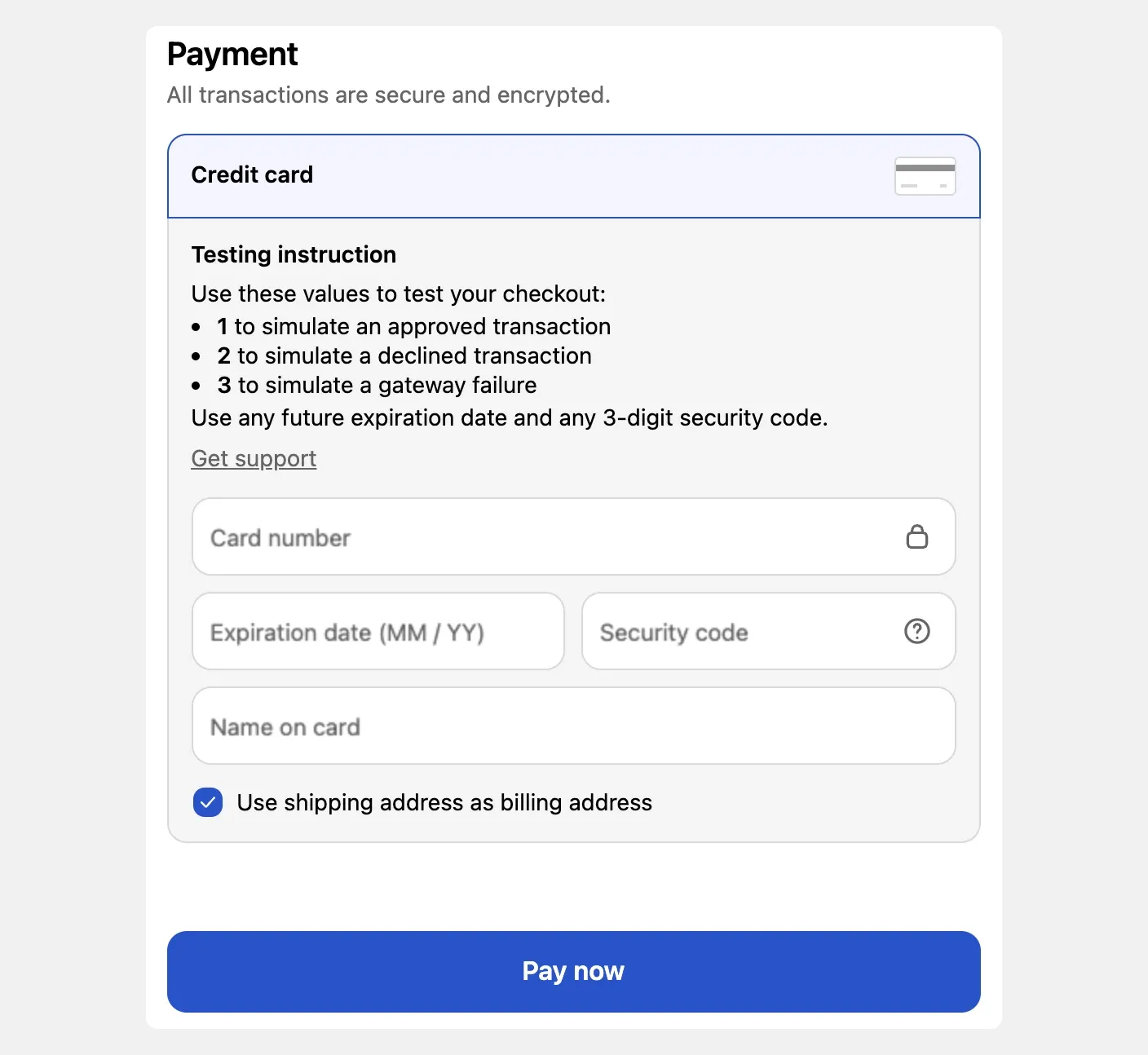
- Turn on the test payment gateway, Bogus Gateway.
- On your store, add a bundle to the cart and check out.
- Pay with card number
1, any name, any future date and any security code.
Check your test order
- In Lime Bundles, go to Analytics and choose Today. Other date ranges end yesterday, so a new order doesn’t show in them yet.
- Shopify’s own reports leave out orders paid with the test gateway. This is normal. To see an order there too, pay with Cash on Delivery (COD) instead: turn it on in your Shopify admin under Settings, Payments, Manual payment methods.
Every product shows as sold out
Development stores with test data come with two markets, the United States and Canada. If you browse your store from another country, every product can show as sold out. This has nothing to do with your bundles.
Add ?country=US to the end of the page’s address.

Your store is password protected
Development stores are always password protected. Your bundles still work:
- Preview in Lime Bundles opens your store as usual.
- Enter your store password when asked. You find it under Online Store, then Preferences.
The review prompt
After your first bundle sale, Shopify may ask you once to rate Lime Bundles. On a development store the rating is never published.
Good to know
- A development store and a live store are separate. Bundles don’t move between them. Create your bundles again on the live store.
- Everything else works the same as on a live store.