
Add the app block to your theme
The Lime Bundles app block shows your bundles on your product pages. You add it once for each theme, and it then shows every bundle that belongs on that page.
Add the block
- In Lime Bundles, go to Home.
- In the Get started guide, select Add app block to theme. Your theme editor opens on the product page, with the block already added.
- In the list on the left, find Lime Bundles app block.
- Drag it to where you want your bundles to show. Below the price and buy buttons works well.
- Select Save.
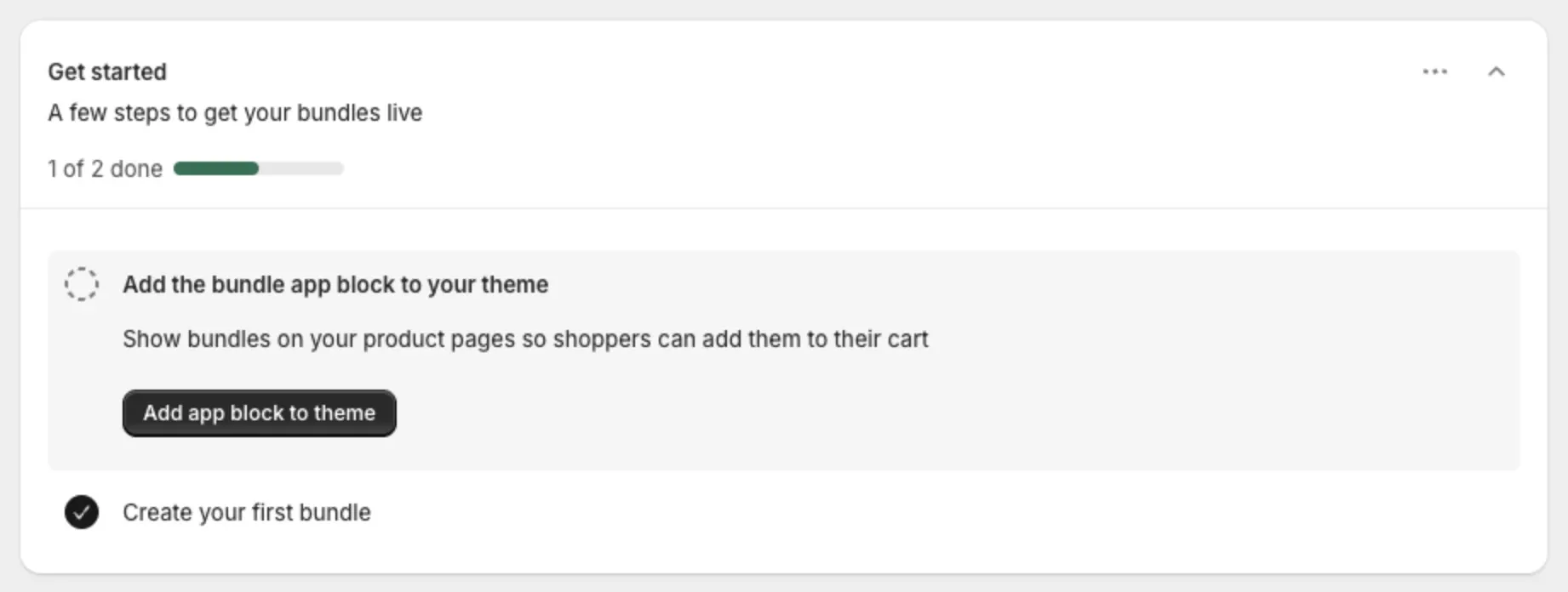
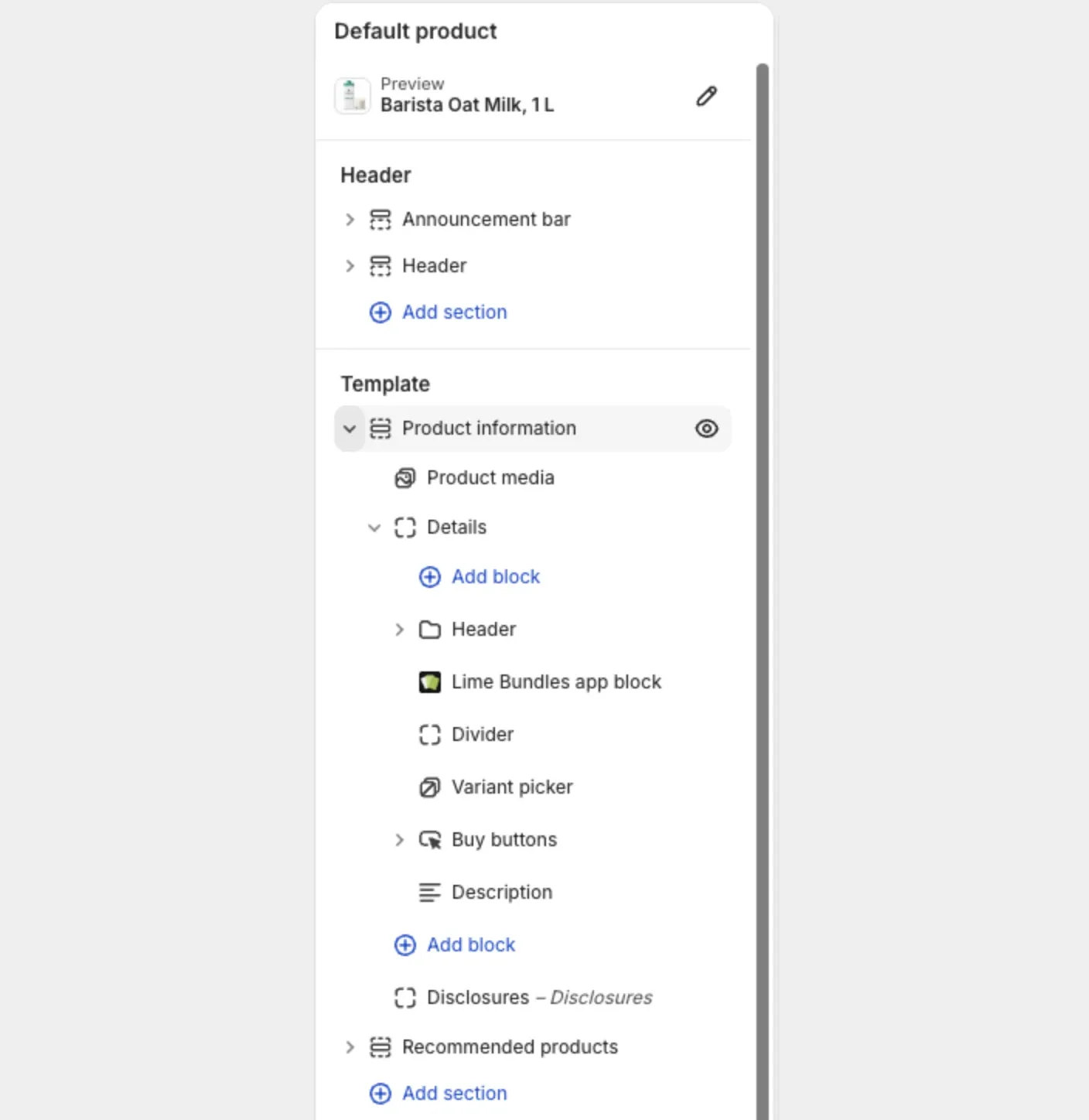
Go back to the app. The step Add the bundle app block to your theme ticks itself off.
Add the block without the guide
If you closed the guide, add the block from the theme editor.
- In your Shopify admin, go to Online Store, then Themes.
- Next to your theme, select Customize.
- At the top, open the page menu and choose Products, then Default product.
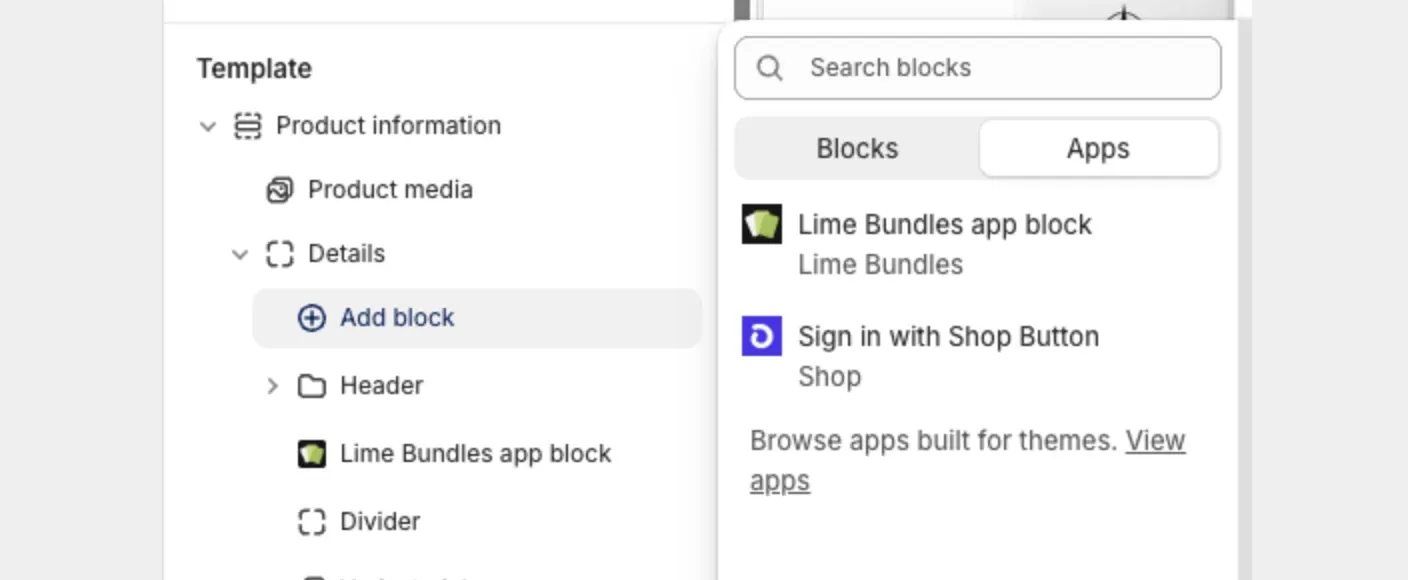
- In the product information section, select Add block.
- Open the Apps tab and select Lime Bundles app block.
- Select Save.
What the block looks like in the theme editor
- On a product that has a bundle, the block shows that bundle.
- On a product with no bundle, the block shows a dashed outline and says no bundles are showing on this product right now. Shoppers see nothing in that spot.
To check a real bundle, switch the theme editor’s preview to a product that is in one.
Good to know
- One block is enough. It shows up to 5 bundles on a product’s page.
- You use more than one product template? Add the block to each template your bundled products use.
- You switch themes? Add the block to the new theme the same way. The app checks your published theme.
- The step doesn’t tick off? Check that the section holding the block isn’t hidden in the theme editor. A hidden section hides everything inside it.
- The guide says “Add the bundle app block back to your theme”? Your product template still points at a block from a previous installation, which no longer shows anything. Select Add app block to theme to add a working one.
- Bundle products use the block too. On a bundle product’s page, the block shows the “What’s in the bundle” list.
Change how the bundle looks
The block has no settings in the theme editor. You style each bundle inside Lime Bundles. See Customize how your bundle looks.