
How to see bundle sales in Shopify's own reports
Lime Bundles labels every order that includes a bundle with the bundle’s title. This lets you group your sales by bundle in Shopify’s own analytics, next to your other reports.
How it works
When a shopper buys a bundle, Lime Bundles adds the bundle’s title to the order. Shopify’s analytics can then use it to group and filter sales.
This works for every bundle type, including bundle products.
Build a report by bundle
- In your Shopify admin, go to Analytics, then Reports.
- Open a sales report, like Total sales over time, or create a new exploration.
- Add a dimension to group by.
- Search for Bundle and select it. This is the order label Lime Bundles adds.
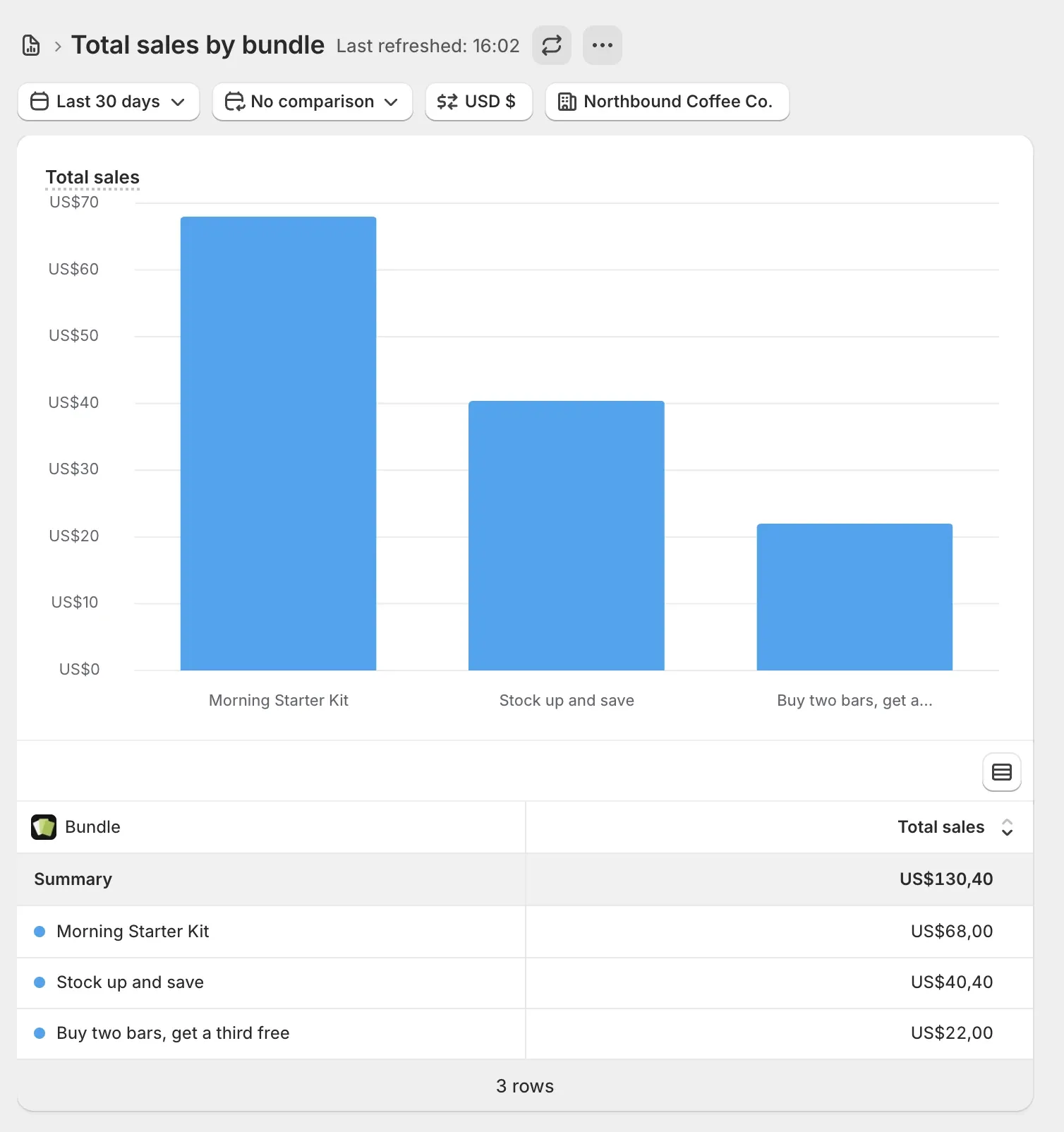
The report now shows one row for each bundle.
Good to know
- It starts from your first bundle order. Orders placed before you installed Lime Bundles have no label, and they aren’t labeled afterwards.
- An order with two bundles carries both titles.
- Renaming a bundle changes the label on new orders only. Past orders keep the title the bundle had when it sold.
- Test gateway orders don’t show. Shopify’s reports leave out orders paid with the test payment gateway. On a development store, an order paid with Cash on Delivery (COD) does show.
- The numbers can differ a little from the Analytics page in Lime Bundles. Shopify’s reports count the whole order line in their own way, and Lime Bundles counts what shoppers paid for the bundle after discounts.
See when each bundle went live
When a bundle goes live for the first time, Lime Bundles adds a marker for that day to Shopify’s analytics, labeled with the bundle’s title. If your sales move, you can see at a glance whether a new bundle started that day.
- Save a bundle as Active for the first time.
- In your Shopify admin, go to Analytics, then Reports, and click New exploration.
- Add the Total sales metric and the Day dimension, so the chart shows sales over time.
- Click Annotations. The bundle launch is listed on the day it went live, with the bundle’s title and Lime Bundles beside it. The same day also has a dot under the chart’s dates.
Good to know:
- Each bundle gets one marker, on the day it first went live. Turning a bundle off and on again doesn’t add another.
- A bundle with a start date in the future is marked on its start date. If you move the start date before it arrives, the marker moves too.
- Renaming a bundle renames its marker.
- Bundles that were already live before markers arrived don’t get one. Markers start with the next bundle you launch.
- Shopify asks you to approve one permission the first time you open Lime Bundles after markers arrived. Markers start once you approve it.
- Deleting a bundle keeps its marker, because the launch still happened.
Prefer the app’s own analytics?
For views, add to carts and conversion rate, use Analytics in Lime Bundles. Shopify’s reports only know about orders. See Understand your bundle analytics.