
Show what's in the bundle on a bundle product's page
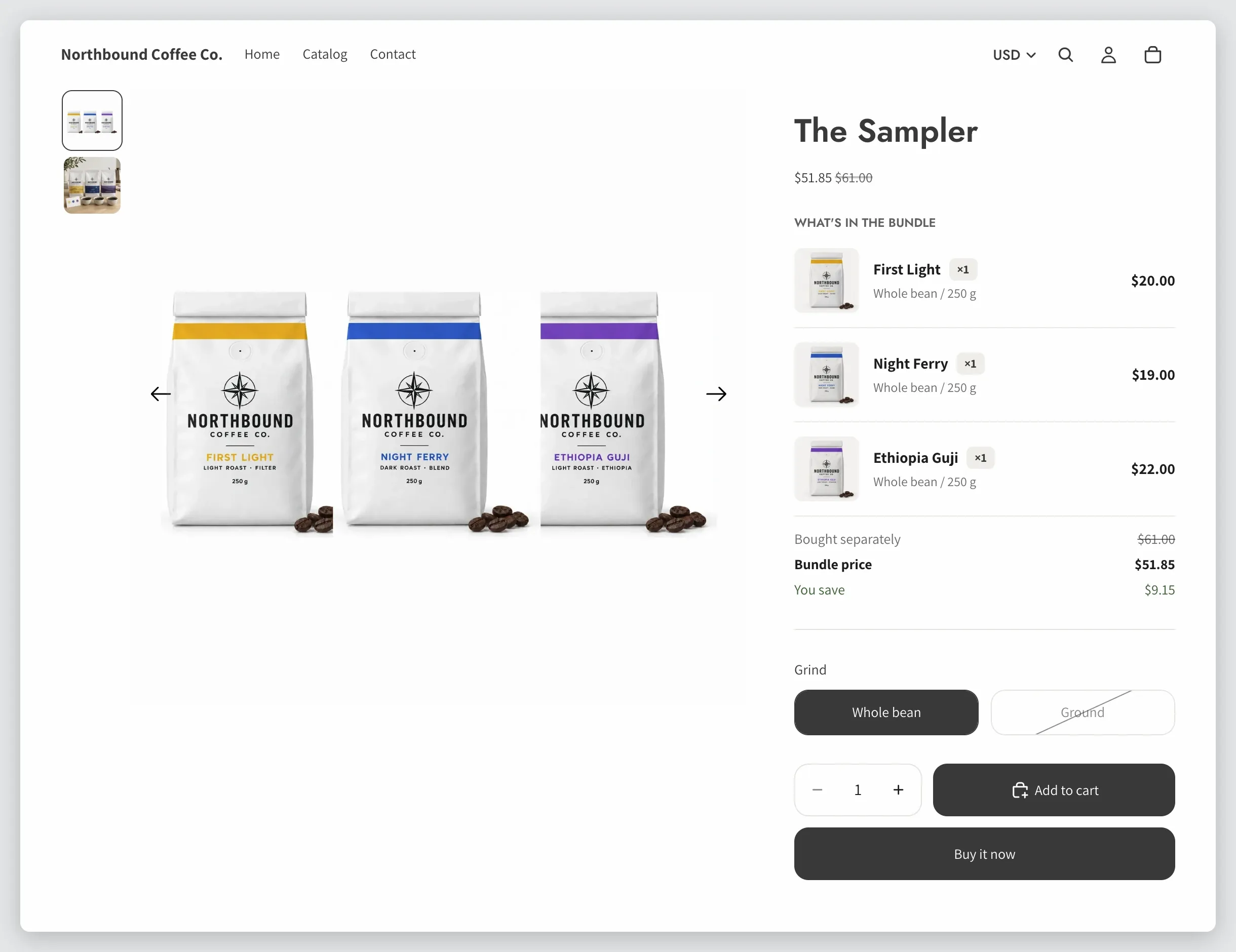
A bundle product can show shoppers what is inside it, right on its product page. The list shows each product’s picture, name, variant and price, and how much the bundle saves.
Before you start
The list shows in the Lime Bundles app block. If the block isn’t in your theme yet, see Add the app block to your theme.
Every bundle product has the list. There is nothing to switch on.
Style the list
- Open the bundle product in Lime Bundles.
- In the App block appearance card, select Customize.
- Select Product list.
- Choose a Style:
- List: one product per row.
- Grid: tiles side by side. Choose the number of Columns.
- Collapsible: a closed row that opens when tapped. Choose whether it Starts Closed or Open.
- Select Save.
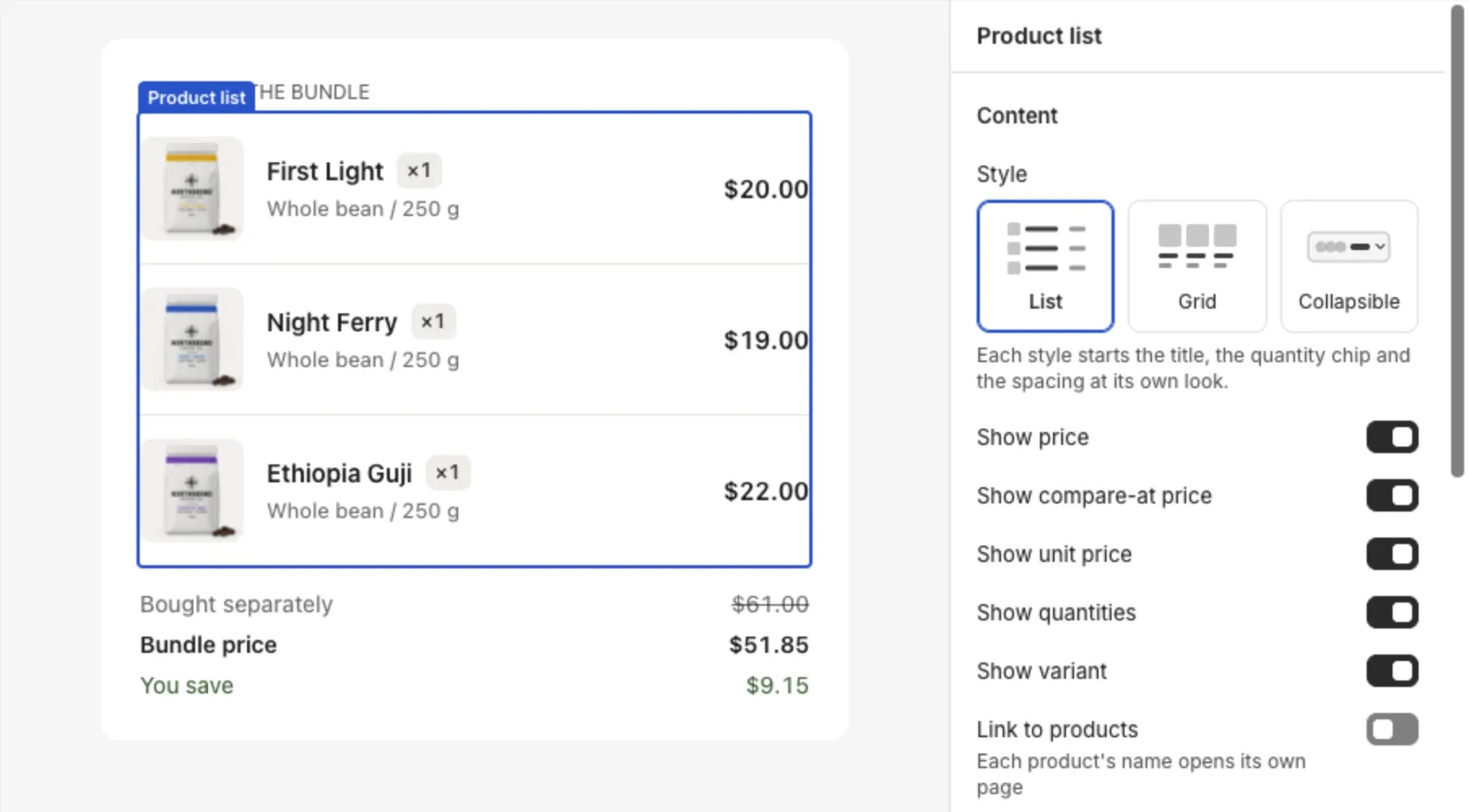
Choosing a style also resets the title, the quantity chip and the spacing to that style’s look.
Choose what each row shows
In the Product list panel, turn each of these on or off:
- Show price
- Show compare-at price
- Show unit price
- Show quantities
- Show variant
- Link to products: each product’s name opens its own page.
Choose what the total shows
- Select Bundle total.
- Turn each of these on or off:
- Show original total: what the items cost bought separately.
- Show bundle price
- Show savings
The saving only shows when the bundle costs less than its products bought separately.
Change the heading
- Select Title.
- Enter your own Heading, up to 80 characters.
Leave it empty to show “What’s in the bundle”, translated into every language.
Good to know
- The list follows the shopper’s choices. When they switch a size or a pack size, the rows and totals change with it.
- Prices are read live from your products. You don’t need to save the bundle after a price change.
- A product that is sold out shows a Sold out tag.
- A bundle whose versions use more than 128 different variants between them gets no list. The bundle still saves and sells.