
The Bundled products card on a product in Shopify
When you create a bundle product, Lime Bundles adds a Bundled products card to that product’s page in your Shopify admin. It shows what is inside the bundle, and takes you to the bundle in one click.
Find the card
- In your Shopify admin, go to Products.
- Open a product that Lime Bundles created as a bundle product.
- Scroll to the Bundled products card.
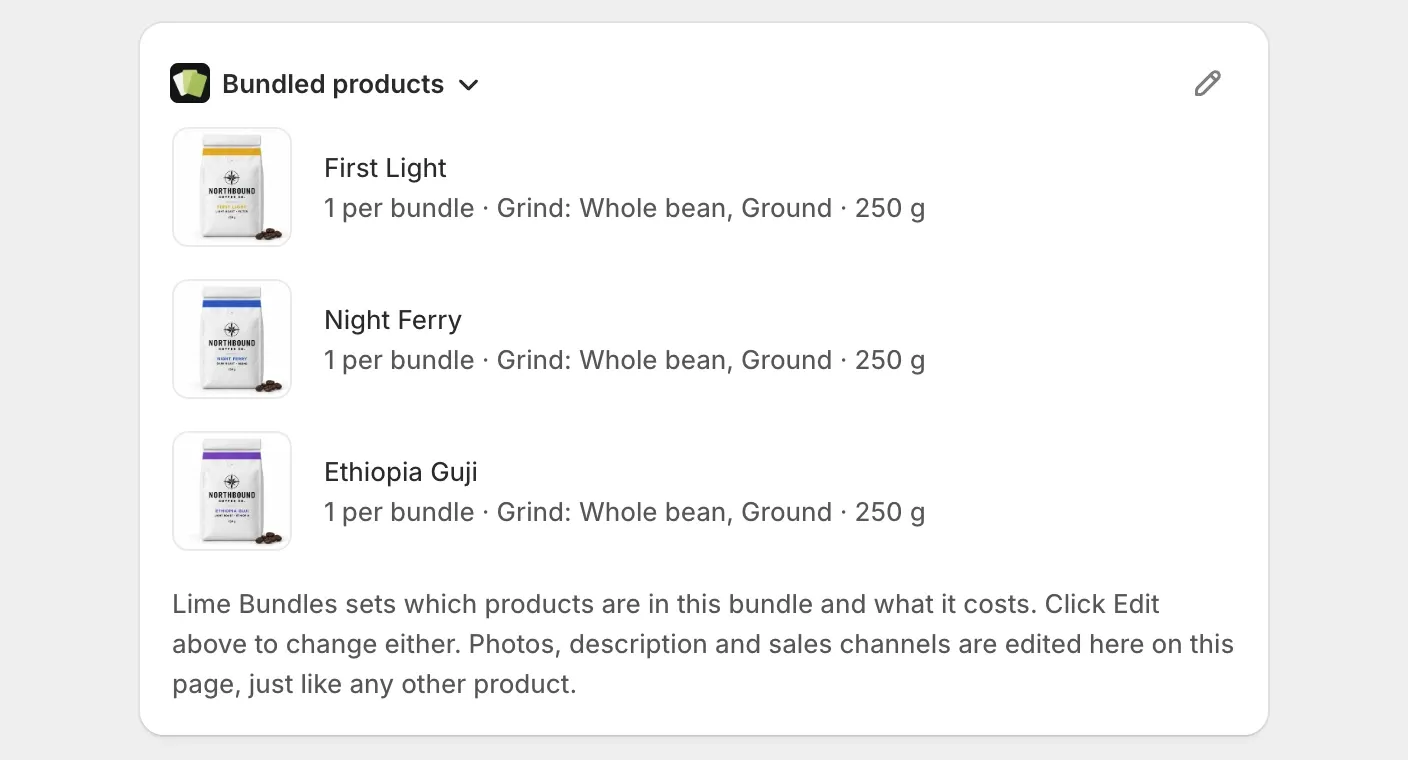
What the card shows
- Each product in the bundle, with its picture.
- How many of it the bundle includes, like “2 per bundle”.
- The variant, when the bundle always includes the same one, like “1 per bundle · Charcoal”.
The card follows your Shopify admin’s language.
Edit the bundle from the card
- Select the edit icon on the card.
- Lime Bundles opens on that bundle.
- Make your changes and select Save.
What you change where
| To change | Go to |
|---|---|
| The products in the bundle, quantities, options and pack sizes | Lime Bundles |
| The bundle’s discount | Lime Bundles |
| The “What’s in the bundle” list on your store | Lime Bundles, under Customize |
| Images, description and SEO | The product page in Shopify |
| Sales channels | The product page in Shopify |
You can’t change what is inside the bundle from the product page in Shopify. Only the app that created a bundle can change its contents.
Good to know
- The card only shows on bundle products. Products inside your other bundle types don’t have it.
- If the card’s link says no bundle was found, the bundle may have been deleted in Lime Bundles.
- For more on this bundle type, see Bundle product: how it works and what to expect.