
How to change colors, text size and spacing
You can change the colors, text sizes, borders and spacing of every part of a bundle. Some settings belong to one part. Others are shared across the whole bundle.
The font comes from your theme, so your bundle always matches the rest of your store. To change it, change your theme’s font in the Shopify theme editor.
Open the editor
- Open the bundle in Lime Bundles.
- In the App block appearance card, select Customize.
Change the bundle’s card
The Bundle container is the card around the whole bundle.
- In the list of Sections, select Bundle container.
- Change what you need:
- Layout: the Width, and the Gap between sections.
- Colors: the Background and Text color.
- Borders: the Border thickness, color and Corner radius.
- Padding: the space inside the card, on each side.
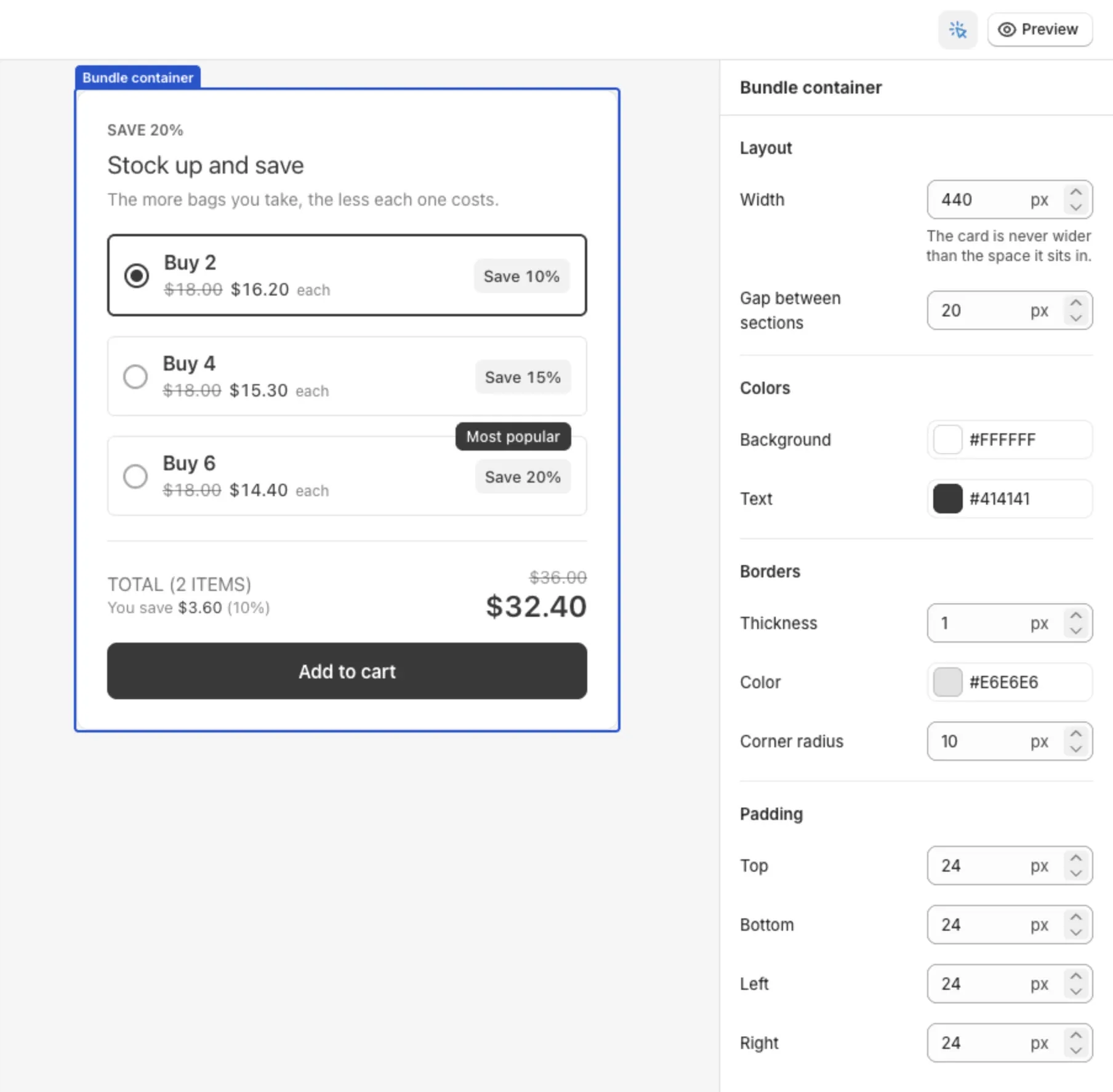
The card is never wider than the space it sits in, so it fits on a phone.
Change shared styles
Bundle styles are shared by every part of the bundle. Change one here and it changes everywhere it is used.
- In the list of Sections, select Bundle styles.
- Change a group:
- Buttons: the Add to cart button, and the pop-up’s buttons.
- Fields: variant dropdowns, quantity selectors and the search field.
- Tags: the “Added” tag in the pop-up.
- Images: product thumbnails. Set their Corner radius and Aspect ratio.
- Dividers: the lines between products.
- Text: small labels, like option names and dropdown text.
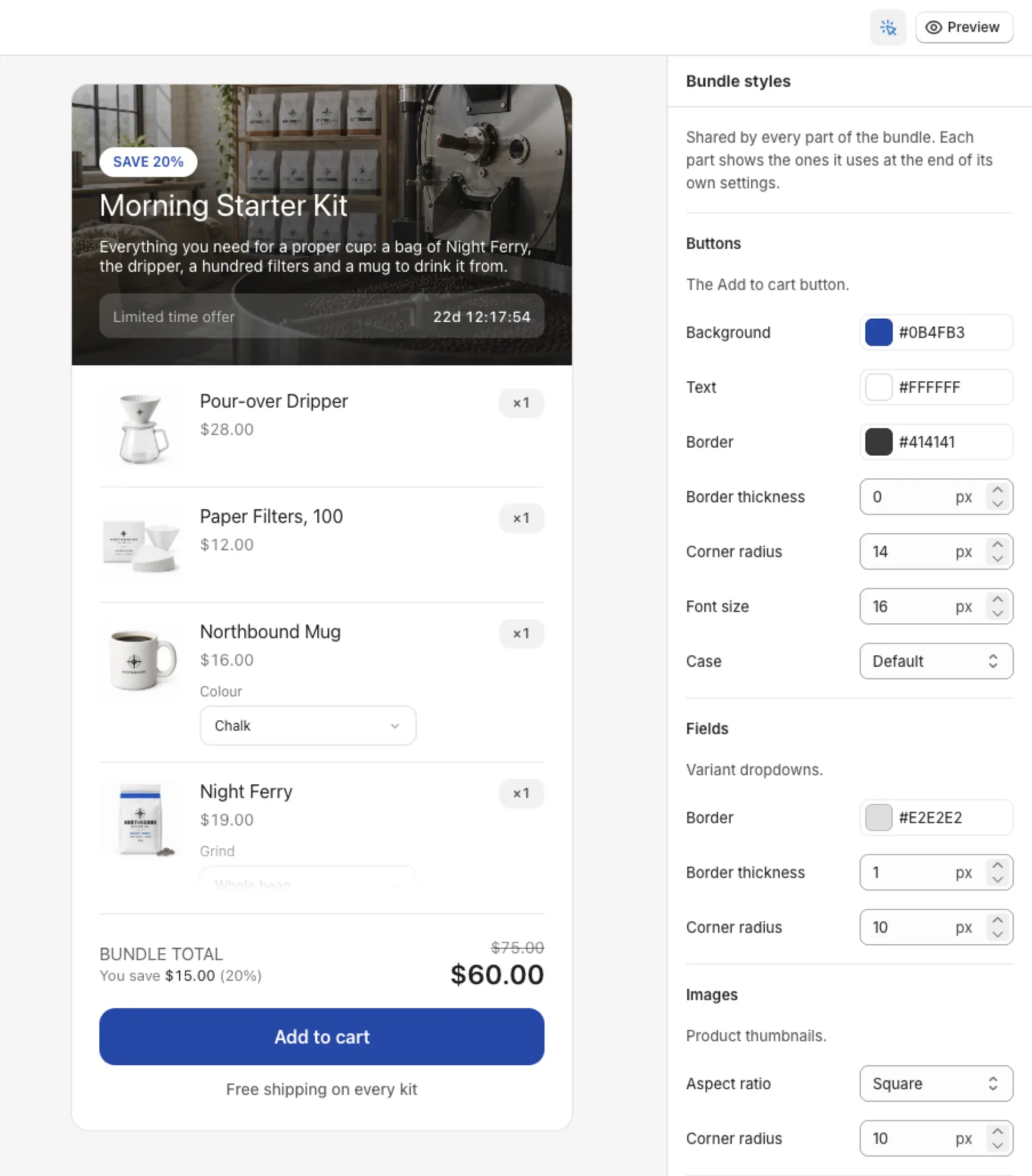
Each bundle type only shows the groups it uses.
You can also reach these from a part’s own settings. Open the Bundle styles row at the end of its settings.
Change one part
- Select the part in the preview, like the Title.
- Change its settings. For a title, that is the Font size, Heading tag and Text color.
Pick a color
- Select a color field.
- Drag in the color area, or type a hex code like
#414141. - Use Opacity to make the color see-through.
A color that reads Default follows the rest of the bundle. For example, a title on Default uses the bundle’s text color. To go back to default, open the color and select the reset option.
Change text size and case
- Font size is in pixels.
- Case is Default or Uppercase.
- Heading tag on the title sets its level for your page’s outline and for screen readers. It doesn’t change the size.
Change spacing
- Padding is the space inside a part.
- Margin is the space above and below a block.
- Gap is the space between rows, like Gap between products.
All are in pixels.
Save
When you change something, Unsaved changes shows at the top of the editor with Discard and Save. Select Save. The editor stays open, so you can keep working.
Good to know
- For changes the editor doesn’t offer, see Add custom CSS.
- Styles are saved for each bundle. Another bundle keeps its own.