
How to create a fixed bundle
A fixed bundle sells a set of products together at one discount. You choose what is in it, and shoppers buy the whole set.
Step 1: Start the bundle
- In Lime Bundles, go to Bundles.
- Select Create a bundle.
- Under Fixed bundle, select Create fixed bundle.
Step 2: Add the details
- Enter a Title. Shoppers see it as the bundle’s heading.
- Enter a Description if you want one. It shows under the title.
Step 3: Choose the products
- In Bundle products, leave Source on Products.
- Select Select products.
- Tick the products you want and select Select.
- Set the Qty for each product. This is how many of it the bundle includes.
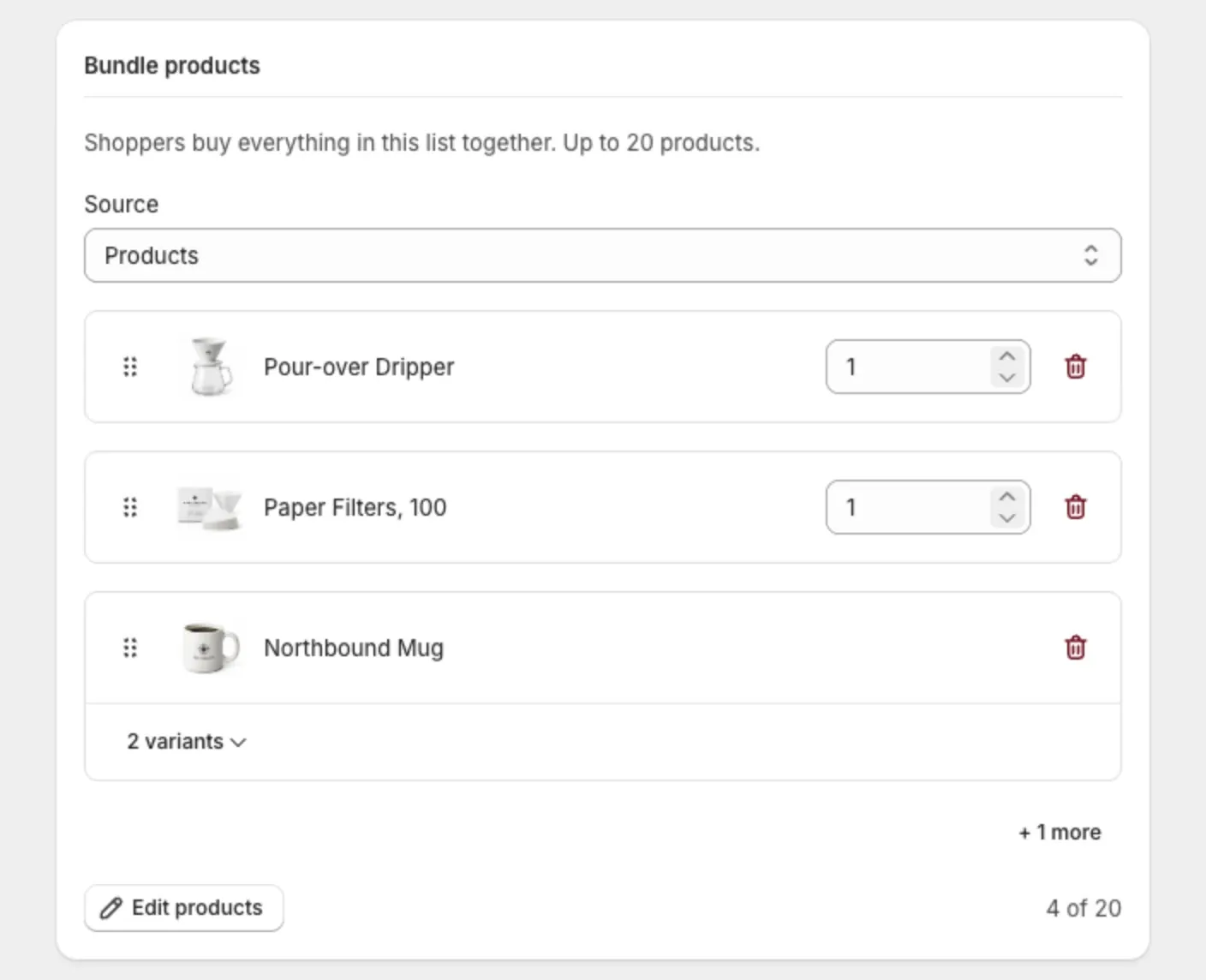
A fixed bundle holds up to 20 products and needs at least 2 items in total. Two different products count, and so does one product with a quantity of 2.
Products with variants
Select a product’s variant toggle, like 3 variants, to see its variants.
- Keep several variants and shoppers choose one, like a size or a color.
- Keep one variant and the bundle always includes that one.
Use collections instead
A fixed bundle can take its products from collections instead of a list you pick by hand.
- In Bundle products, set Source to Collections.
- Select Select collections.
- Tick the collections you want and select Select.
- Set the Qty for each product. The products are listed under their collection.
The bundle then includes every product in those collections, and shoppers buy them all together. This suits a small collection, like a three-piece set.
- Add a product to the collection and it joins the bundle. Remove one and it leaves.
- A bundle uses products or collections, not both. Switching Source replaces what the bundle includes.
Step 4: Set the discount
- In Discount, choose a Type: Percentage, Fixed amount or Flat price.
- Enter the Value.
- Check the Discount name. Shoppers see it in their cart and at checkout.
The line under the fields tells you what the items cost when bought separately, so you can see the saving.
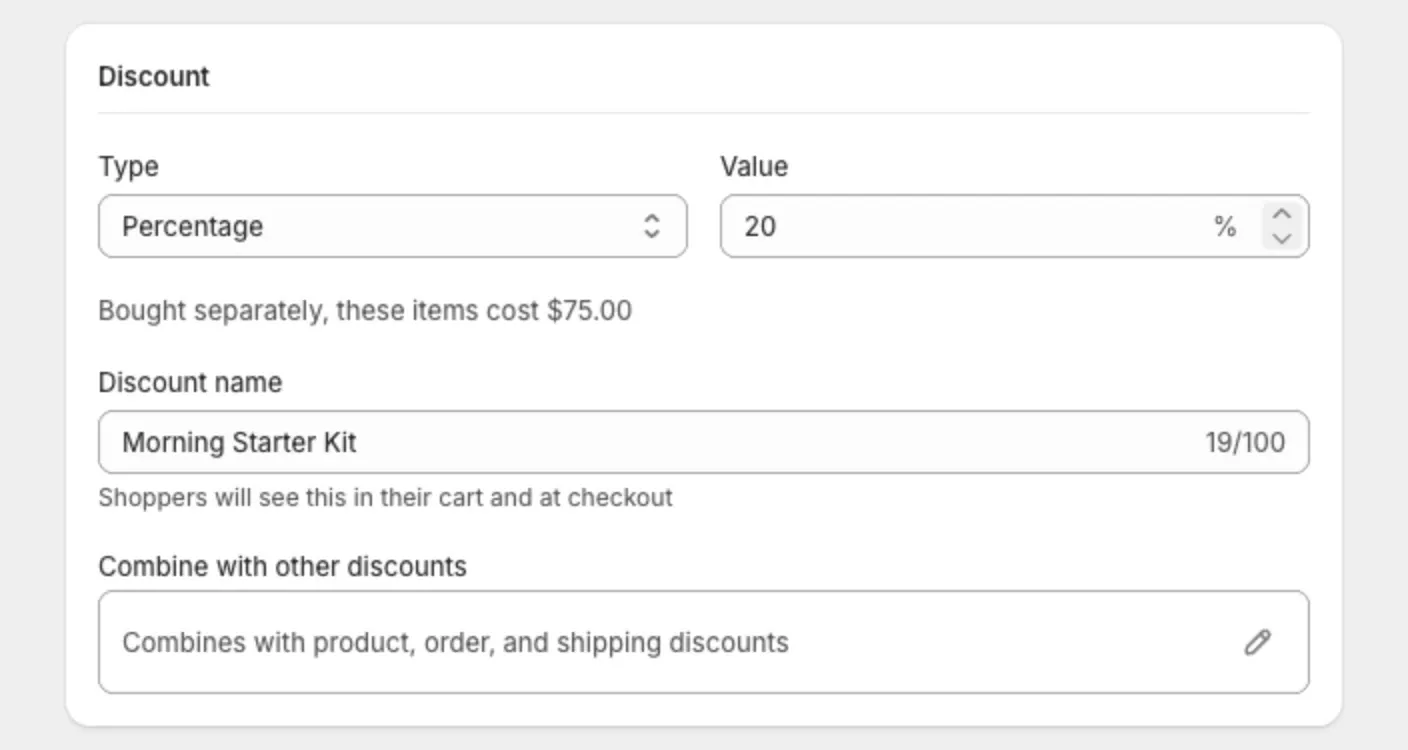
For more, see Set a bundle’s discount.
Step 5: Go live
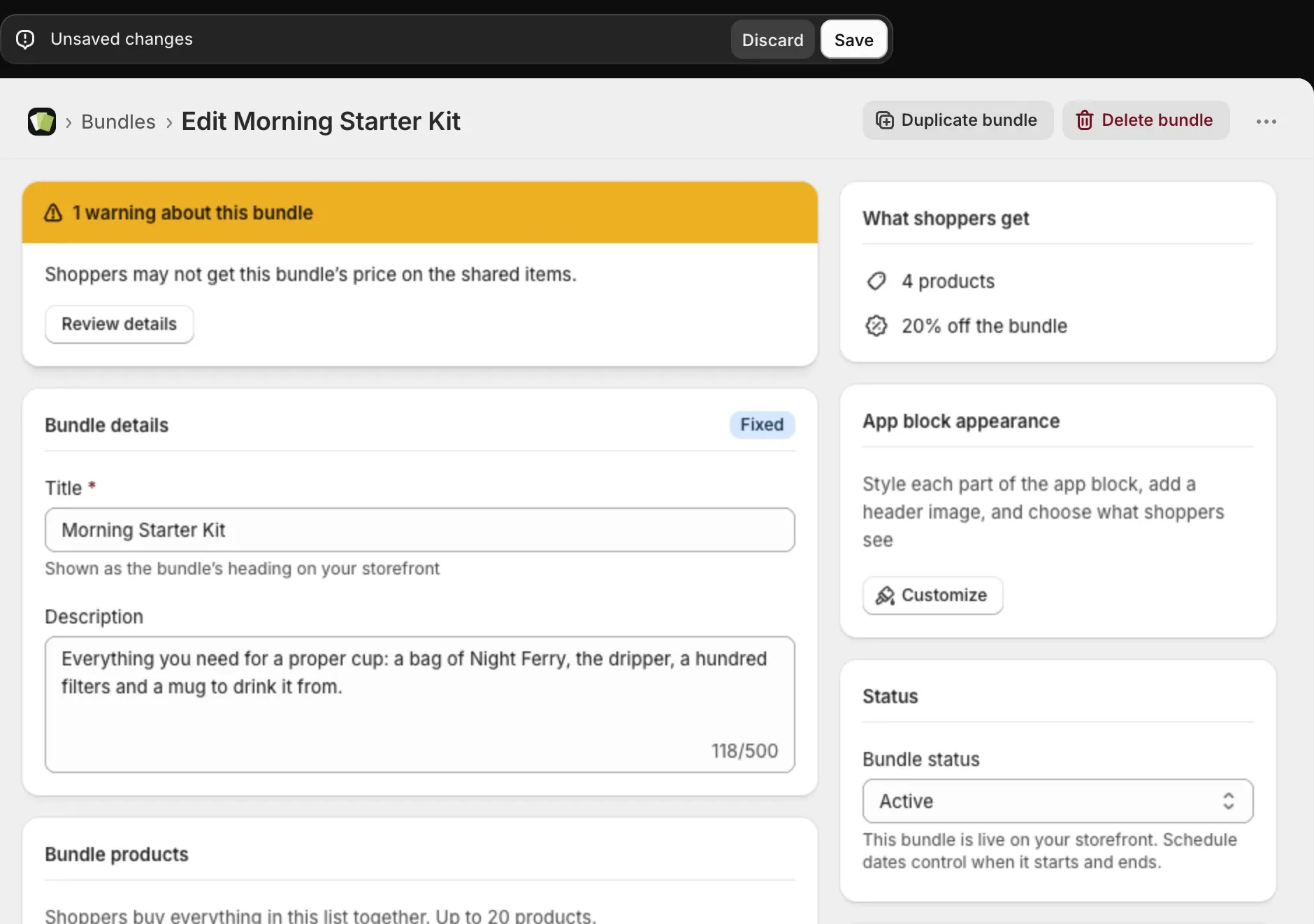
- In the Status card, set Bundle status to Active.
- Select Save.
The bundle now shows on the product page of every product in it.
Good to know
- You can’t set a quantity higher than the stock you have. See How stock affects your bundles.
- The What shoppers get card sums up the offer as you build it.
- You can save as Draft first and come back later. A draft is hidden from your store.
- To show the bundle on other pages too, see Choose where a bundle shows.