
Warnings on the bundle page explained
When the app spots something about a bundle that you should know, it shows a banner at the top of the bundle page. This guide explains each one and how to fix it.
Read the warnings
- Open the bundle.
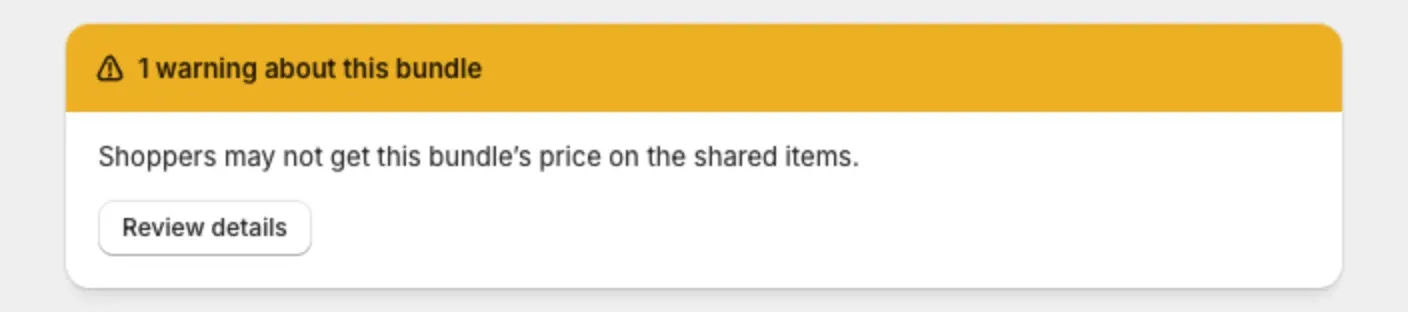
- Look at the banner at the top. It counts what it found, like “2 warnings about this bundle”.
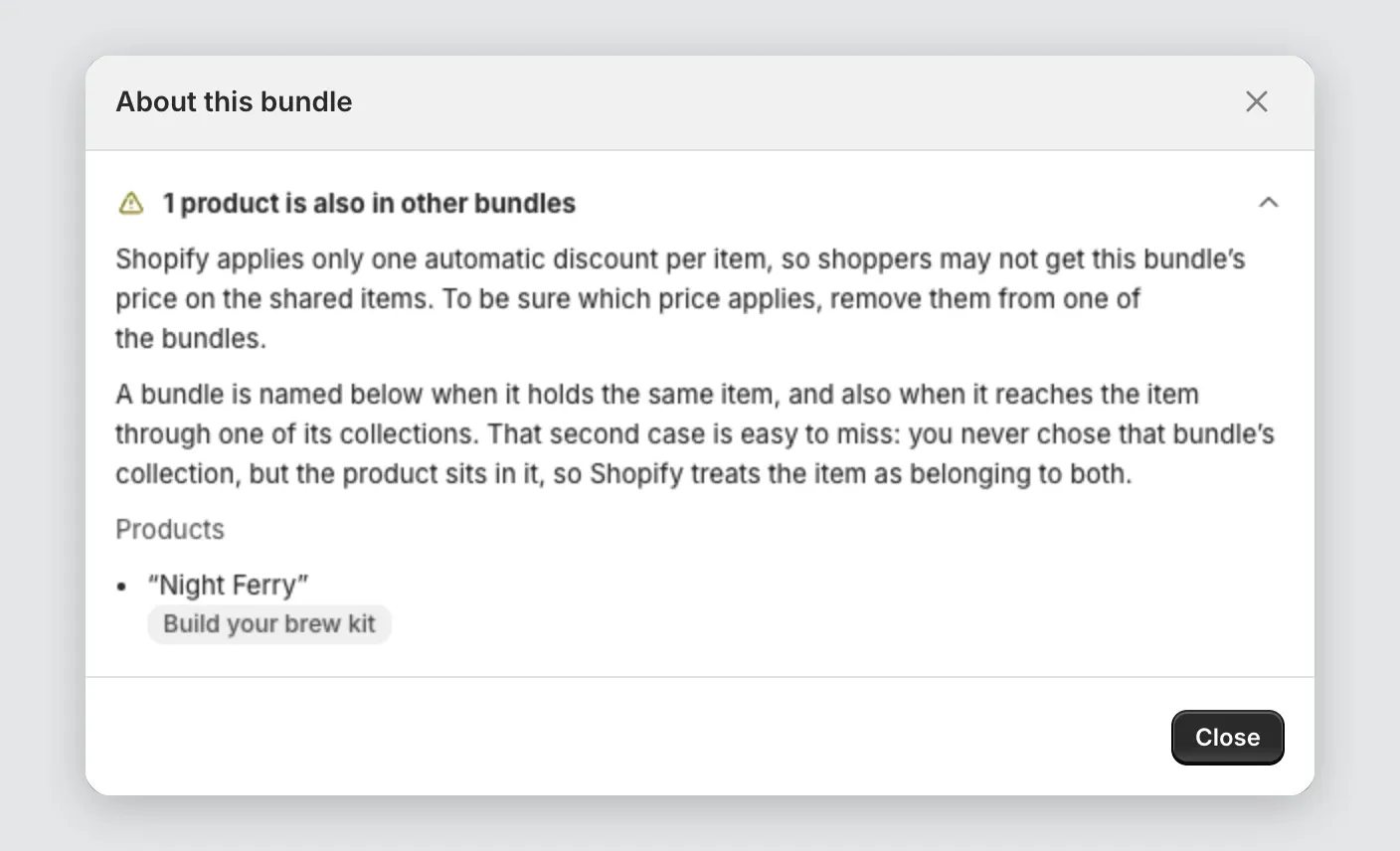
- Select Review details. The About this bundle window opens with each item explained.
There are two kinds:
- Warnings (amber): something is wrong and shoppers are affected.
- Things to know (blue): nothing is broken, but it helps to know.
Warnings don’t stop you from saving.
Shoppers can’t complete this bundle
The bundle asks for more items than shoppers can add. Nobody can check out with it.
The details list what each product can add, and why. Fix it by doing one of these:
- Add more products.
- Lower Items the shopper must add.
- Raise the maximums on your products.
- Restock products that are out of stock.
- Turn off Require different products.
On a multi-step bundle the warning names the step.
Some minimum quantities are larger than the bundle size
A product’s minimum is more than the whole bundle holds, so shoppers can never add it. Lower the product’s minimum, or raise the bundle size.
On a multi-step bundle this reads Some minimum quantities don’t fit any step. Lower the minimum, or raise a step’s maximum.
One item fills the whole bundle on its own
A product’s minimum is the same as the bundle size. A shopper who chooses it has no room for anything else. Lower the minimum or raise the bundle size if you want shoppers to mix.
Fewer products than the bundle size
The bundle asks for more items than it has products. Shoppers can still complete it by taking more than one of the same product. Add products if you want every item to be different.
Items in this bundle are out of stock
See How stock affects your bundles.
Some products in this bundle can’t be sold
See Fix a bundle that says “Can’t be sold”.
Products are also in other bundles
See When one product is in more than one bundle.
Two of your bundles in one cart will only get one discount
One of your bundles doesn’t combine with product discounts. See Discount combinations.
A product is already at 5 bundles
A product page shows up to 5 bundles. This bundle won’t appear on that product’s page. Set one of the product’s other bundles to Draft.
This collection has no products in it
You chose to show the bundle on a collection that is empty, so shoppers won’t see it anywhere. Add products to the collection, or choose another place in Where it shows.
New variants in Shopify aren’t in this bundle yet
See What happens when your products change in Shopify.