
How to add custom CSS
Custom CSS lets you change how your bundles look beyond what the editor offers. It applies to every bundle on your store.
This guide is for people who are comfortable writing CSS. For most changes, Customize is easier.
Add your CSS
- In Lime Bundles, go to Settings.
- Select Custom CSS.
- Enter your CSS in the CSS code field.
- Select Save.
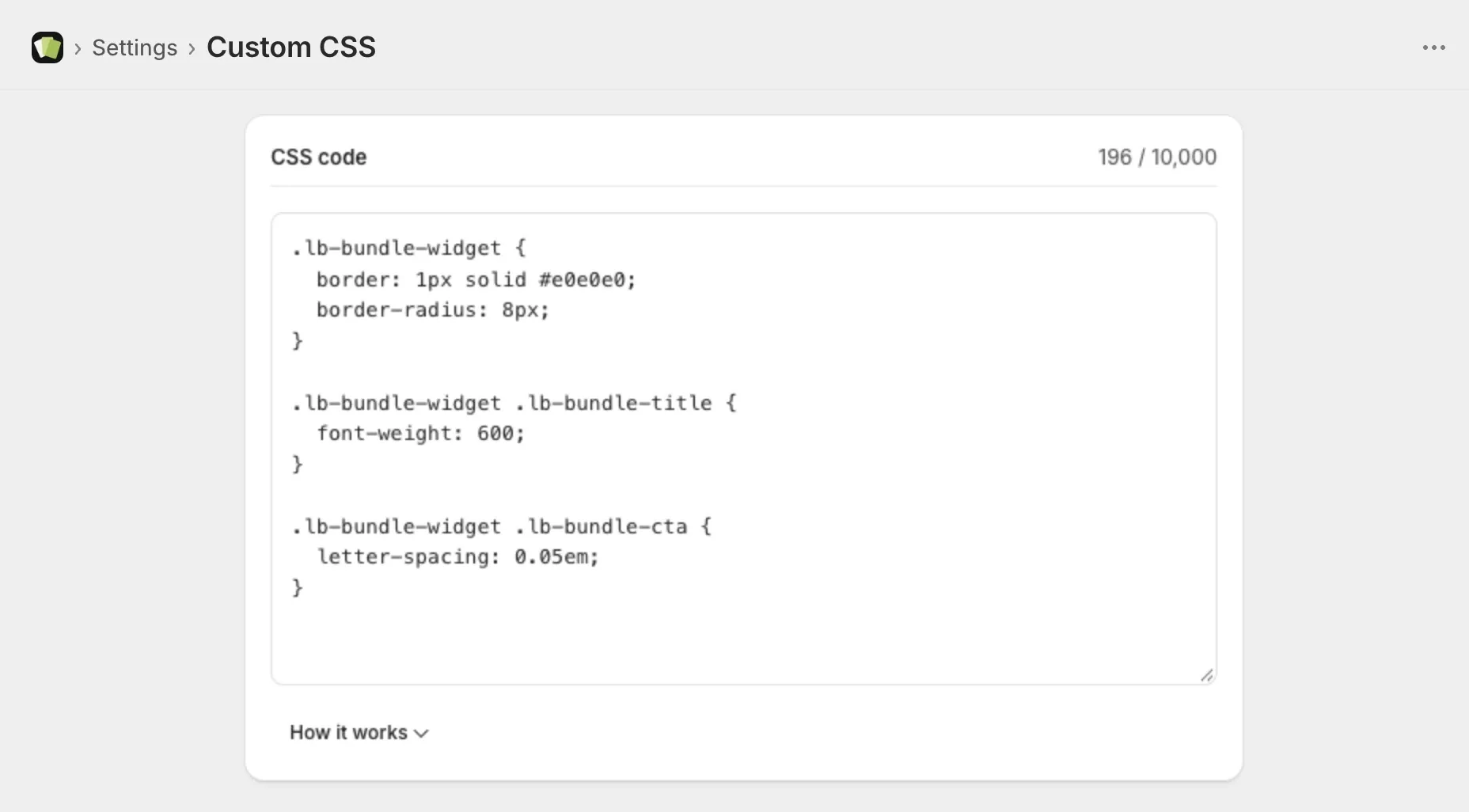
Changes can take up to 5 minutes to show on your store.
Target the bundle
Start your selectors with .lb-bundle-widget. This keeps your CSS inside the bundle, so it doesn’t change the rest of your store.
.lb-bundle-widget {
  border: 1px solid #e0e0e0;
  border-radius: 8px;
}

.lb-bundle-widget .lb-bundle-title {
  font-weight: 600;
}

.lb-bundle-widget .lb-bundle-cta {
  letter-spacing: 0.05em;
}
To find other class names, open a product page with a bundle, right-click a part of the bundle and choose Inspect.
The limits
- Your CSS can be up to 10,000 characters. The counter under the field shows how many you’ve used.
- Comments are removed when you save.
- The
<and>characters are removed when you save. Use a space between selectors instead of>.
What isn’t allowed
For security, these can’t be used. The page tells you which one to remove:
@importand@charsetexpression()behavior,-moz-bindingand-webkit-bindingurl()values that don’t start withhttps://or a relative path
Remove your CSS
- Go to Settings, then Custom CSS.
- Clear the CSS code field.
- Select Save.
On the Settings page, the Custom CSS row then reads Not set.
Good to know
- Editor settings can win. Colors and sizes you set in Customize may override your CSS. If a rule seems to do nothing, make the selector more specific.
- Class names can change. An app update may rename a class. Check your custom CSS after updates if something looks off.
- “CSS saved but couldn’t update your store.” Select Save again.