
Let shoppers choose options and pack sizes on a bundle product
On a bundle product, shoppers can choose things like a size, a color or a pack size on the product page. You decide what they can choose with the toggles on each product.
Let shoppers choose an option
- Open the bundle product in Lime Bundles.
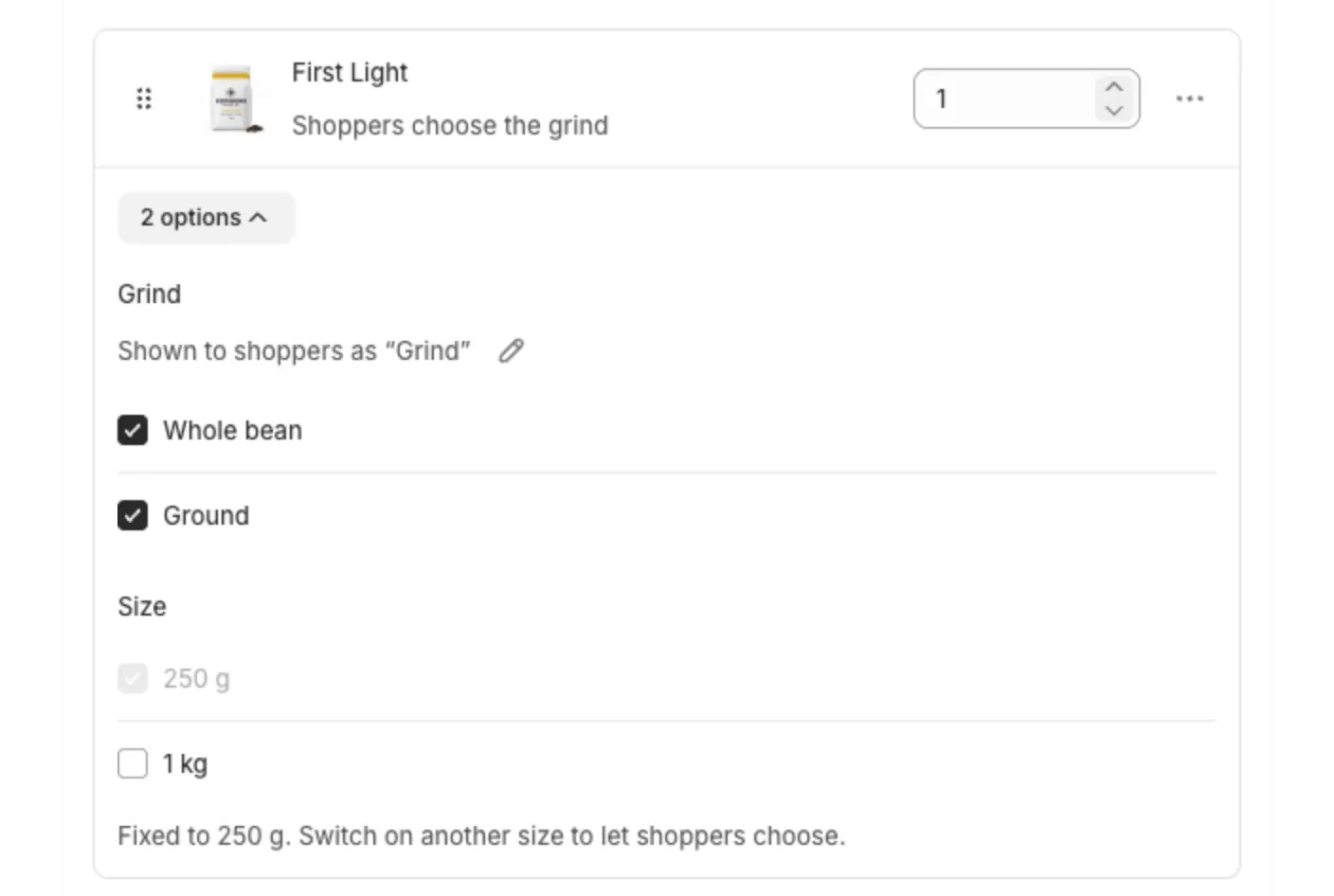
- In Bundle products, select the options toggle on a product, like 2 options.
- Tick the values shoppers can choose from.
- Two or more values ticked: shoppers get a picker on the product page.
- One value ticked: the bundle always includes that value. The note reads “Fixed to” with the value’s name.
You can’t untick the last value. Every product needs at least one.
Rename a picker
Shoppers see each picker under a name, like “Size”.
- Under the option, find Shown to shoppers as.
- Select the edit icon beside it.
- Enter the new name and select Save.
A picker name can be up to 50 characters.
Merge two pickers into one
Give two pickers the same name and they merge into one picker on the product page. This is useful when two products both have a “Size” and the shopper should choose once.
Merged pickers only offer the values both products share. If two pickers share fewer than two values, shoppers have nothing to choose, and the app asks you to give them different names.
Offer pack sizes
Pack sizes let shoppers choose how many they get, like a two-pack or a three-pack.
- On the product’s row, open the menu and select Offer pack sizes.
- The dialog opens with Two-pack and Three-pack ready. Change the Name and Quantity of each as you like.
- Select Add pack size to add another.
- Select Save.
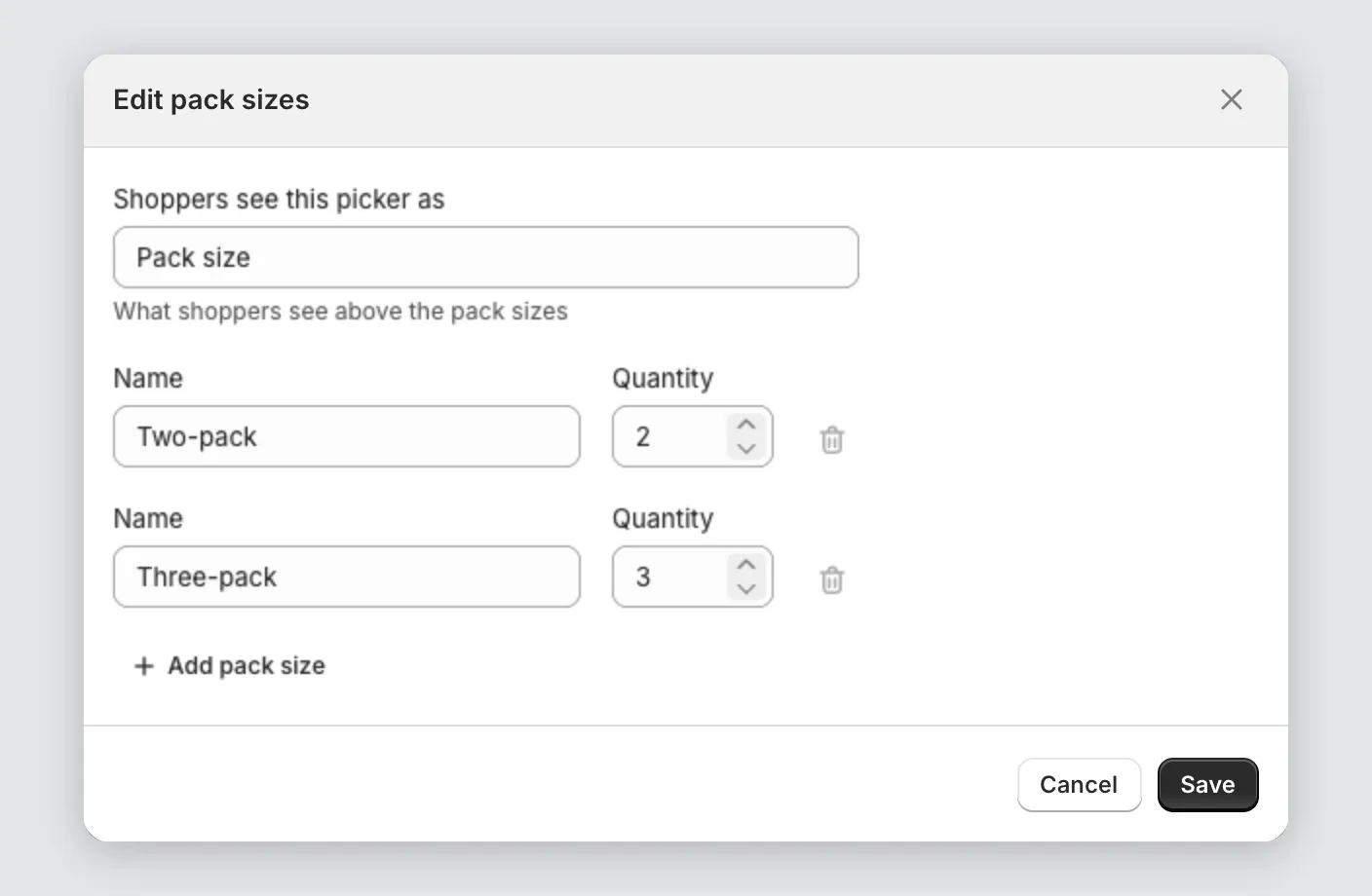
The row now shows a line like 2 pack sizes. Select the edit icon beside it to change them.
Each pack prices itself from the bundle’s discount rule. A three-pack holds more, so it costs more than a two-pack without you entering a second price.
To go back to a single quantity, open the menu and select Use a fixed quantity.
The limits
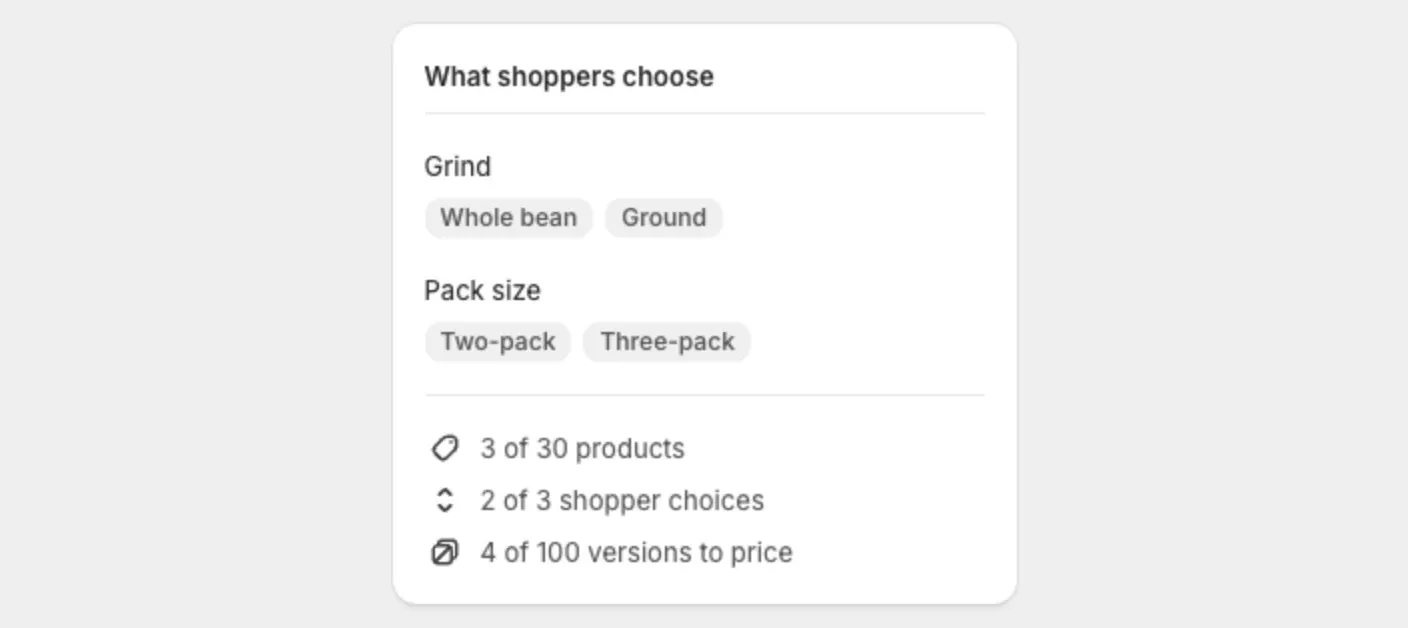
The What shoppers choose card counts three things as you build:
- Products: up to 30.
- Shopper choices: up to 3 pickers across the whole bundle.
- Versions to price: up to 100. A version is one combination of choices.
A counter turns amber when you pass its limit. Bring it back under the limit before you save.
More limits:
- Only one product in a bundle can offer pack sizes.
- A bundle can offer up to 10 pack sizes, and needs at least 2.
- A picker can offer up to 20 values.
- Charge an exact price isn’t available with pack sizes, because one price can’t be right for two pack sizes.
Too many choices?
- Untick values to reduce the versions.
- Fix an option to one value so it is no longer a choice.
- Merge two pickers by giving them the same name.