
When one product is in more than one bundle
You can put the same product in several bundles. It works, but Shopify has one rule you should know: only one automatic discount applies to each item in the cart.
This guide explains what that means for shoppers and how to avoid surprises.
What the app tells you
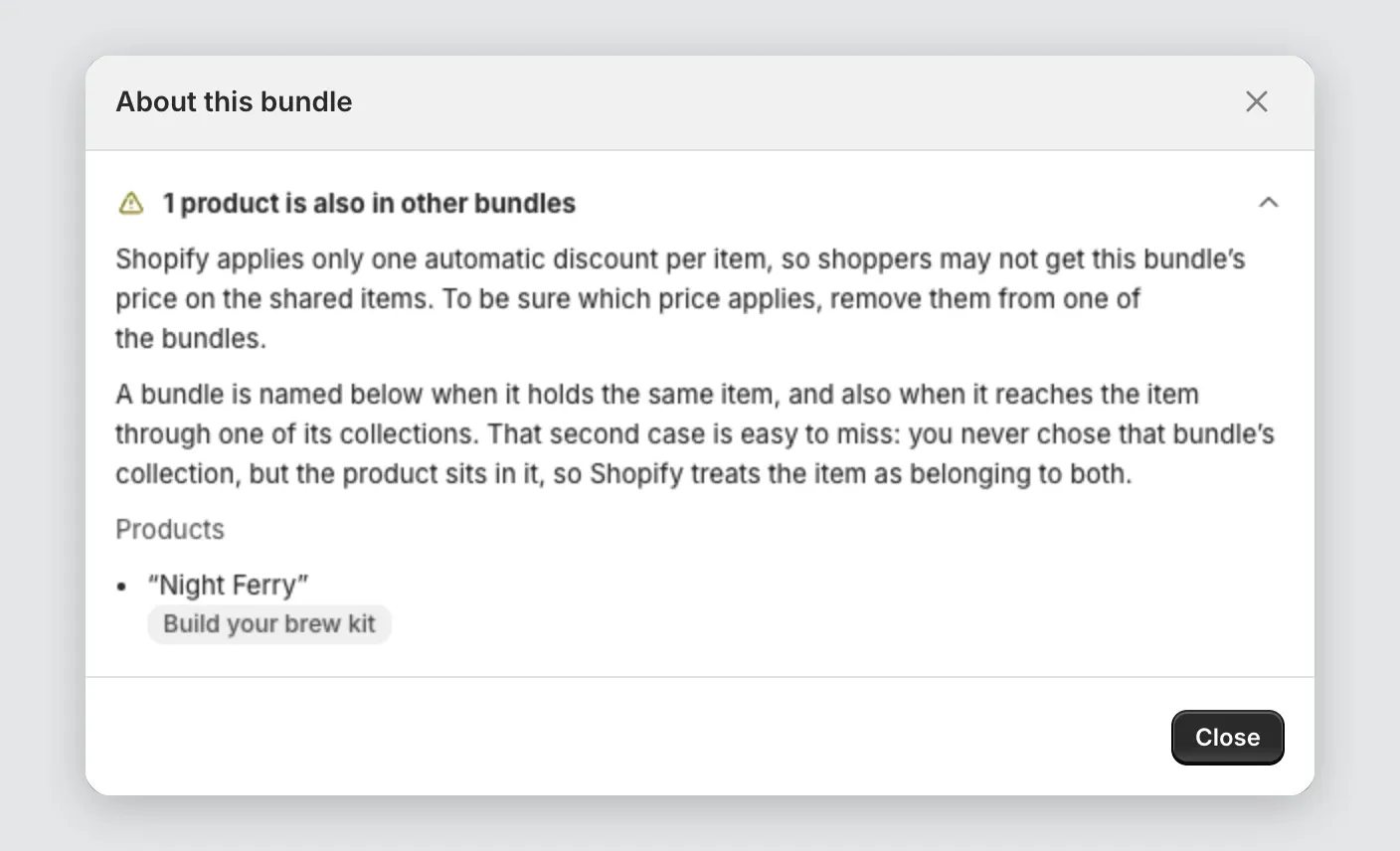
When a product or collection in your bundle is also in another bundle, the bundle page shows a notice like 2 products are also in other bundles. Each product’s row also reads “Also in 1 other bundle”.
Select Review details to see which bundles share which products.
What happens at checkout
When an item qualifies for two bundle discounts, Shopify keeps the larger one and drops the other.
Example. A candle is in “Relax set” (10% off) and “Gift set” (20% off). A shopper adds both bundles. The candle gets 20% off, not both.
The result: a shopper who adds both bundles can pay less on the shared items than your store showed. They never pay more.
The collection case
A bundle can reach a product in two ways: you selected the product, or you selected a collection that holds it.
The second case is easy to miss. You never chose that product for the other bundle, but it sits in the bundle’s collection, so Shopify treats it as part of both. The app checks for this and names the bundle.
When the price can differ from what your store showed
This matters most when two bundles share products and discount at different rates. A cart with only one of your bundles in it can then qualify for the other bundle’s discount too.
To keep the price on your store and the price in the cart the same, do one of these:
- Remove the shared product from one of the bundles.
- Give both bundles the same discount rate.
- Use a product in one bundle only. For bundles built from collections, make sure the collections don’t overlap.
Make two bundles work in one cart
Two bundles with no shared products can both keep their discount in one cart. Both need Product discounts ticked.
- Open each bundle.
- In the Discount section, select the edit icon beside Combine with other discounts.
- Tick Product discounts.
- Select Save.
New bundles have this ticked already. See Discount combinations.
Good to know
- Draft bundles don’t compete. Only active bundles can apply a discount.
- Bundle products aren’t part of this. They have no discount, so they never compete with your other bundles.
- This rule comes from Shopify and applies to every app that creates discounts.