
Bundle statuses explained
Every bundle has a status badge in your Bundles list. The badge tells you whether shoppers can see and buy the bundle, and what to do if they can’t.
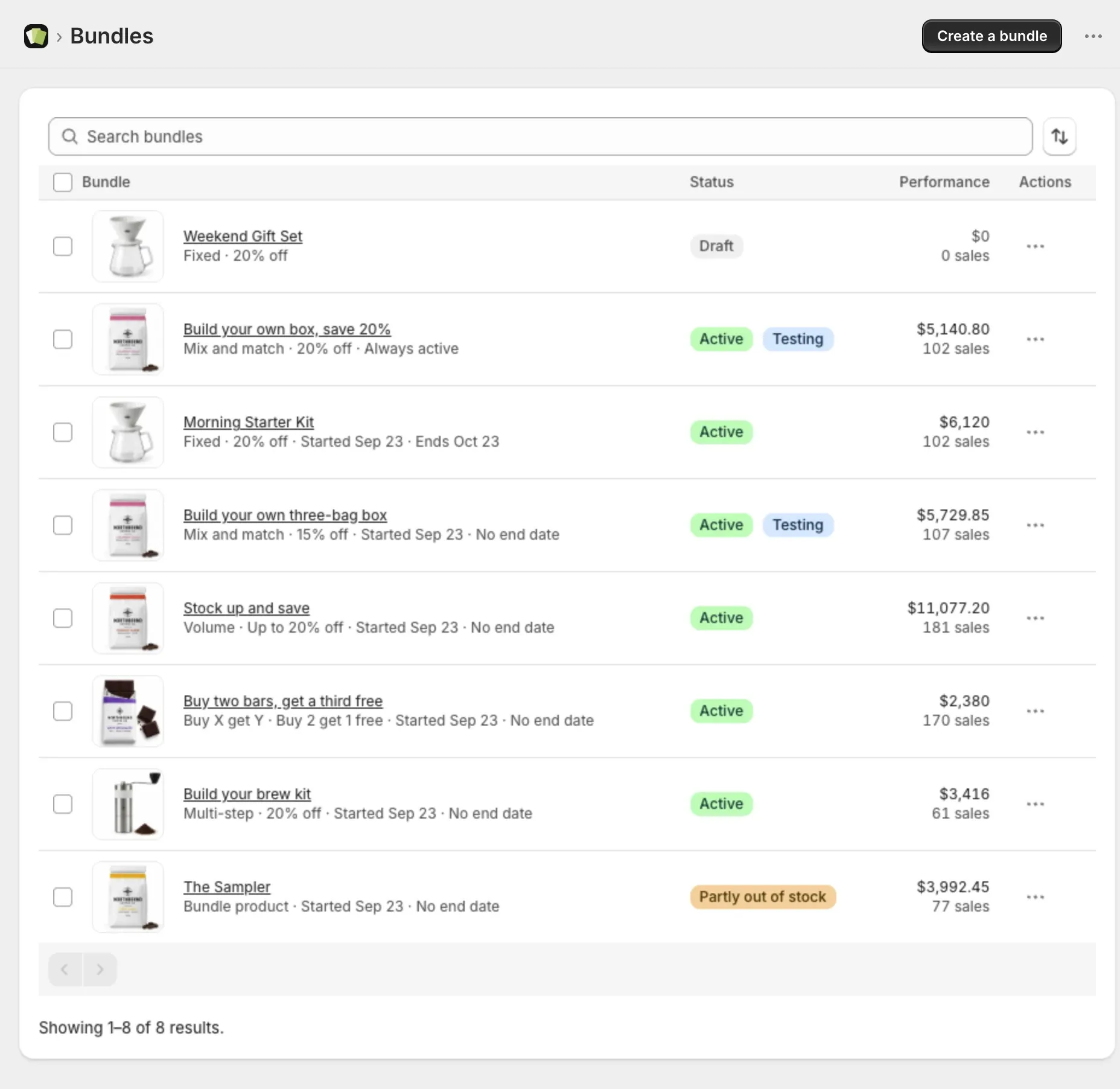
Statuses you set yourself
In the Status card, Bundle status has two choices.
Active
The bundle is live. Shoppers can see it and buy it.
Draft
The bundle is hidden from your store. Set it to Active when you’re ready.
Statuses from the schedule
Scheduled
The start date hasn’t arrived. The bundle goes live on its own.
Expired
The end date has passed. Shoppers can’t see the bundle. To bring it back, change or clear the end date in the Schedule card. See How to schedule a bundle.
Statuses the app sets for you
You can’t choose these. The app sets them on its own.
Inactive
The app switched the bundle off and hid it. You’ll see this when:
- A product or collection the bundle needs was deleted, and the bundle no longer has enough products.
- A bundle product’s own product is set to draft or archived in Shopify. Shopify archives it when you uninstall Lime Bundles.
To bring it back, open the bundle, check its products, set Bundle status to Active and save. On a bundle product, this makes its product active in Shopify again too.
Out of stock
Some of the bundle’s items ran out, so the app hid the bundle. It comes back on its own when you restock, usually within minutes. See How stock affects your bundles.
Partly out of stock
Only bundle products show this. Some versions of the bundle can’t be built from your stock, and the others are still selling.
Can’t be sold
Your stock is fine, but Shopify can’t sell one of the items for another reason. Open the bundle to see which item and why. See Fix a bundle that says “Can’t be sold”.
Sync failed
Something the bundle depends on changed in Shopify, like a deleted product or discount. Open the bundle and select Save to repair it. See Fix a bundle that says “Sync failed”.
Paused
Your store passed its plan’s monthly bundle sales limit. Upgrade to resume right away, or your bundles resume at the start of next month. See What happens when you pass your plan’s sales limit.
Why the Status card is sometimes locked
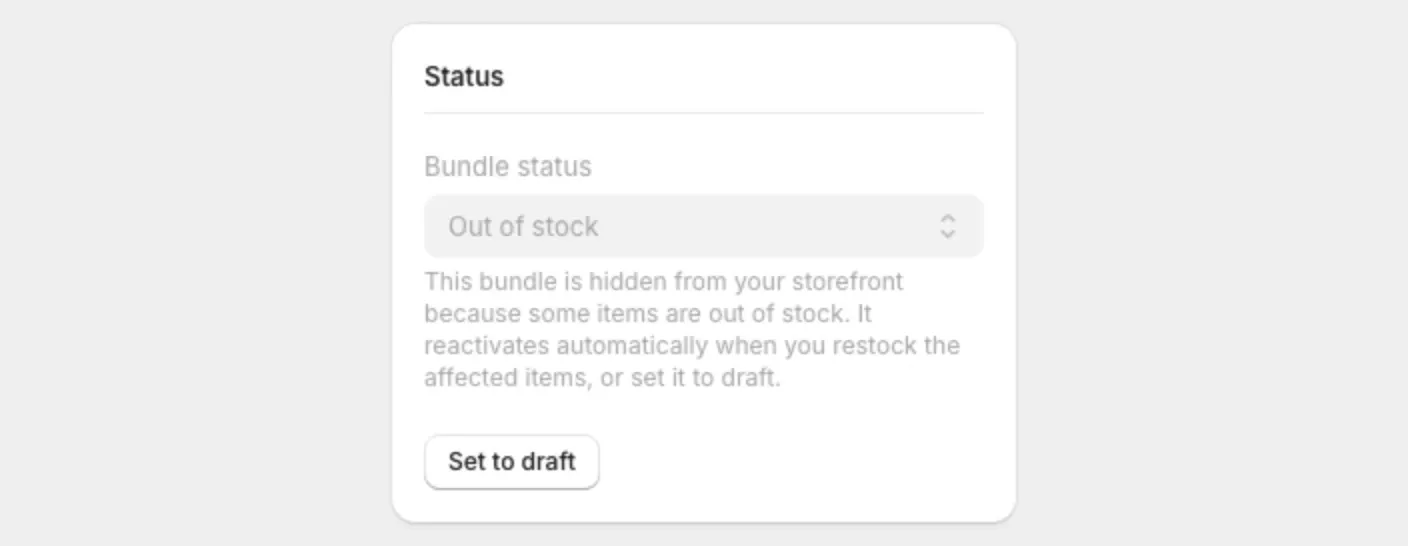
When a bundle is Out of stock, Can’t be sold or Paused, its Bundle status field is locked. The app is holding the bundle for you and will bring it back on its own.
You can still:
- Edit and save the bundle. It keeps its status.
- Select Set to draft to take it out of the app’s hands. It then stays hidden until you set it to Active yourself.
Testing
A Testing badge next to a bundle means it is in a running A/B test. See Test two versions of a bundle.
Hidden by rollout
A Hidden by rollout badge next to a bundle means a Shopify rollout is turning its discount off for some shoppers, so Lime Bundles hides the bundle from everyone until the rollout ends. Nothing in the bundle needs to change. See Why a bundle isn’t showing on your store.
Discount ended
A Discount ended badge next to a Draft bundle means its discount was ended in Shopify, either by applying a rollout’s changes or on Shopify’s Discounts page. Lime Bundles set the bundle to Draft so shoppers aren’t shown a saving they wouldn’t get at checkout. To sell it again, set it to Active and save, which turns the discount back on. The badge goes once you save the bundle or change its status.