
Show a countdown timer on a bundle
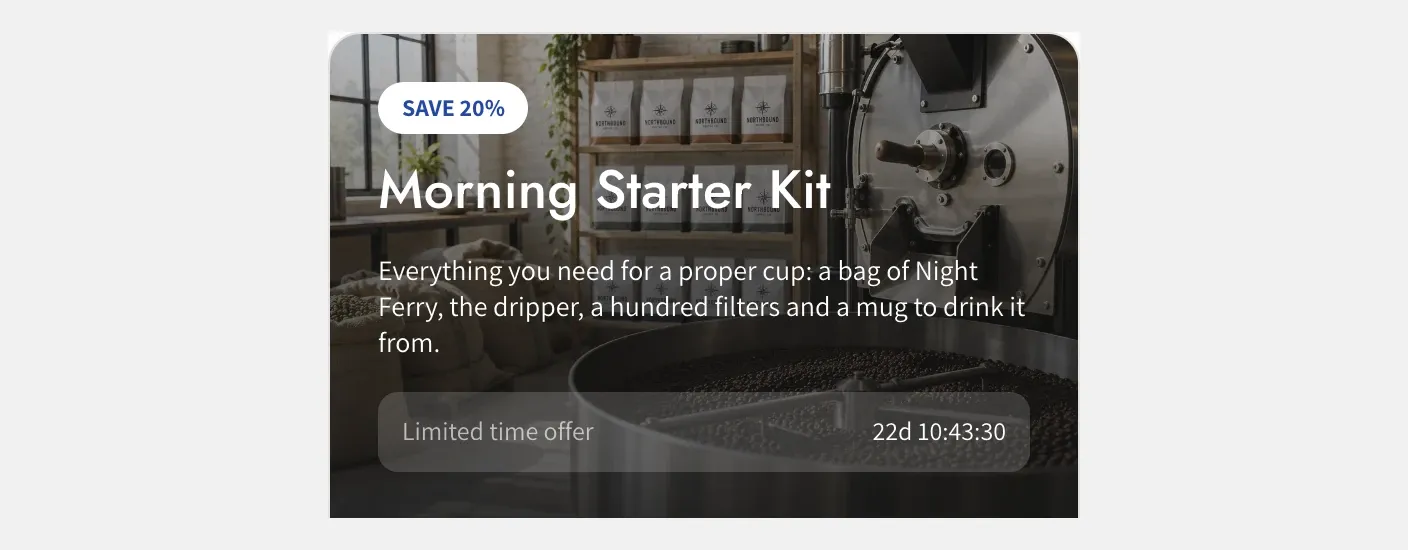
The countdown timer counts down to the moment your bundle ends. It only shows on bundles that have an end date, because without one there is nothing to count down to. If you added a Countdown timer block and it isn’t showing on your storefront, the bundle most likely has no end date yet.
Set an end date
- Open the bundle in Lime Bundles.
- On the right, find the Schedule card and select Edit.
- Tick Set end date.
- Choose the End date. The End time fills in as 23:59 in your store’s time zone. Change it if you want the bundle to end at a different time.
- Select Done.
- Select Save.
The timer now shows in the bundle’s preview and on your storefront, counting down to that date and time. If you leave the start date blank, the bundle is live right away and only the end date is used.
When the countdown reaches zero
When the end date and time pass, the bundle ends. Shoppers can’t see it on your storefront any more, and its discount stops applying.
To bring the bundle back, open it, select Edit on the Schedule card, then either move the end date forward or untick Set end date. Select Done, then Save.
Add or move the timer
New bundles come with a Countdown timer block in the header. If yours was removed, or you want it somewhere else:
- Open the bundle and select Customize.
- In the list on the left, select Add block under the header or the footer and choose Countdown timer.
- Drag the block to reorder it, or use the up and down arrows.
- Select Save.
See How to add, move and hide blocks for more on blocks.
Change how the timer looks
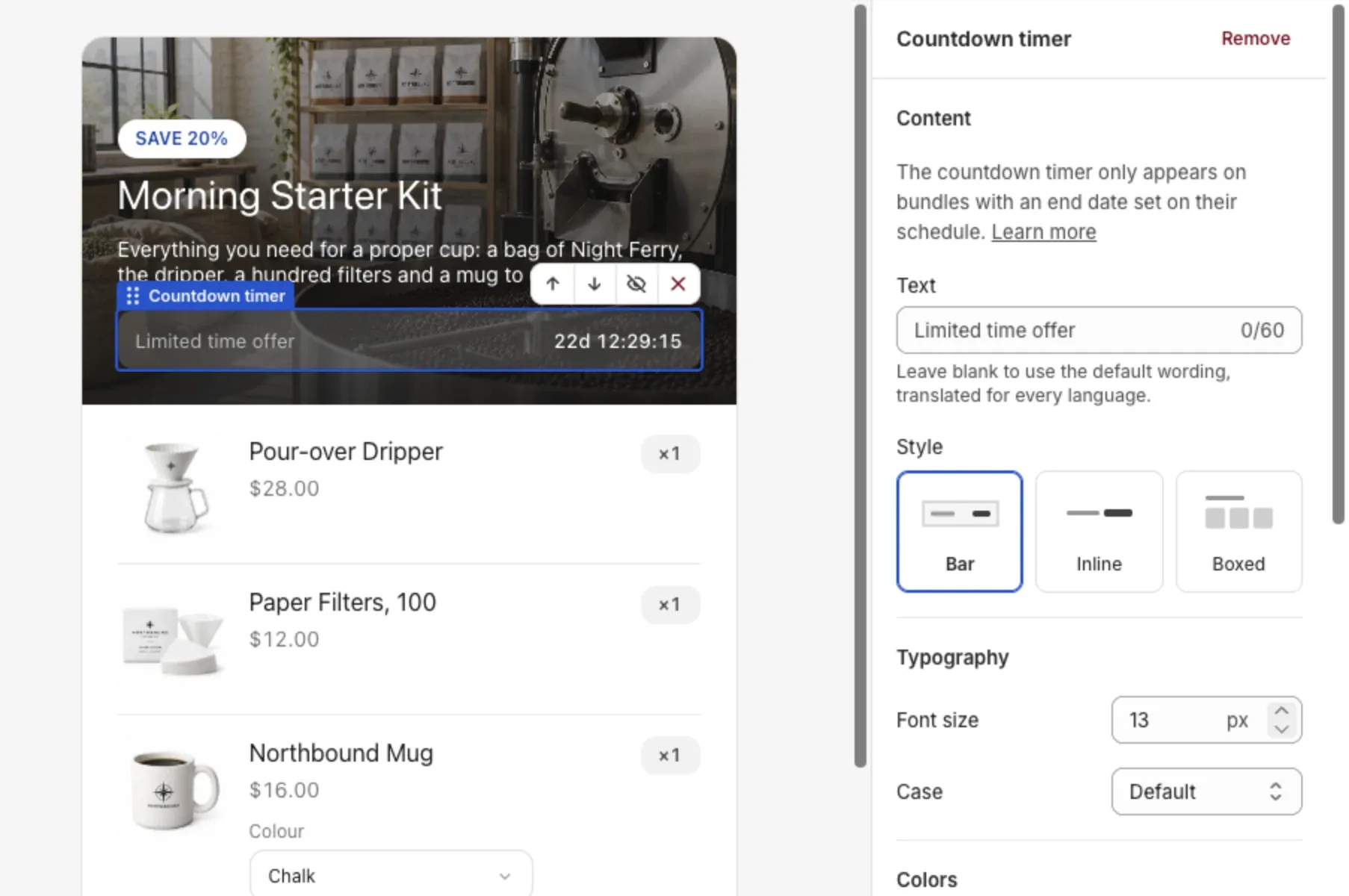
Select the Countdown timer block in the editor to see its settings:
- Text: the words shown next to the time, up to 60 characters. Leave it blank to use the app’s own wording, which is translated into every language your store sells in.
- Style: Bar shows the timer in a filled box, Inline puts the text and the time on one line with no box, and Boxed shows each unit of time in its own box.
- Typography: the font size and letter case.
- Colors: the text color, and the background and border colors for the Bar and Boxed styles.
- Layout: in the header, the timer follows the header’s text alignment. In the footer, it has its own alignment setting.
- Margin: the space above and below the block.
Good to know
- The timer shows days, hours, minutes and seconds, like 30d 06:58:17, and it updates every second.
- Times use your store’s time zone, which shows next to the End time field.
- The timer counts down to the same moment on every device, so shoppers in other time zones see the right time remaining.
- A bundle product has a Schedule card with a start date but no end date, so it has no countdown timer.