
How to test two versions of a bundle
An A/B test shows two versions of a bundle to different shoppers and tells you which one sells better. Use it to compare a discount, a title, a design or a set of products.
A/B testing is on fixed, mix and match, volume, Buy X get Y and multi-step bundles. Bundle products can’t be tested.
Step 1: Start a test
- Open a saved bundle in Lime Bundles. On a bundle you haven’t saved yet, the section is there but its buttons are greyed out.
- Scroll to the A/B test section.
- Choose how to start:
- Duplicate and test: the app copies this bundle as the challenger. The copy starts as a draft.
- Test against an existing bundle: choose another bundle you already have, then select Start test.
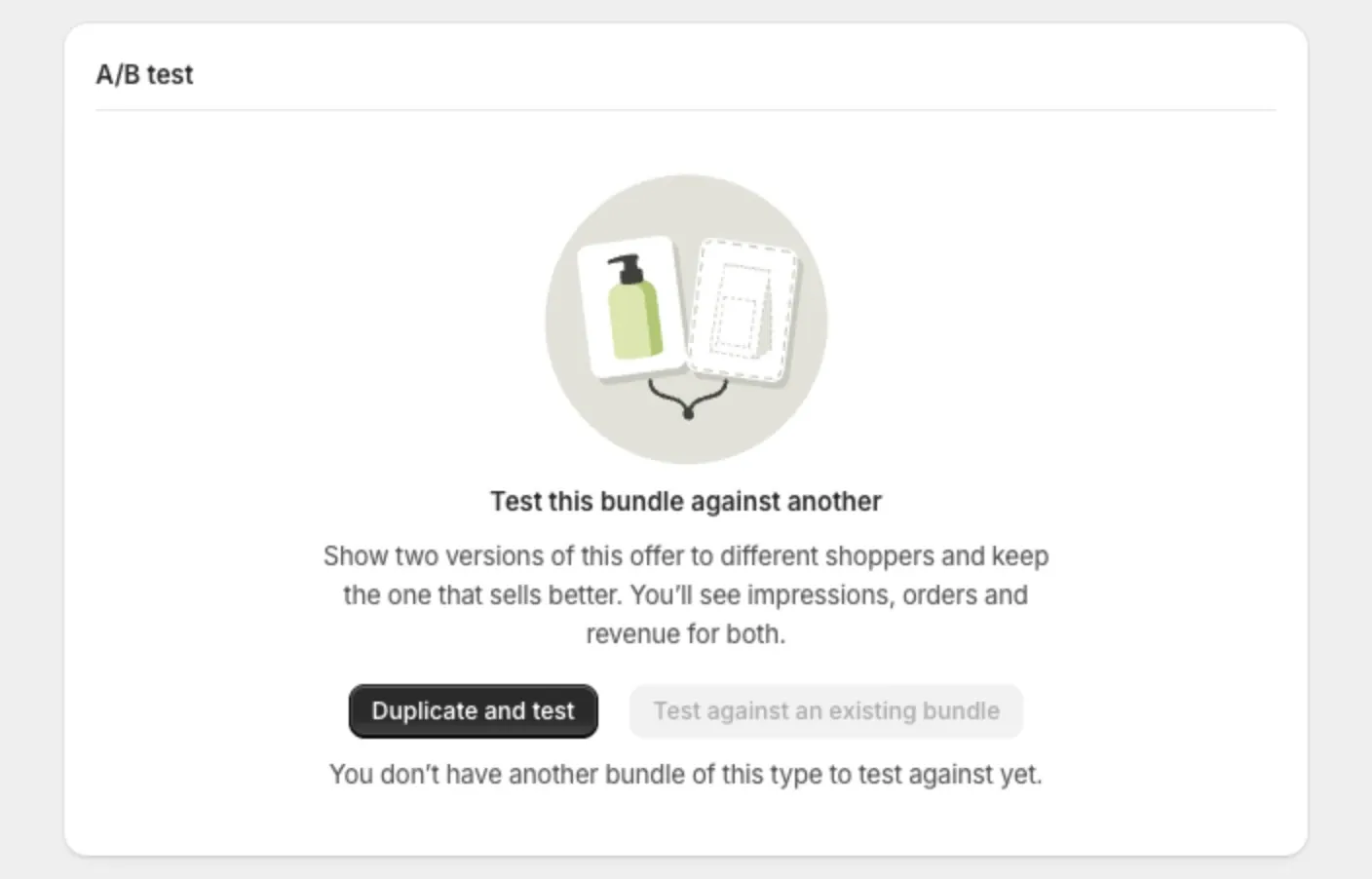
Both bundles must be the same type and share some products, so the comparison is fair.
Step 2: Change the challenger
If you chose Duplicate and test:
- Select Edit the challenger.
- Make the change you want to test, like a bigger discount.
- Set Bundle status to Active.
- Select Save.
Change one thing at a time. Then you know what made the difference.
Step 3: Set the traffic split
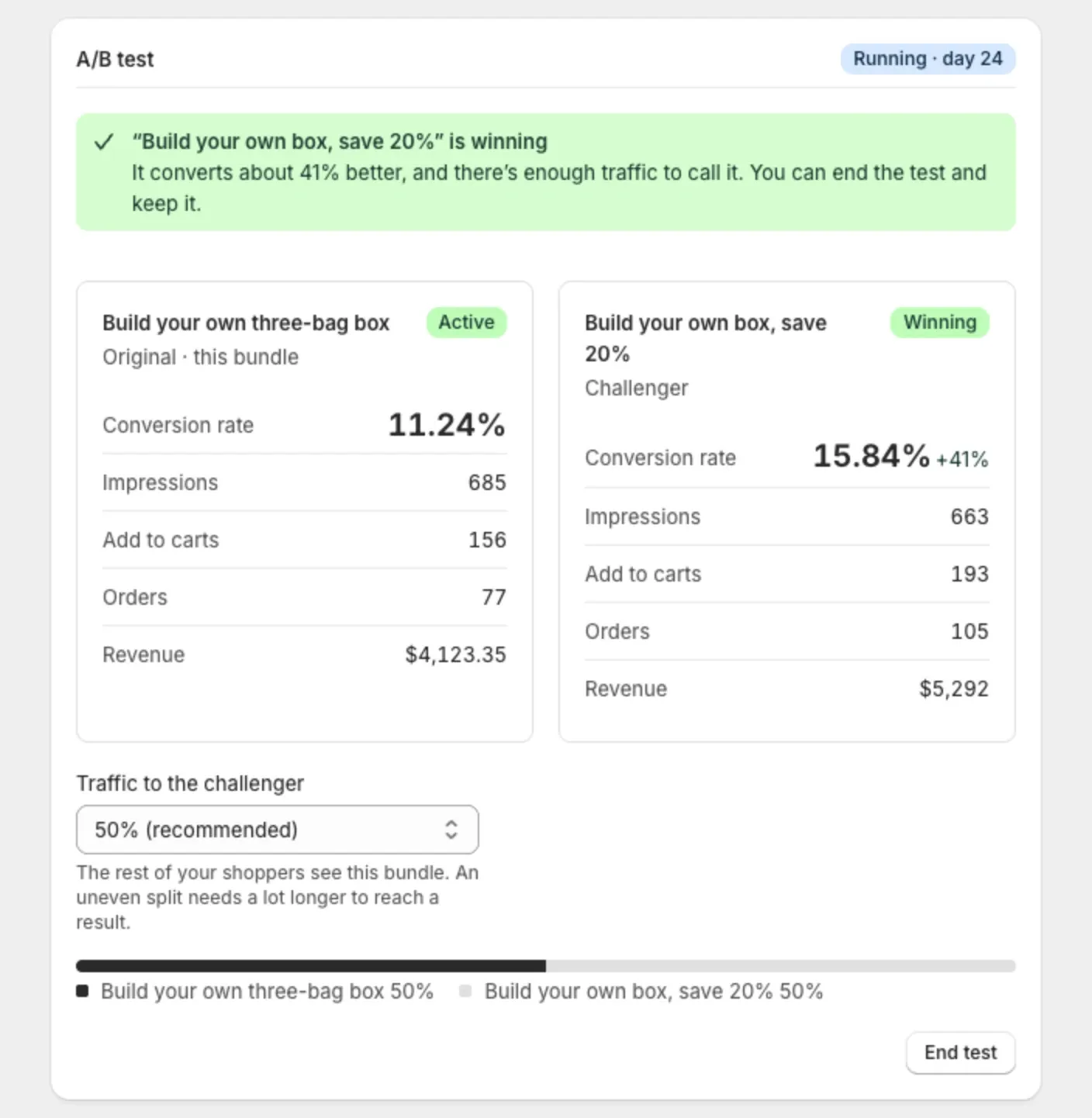
Under Traffic to the challenger, choose how many shoppers see the challenger: 10%, 20%, 30%, 40% or 50%. The rest see the original.
50% is recommended. An uneven split takes a lot longer to reach a result.
The test starts on its own when both bundles are Active.
Step 4: Watch the results
The A/B test section shows both versions side by side, with Impressions, Add to carts, Orders, Revenue and Conversion rate.
The message above the numbers tells you where the test stands:
- Not enough data yet: keep the test running.
- ”…” is ahead so far: one version leads, but it is too early to call.
- ”…” is winning: there is enough traffic to call it.
- The two versions are performing the same: there is no real difference. Try a bigger change.
Give a test at least 14 days, so weekday and weekend shoppers both count.
Step 5: End the test
- Select End test.
- Under What should keep selling?, choose:
- Keep the original or Keep the challenger: the winner keeps selling. The other moves to draft, so nothing is lost.
- Keep both: both stay active and stop splitting traffic.
- Confirm.
The results stay on the bundle until you start a new test.
Good to know
- Each shopper keeps seeing the same version for the whole test.
- The A/B test section applies right away. You don’t need to save the bundle to start or end a test.
- A bundle can be in one test at a time.
- While a test runs, the discount only applies to bundles added through the bundle on your store. A shopper who adds the same products one by one from the product pages pays full price. This is needed to measure the test fairly, and it ends with the test.
- A test ends on its own if one of the bundles is deleted, set to draft, or goes out of stock. The section tells you which.
- A bundle that has passed its end date can’t start a test. Give it a new end date first.