
Understand your bundle analytics
The Analytics page shows how your bundles are selling: how many shoppers see them, add them to the cart, and buy them.
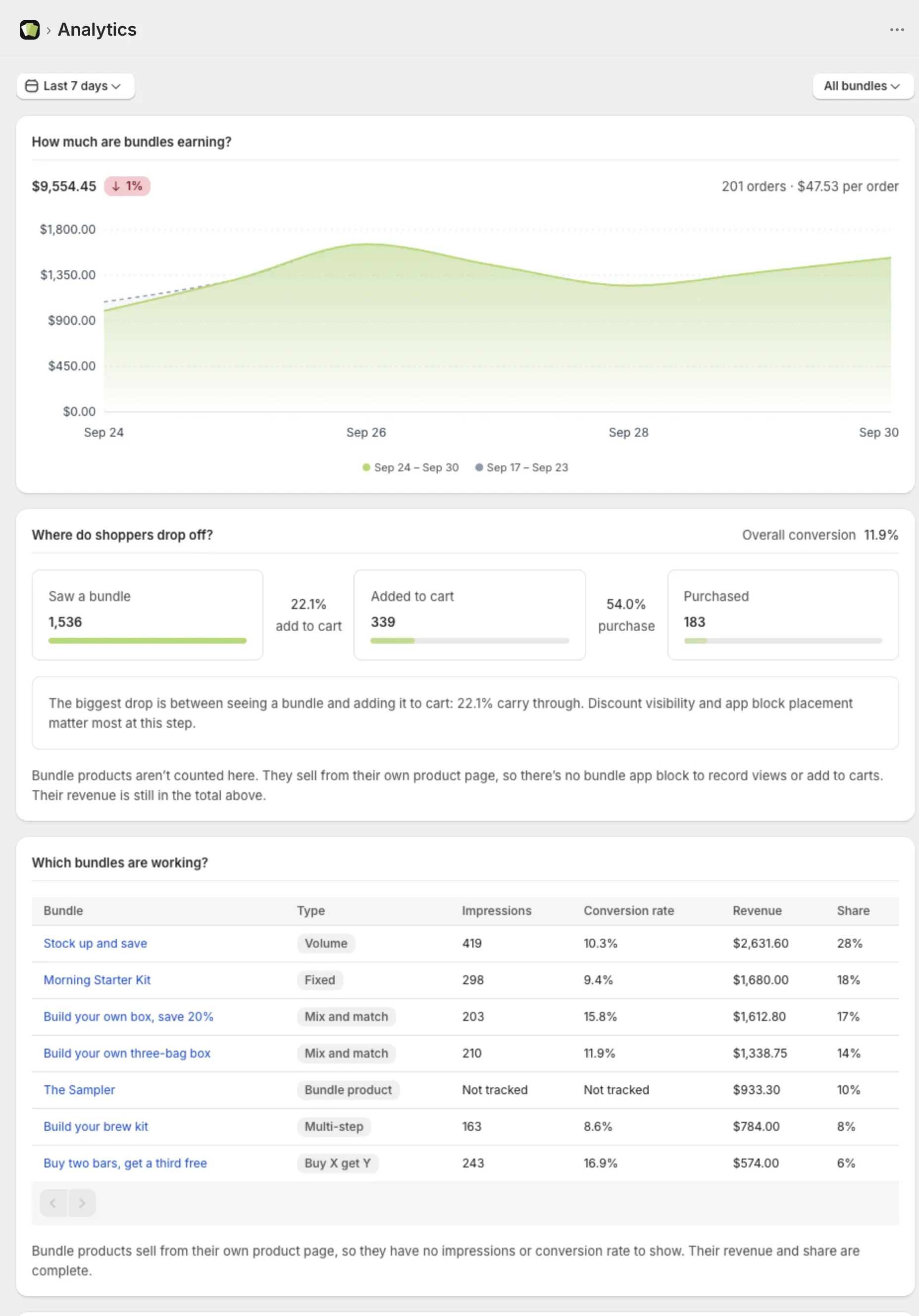
Open Analytics
In Lime Bundles, select Analytics.
To see one bundle only, open the bundle filter next to the date range and choose the bundle. The whole page then shows that bundle.
Choose a date range
- Select the date range at the top.
- Choose a range: Today, Yesterday, Last 7 days, Last 30 days, Last 90 days, Last 365 days or Custom.
- For Custom, pick the days on the calendar, or type the dates into Since and Until as year, month and day, like 2026-09-30.
- Select Apply.
Every range except Today ends yesterday. This matches Shopify’s own analytics. If you just placed a test order, choose Today to see it.
If a range has no activity but today does, the page says so and offers View today.
What the numbers mean
- Impressions: how many times a bundle was shown to a shopper. One is counted each time a page with the bundle loads, so the same shopper loading the page twice counts twice. A shopper who has declined analytics tracking in your store’s cookie banner isn’t counted.
- Add to carts: how many times shoppers added a bundle to their cart.
- Purchases: how many bundles were bought.
- Conversion rate: purchases divided by impressions.
- Revenue: what shoppers paid for your bundles, after discounts.
How much are bundles earning?
The chart at the top shows revenue over your date range, next to the period before it. Under it you see the number of orders and the average per order.
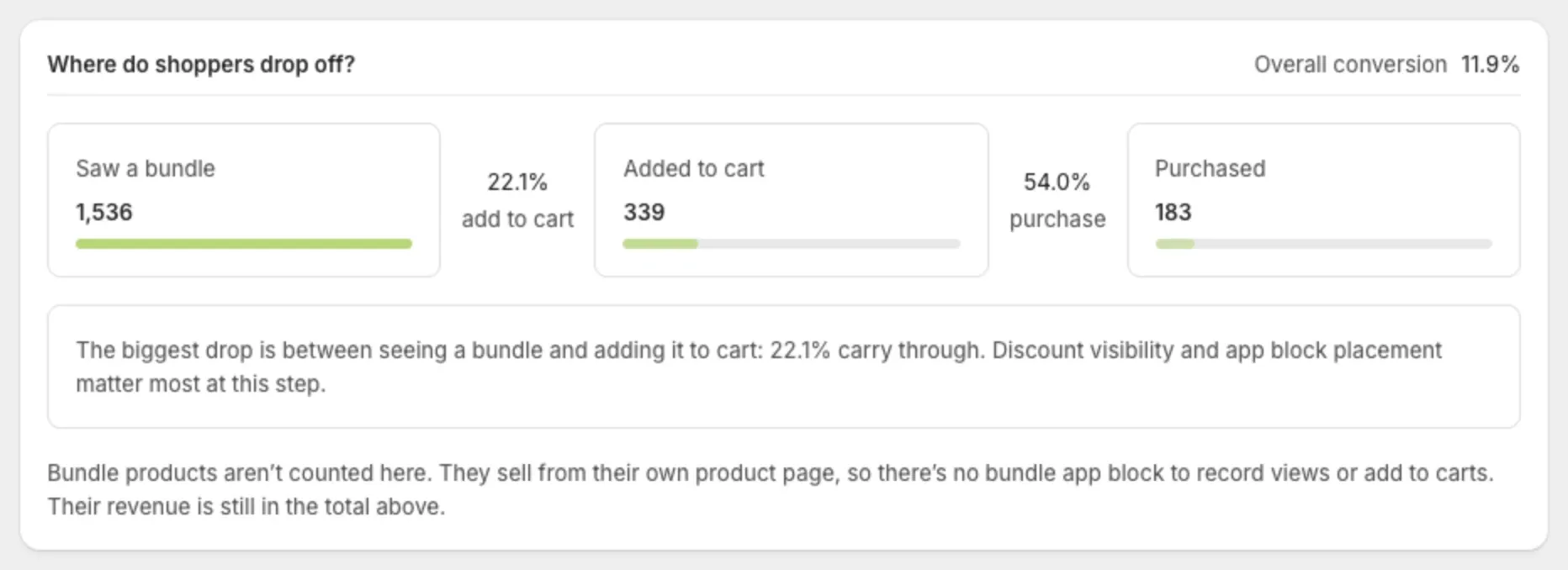
Where do shoppers drop off?
The funnel shows three stages: Saw a bundle, Added to cart and Purchased.
The note under it points to the biggest drop:
- A big drop between seeing and adding means shoppers aren’t convinced. Look at the discount and where the bundle sits on the page.
- A big drop between adding and buying points to checkout. Look at shipping costs.
Which bundles are working?
The table lists every bundle with its Type, Impressions, Conversion rate, Revenue and Share. Share is the bundle’s part of all bundle revenue in the period.
Select a bundle to see its own numbers.
Bundle products
A bundle product sells from its own product page, so there is no app block to count views or add to carts.
- Its Revenue and Purchases are complete.
- Its Impressions and Conversion rate read Not tracked.
- The funnel leaves bundle products out. The revenue total still includes them.
Deleted bundles
A deleted bundle’s past sales stay in your analytics. Its name shows with “(deleted)”.
A/B tests
A bundle in a test shows its test in the table. Select View test to see both versions. See Test two versions of a bundle.
Good to know
- Analytics on the bundle page. Each bundle page has a Performance card with its last 30 days.
- High traffic. In very busy periods some numbers are rounded. The page tells you when.
- Your plan. The revenue here is the same number your plan’s monthly limit is measured against.
- Testing on a development store. Shopify’s own reports leave out test orders. Lime Bundles’ analytics still count them.